
TiviMate Multiview: how to watch several channels at once
By TiviMatePremium.shop · Updated 28 October 2026
TiviMate Multiview lets you watch several channels at once on one screen, in the developer's own words. TiviMate does not publish how many windows it allows or the exact steps, so this post sticks to what is confirmed, then covers what you control: about 10 Mbps for every Full HD window, a fast device and a wired connection.
In short
- The developer confirms TiviMate Multiview plays multiple channels at once on a single screen; the window limit and menu steps are not published.
- Every window is its own stream: four Full HD windows need about 40 Mbps, four 4K windows about 100 Mbps.
- Use a box with 3GB to 4GB of RAM and Gigabit Ethernet for the smoothest TiviMate Multiview.
| What it does | Several channels on one screen |
|---|---|
| Official source | tivimate.com and Google Play |
| Window limit | Not published by TiviMate |
| Speed per Full HD window | About 10 Mbps |
| Best connection | Ethernet |
Short answer
TiviMate Multiview shows several live channels on one TV at the same time. tivimate.com describes it as "Watch different channels simultaneously on the same screen", and the Google Play listing as "Watch multiple channels at once on a single screen". The developer does not publish the window limit, the layouts or the exact menu steps. What decides whether it runs smoothly is on your side: about 10 Mbps for each Full HD window, enough RAM in the device, and ideally an Ethernet cable.
TiviMate Multiview is worth knowing on match days, when two or three games run at once. This post separates what the developer actually says from what is guesswork online, then gives you the numbers you can plan with: internet speed per window, the devices with the most headroom, and the fixes when one window starts to stutter. If you are new to the app, start with what TiviMate Premium is and how the free app and the paid upgrade differ.
What TiviMate Multiview is
TiviMate is an IPTV player: it plays a playlist from your IPTV service and arranges it into channels and a TV guide. Multiview is the feature that splits the screen so you can keep several of those channels playing side by side. The developer lists it on tivimate.com and in the app's Play Store description, next to the TV guide, catch-up, recording and multiple playlists.
Every window in TiviMate Multiview plays its own live stream, so two windows use roughly twice the bandwidth of one, and four windows four times as much. That simple rule explains almost every Multiview problem: it is rarely the app, and usually the connection or the device running out of headroom.
Like the rest of TiviMate, Multiview plays only what your playlist provides, because the app "does not provide any content". With our service you load an Xtream Codes login or an M3U link, as in our guide to adding a playlist in TiviMate, and every channel in it can go into a window.
What the developer confirms, and what it does not
Search for TiviMate Multiview and you will find confident claims about window counts and button presses. None of them come from the developer. TiviMate publishes no help pages or menu guide, so we only state what its own site and store listing say.
| Question | Answer | Source |
|---|---|---|
| Does TiviMate have Multiview? | Yes | tivimate.com and the Google Play listing |
| What does it do? | Several channels at once on a single screen | Google Play listing |
| How many windows? | Not published | No official page states a limit |
| Which layouts? | Not published | No official page lists them |
| Free or Premium? | Not published per feature | Check the app's Unlock Premium screen |
| Exact menu steps? | Not published | TiviMate has no help pages |
On the Premium question: TiviMate Premium is the app's paid upgrade, a yearly subscription or a one-time lifetime purchase sold only by the developer. The developer's site does not say feature by feature what Premium unlocks, so if Multiview does not appear on your device, open the app's Unlock Premium screen to see your status, as in our guide to activating TiviMate Premium. Our pages on TiviMate free vs Premium and how to buy TiviMate Premium cover the official route.
How to try TiviMate Multiview
Because TiviMate does not publish its menu names, we will not invent a button path. These steps get everything ready so that Multiview works the moment you open it, and tell you where to look.
- Update TiviMate from Google Play, or with Downloader code 272483 or tivimate.com/apk on a Fire TV, so you have the latest version.
- Add your playlist and let the TV guide load, as in our TiviMate EPG guide.
- Start a live channel, then look through the options TiviMate offers while it plays for Multiview.
- Add the other channels you want to watch, starting with two windows before you try more.
- If Multiview is missing, check your Premium status on the Unlock Premium screen.
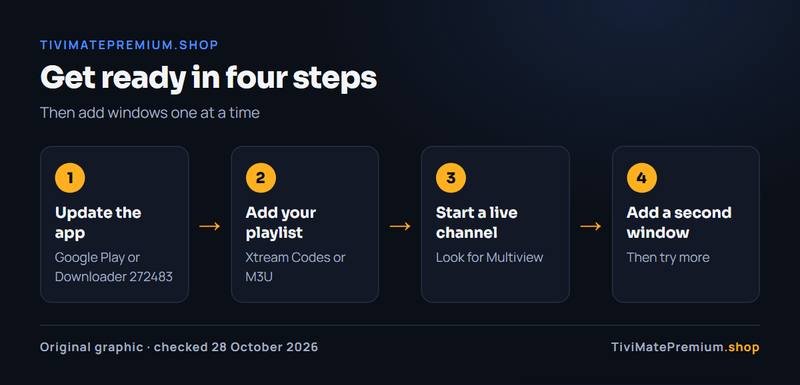
In short: update the app (Google Play or Downloader 272483), add your playlist (Xtream Codes or M3U), start a live channel and look for Multiview, then add a second window. Then try more, one window at a time.
Tip. Start with two Full HD windows. If both play smoothly for ten minutes, add a third. Jumping straight to four 4K windows is the fastest way to find the limit of your connection.
How much internet speed each window needs
On our service, one stream needs about 5 Mbps in SD, about 10 Mbps in Full HD and about 25 Mbps in 4K. TiviMate Multiview adds them up, so multiply by the number of windows and leave some spare for the rest of the house.
| Windows | SD | Full HD | 4K |
|---|---|---|---|
| 1 window | 5 Mbps | 10 Mbps | 25 Mbps |
| 2 windows | 10 Mbps | 20 Mbps | 50 Mbps |
| 3 windows | 15 Mbps | 30 Mbps | 75 Mbps |
| 4 windows | 20 Mbps | 40 Mbps | 100 Mbps |
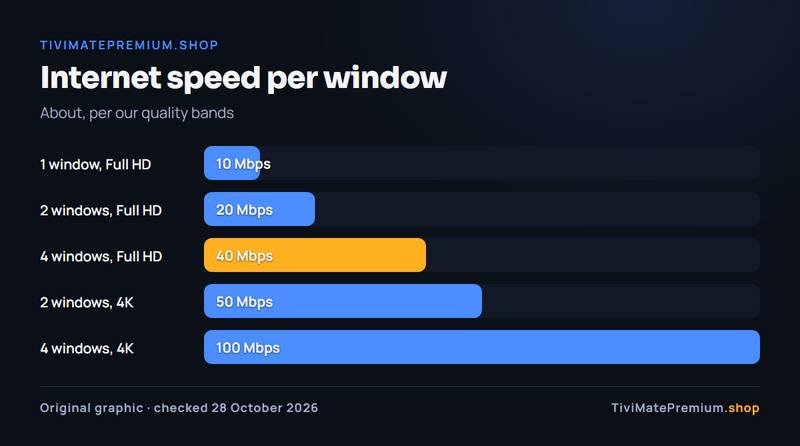
Measure the speed on the TV itself, not on your phone next to the router. Our IPTV speed test downloads a file from our own server and tells you how many Full HD and 4K streams your line carries at once. If the answer is lower than the windows you want, drop some windows to HD, or plug in a cable.
The best devices for several streams at once
Decoding several streams at once takes more work than one, so the device matters more for TiviMate Multiview than for normal viewing. TiviMate says the app "is designed for Android TV and remote control navigation", which points to a box or stick on the TV. The makers list these specs on their own pages.
| Device | RAM | Wired connection | System |
|---|---|---|---|
| Google TV Streamer | 4GB | Ethernet, 1Gbps | Google TV |
| Formuler Z11 Pro Max | 4GB DDR4 | Gigabit Ethernet | Android 11 |
| NVIDIA SHIELD TV Pro | 3 GB | Gigabit Ethernet | Android TV |
| Fire TV Stick 4K Max (2nd Gen) | 2GB | Only with an external adapter | Fire OS 8 |
The boxes with 3GB to 4GB of RAM and Gigabit Ethernet give TiviMate Multiview the most room. Our best Android TV box for TiviMate post compares them in detail. The Fire TV Stick 4K Max has 2GB of RAM and Ethernet only through an adapter, so it has less headroom than these boxes: start with two windows and add more only if playback stays smooth. Avoid the Vega OS sticks: the Fire TV Stick 4K Select, the Fire TV Stick HD (2026) (Wi-Fi 6, rounded corners, "Fire TV" printed on the stick) and the Fire TV Stick 4K - 3rd Gen (2026) (white box, "4K" printed next to the HDMI plug) cannot install TiviMate at all, as our best Firestick for TiviMate post explains.
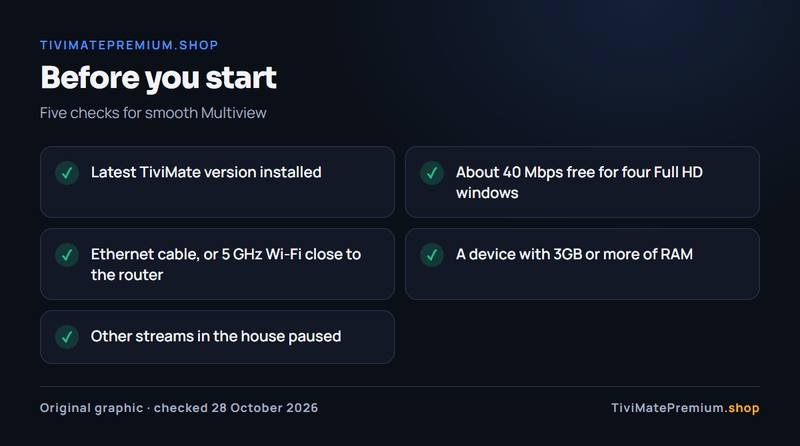
- Latest TiviMate version installed
- About 40 Mbps free for four Full HD windows
- Ethernet cable, or 5 GHz Wi-Fi close to the router
- A device with 3GB or more of RAM
- Other streams in the house paused
Multiview and your IPTV plan
Our plans are counted by screens: one device means one screen watching at a time, and plans cover one, two or three devices. TiviMate Multiview opens several streams on one TV, so before you rely on it for several channels at once on a regular basis, message us on WhatsApp with the plan you have and how you want to use it.
Every plan carries the same channels in 4K, FHD and HD, so you can mix qualities across windows to save bandwidth: the main game in Full HD and the others in HD, for example. Compare the options on our IPTV plans for TiviMate page. Every plan is billed once, with no auto-renew, and comes with a 7-day money-back.
TiviMate Multiview stutters: 6 fixes
If one window freezes or all of them buffer at once, work through these in order. The first two fixes are the quickest to try.
1. Close a window
Go back to one window fewer and watch for a few minutes. If the stutter stops, you have found your limit for that quality.
2. Plug in Ethernet
Google's own advice for streaming devices is to "Use an Ethernet adapter to connect your streaming device to your router". A cable removes the swings that Wi-Fi has when several streams run at once.
3. Move closer to the router
No cable? Google suggests you "Move your router to within 20 feet of your streaming device", and a 5 GHz connection carries more than 2.4 GHz.
4. Restart the router and the device
Google's first network fix is "Restart your modem or router." On Google TV, restart the device under Settings, System, Restart; on a Fire TV, under Settings, My Fire TV, Restart.
5. Clear TiviMate's cache
On Google TV, go to Settings, Apps, choose TiviMate and select Clear cache, per Google's help. On a Fire TV, go to Settings, Applications, Manage Installed Applications, TiviMate, Clear Cache.
6. Use lower quality in some windows
Swap one or two windows to an HD channel where your playlist has one. Our TiviMate buffering fixes and the best TiviMate settings go deeper on single-stream buffering.
Message us, and we guide you all the way to your first channel.
Daily support, usually within the hour.
Good ways to use several windows
Multiview earns its place on busy evenings. A few ideas that work well with an IPTV playlist:
- Match days: keep two or three games on screen and switch to the one that heats up.
- News and sport: a news channel in one window while a live event plays in another.
- Family evenings: a kids channel next to a film, on the same TV.
- Catching up: combine a live channel with a programme you missed, using TiviMate catch-up and recording.
Set up the device first with our TiviMate on Firestick guide or the Android TV setup guide, and if Premium features stop showing, our TiviMate Premium not working fixes help.
Multiview questions
How many channels can TiviMate Multiview show at once?
TiviMate does not publish a limit. Its site and Play listing only say Multiview plays multiple channels at once on a single screen. In practice your internet speed and device set the limit: each Full HD window needs about 10 Mbps on our service.
Is TiviMate Multiview free or Premium?
The developer does not say feature by feature what Premium unlocks. If you cannot find Multiview, open the app's Unlock Premium screen to check your status. Premium is sold only by the developer, on tivimate.com and in the TiviMate Companion app.
Why does one Multiview window buffer while the others play?
Usually the connection is close to its limit, so the last stream to start runs short. Close one window, switch it to HD, or plug in Ethernet. Our IPTV speed test shows how many streams your line carries. As a guide, four Full HD windows need about 40 Mbps, so check that figure before you open the fourth window.
Does TiviMate Multiview work on a Fire TV Stick?
TiviMate installs on Fire OS models such as the Fire TV Stick 4K Max. With 2GB of RAM and no built-in Ethernet, start with two windows and add more only if playback stays smooth. Vega OS sticks cannot install TiviMate.
Do I need a faster plan for Multiview?
Every plan has the same channels in 4K, FHD and HD; plans differ by screens and length. What Multiview needs is internet speed. Before relying on several streams at once, message us on WhatsApp with your plan, and compare our IPTV plans for TiviMate.
Sources
Official pages we checked for the facts on this page, on 28 October 2026.
- tivimate.com (official TiviMate site, feature list)
- TiviMate IPTV Player on Google Play (app description)
- TiviMate terms of use (Premium plans)
- Google TV Streamer technical specifications (Google)
- NVIDIA SHIELD TV Pro specifications (NVIDIA)
- Formuler Z11 Pro Max specifications (Formuler)
- Fire TV streaming media player specifications (Amazon)
- Fix Wi-Fi connection problems on streaming devices (Google)
- Fix problems with Google TV (Google)
- Clear an app's cache on Google TV (Google)
- Clear app cache on Fire TV (Amazon help)
Ready for more than one channel?
Plans from $4.16/mo · Billed once, no auto-renew · 7-day money-back