
How to add a playlist in TiviMate
By TiviMatePremium.shop · Updated 28 October 2026
To add a playlist in TiviMate, open the app, start a new playlist, choose Xtream Codes and type the server URL, username and password from your IPTV login, then let the channels and TV guide load. An M3U link works too, but Xtream Codes is shorter to type and brings the guide with it. It takes about 3 minutes.
In short
- Xtream Codes is the easiest format: three short fields, and the TV guide comes with it.
- An M3U link also works; if its guide stays empty, switch to Xtream Codes.
- Most login errors come from a typo or a stray space, not from the server.
| Time needed | About 3 minutes |
|---|---|
| Formats | M3U, Xtream Codes, Stalker Portal |
| Best choice | Xtream Codes |
| You need | Your login message |
| Works on | Android TV, Google TV, Fire OS |
The short answer
Choose Xtream Codes, type three fields, wait two minutes. That is all it takes to add a playlist in TiviMate on a TV box or stick. TiviMate supports three playlist formats, M3U, Xtream Codes and Stalker Portal, and our service sends you an Xtream Codes login and an M3U link, so you can use either.
TiviMate is a player only: it comes with no channels, and the playlist is what fills it. The steps below work the same on Google TV, Android TV, NVIDIA SHIELD and Fire TV models that run Fire OS. If the app is not installed yet, start with the IPTV setup guides for your device and come back. All our TiviMate guides assume you begin from the free app.
Xtream Codes vs M3U vs Stalker Portal
The developer lists three supported formats on the Google Play page: M3U, Xtream Codes and Stalker Portal. They reach the same channels, but they differ in what you type and what comes with it.
| Format | What you enter | TV guide | Best for |
|---|---|---|---|
| Xtream Codes | Server URL, username and password | Comes with the login on our service | Almost everyone, especially with a remote |
| M3U | One long link | Separate guide link, if your provider gives one | Copying a link where typing is easy |
| Stalker Portal | A portal address | Comes from the portal | Services built for MAG-style boxes |
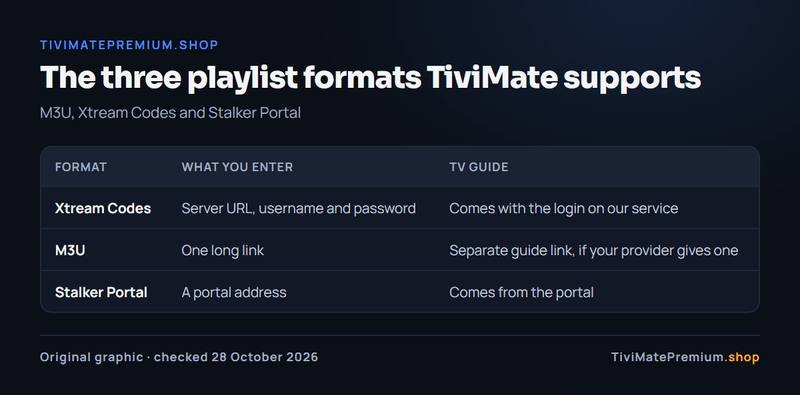
When you add a playlist in TiviMate with a remote, Xtream Codes wins: three short fields are quicker to type than one link of 100 characters or more, and one wrong character in an M3U link breaks the whole thing. We send both in the same message, so you can try Xtream Codes first and keep the M3U link as a backup. Stalker Portal is used by services that work like a MAG box; ours uses Xtream Codes and M3U, and our MAG box guide covers portal logins.
What you need before you start
- TiviMate installed on a Google TV, Android TV or Fire OS device. The developer says the app is designed for Android TV and remote control navigation and is not optimized for phones or tablets.
- Your login message. Ours arrives on WhatsApp and by email within minutes of payment, with the server URL, username, password and M3U link.
- A working connection. For HD, plan on about 10 Mbps per screen; the IPTV speed test tells you in a few seconds.
No login yet? Our IPTV plans for TiviMate cover 1 to 3 devices for 3, 6 or 12 months, from $4.16/mo, billed once, no auto-renew.
How to add an Xtream Codes playlist
This is the route we recommend for every TV device. The screens below are illustrations, not screenshots: TiviMate does not publish its menu names, and they can change between versions, so the steps describe what to choose rather than quoting every label.
-
Step 1: Start a new playlist and choose Xtream Codes
Open TiviMate. On a fresh install with no playlist, the app starts by asking for one; on an app that already has a playlist, open the settings and look for the playlists section. Pick Xtream Codes from the three formats.
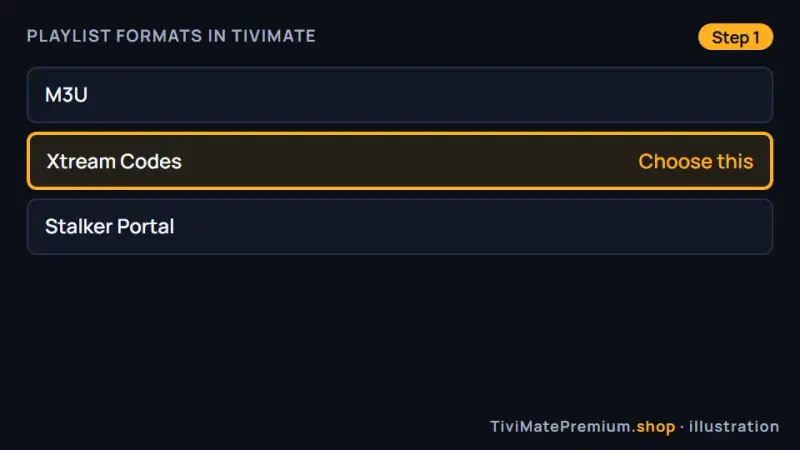
Illustration: of the three formats TiviMate supports, choose Xtream Codes. -
Step 2: Type the server URL, username and password
Enter the three fields exactly as they appear in your login message, including http:// and the port number if the server URL has one. Usernames and passwords are case-sensitive. Check the end of each field for a space before you move on.
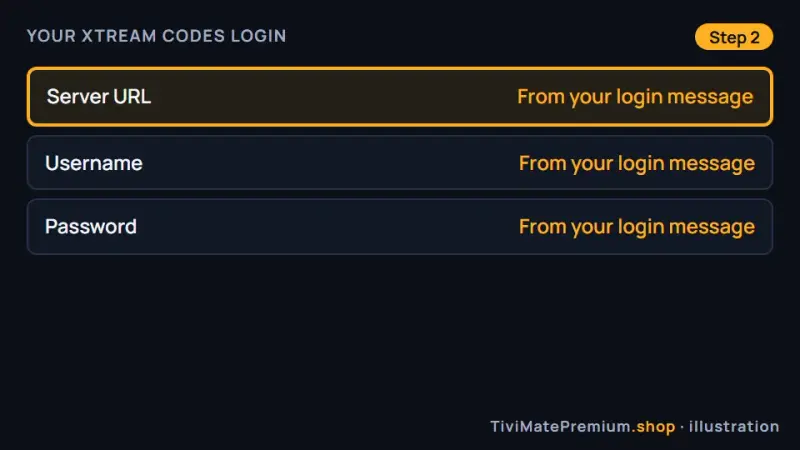
Illustration: the three Xtream Codes fields, copied from the login message we send. -
Step 3: Let TiviMate connect and load the channels
Confirm the login. TiviMate connects to the server and loads the channel list, then the movies and series. On our service that is 20,000+ live channels and 95,000+ movies and series, so give it a minute on a slower connection.
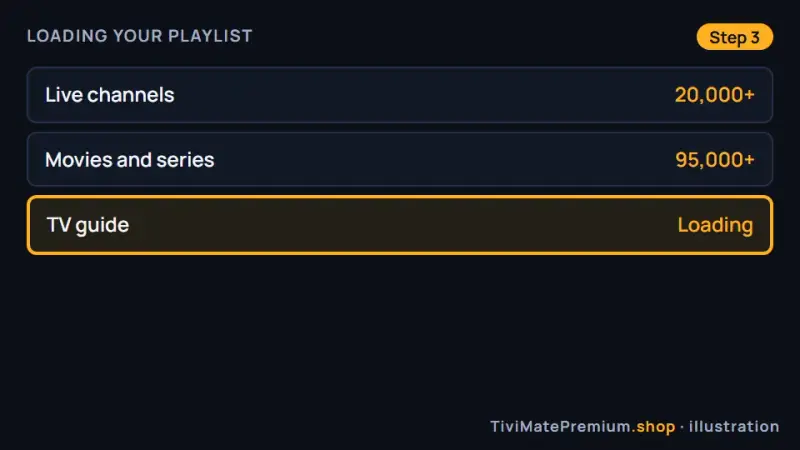
Illustration: the channel list loads first, then movies and series. -
Step 4: Name the playlist and check the TV guide
Give the playlist a short name you will recognise, such as My IPTV, and finish. Open the TV guide: with an Xtream Codes login the programme grid fills in over the next few minutes. If it stays empty, follow the TiviMate EPG guide.
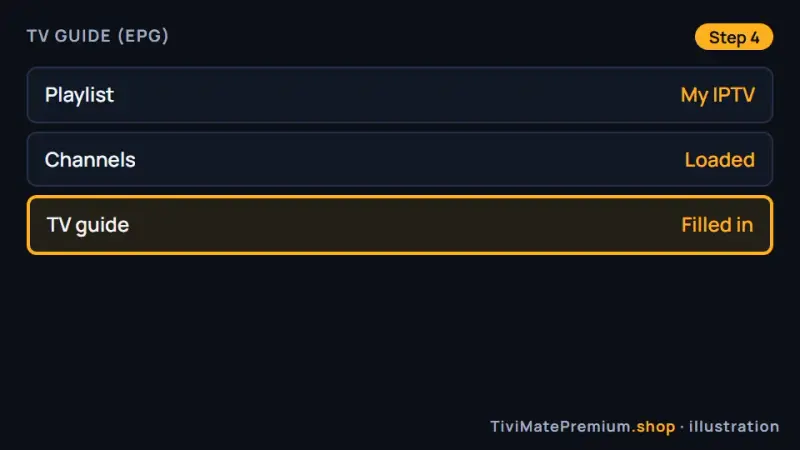
Illustration: the playlist is named and the TV guide is filling in.
How to add an M3U playlist and a guide link
Use M3U if you prefer to paste one link, or as a second way in if Xtream Codes is refused. An M3U playlist carries the channels; the TV guide may need its own link, depending on the provider.
-
Step 1: Choose M3U as the format
Start a new playlist the same way as above and pick M3U instead of Xtream Codes.
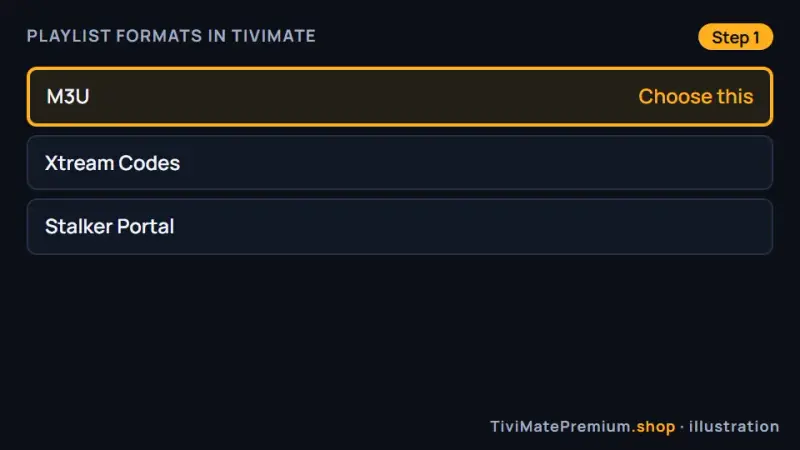
Illustration: pick M3U when you want to use the single playlist link. -
Step 2: Enter the M3U link
Type or paste the full link from your login message, from the first letter to the last. It is long, so go slowly with the remote, and compare the last few characters with the message before you confirm. One wrong letter means no channels.
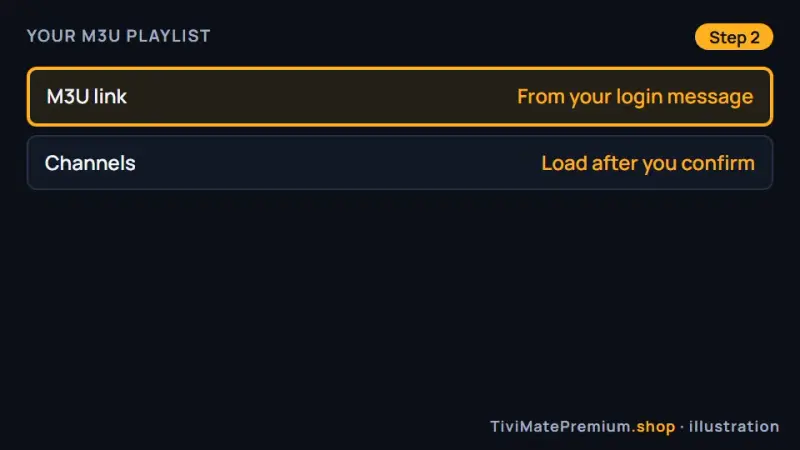
Illustration: the M3U link goes in as one field, exactly as sent. -
Step 3: Add a guide link only if your provider sends one
Some providers send a separate TV guide link for M3U. If yours does, add it where TiviMate asks for the guide source. We send an Xtream Codes login, which carries the guide, so with our service the simplest fix for an empty M3U guide is to add the playlist with Xtream Codes instead.
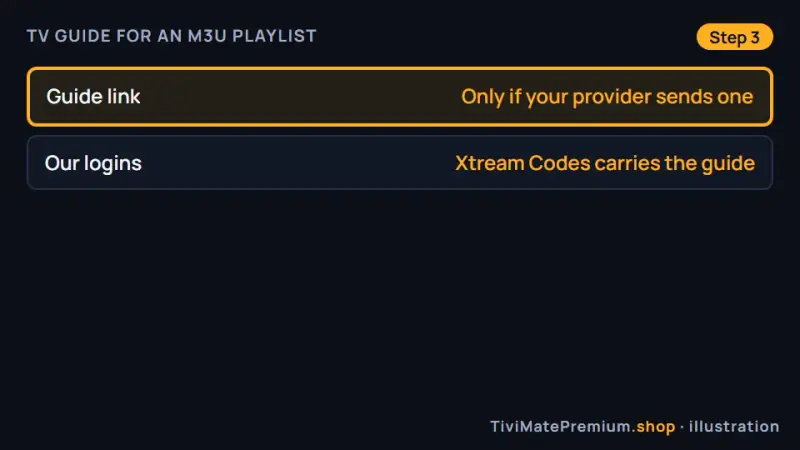
Illustration: a separate guide link is needed only if your provider uses one.
Adding a second playlist
TiviMate supports multiple playlists: the developer lists "manage and switch between your playlists" as a feature. The steps to add a playlist in TiviMate a second time are the same as the first. People use it to keep two services side by side, or to add the same login twice, once as Xtream Codes and once as M3U, to compare them.
Whether a second playlist needs TiviMate Premium is not stated on the developer's pages, and the app shows what Premium unlocks at the point of purchase. Read what TiviMate Premium is before you decide. Premium never includes channels, and we do not sell it; it comes only from the developer.
Two tips if you run two playlists. Give them clear names, because both show the same channel names. And remember that each playlist counts as a connection on its provider's side: with our plans, one device means one screen watching at a time, so two playlists on one TV still use one device slot as long as only one plays.
Playlist errors and how to fix them
TiviMate's exact error wording varies by version, so the table describes what you see rather than quoting a message. Work down the fixes in order: the first one solves most cases.
| What you see | Likely cause | Fix |
|---|---|---|
| The login is refused | A typo, a capital letter or a space at the end | Retype the username and password slowly; copy them from the message |
| It connects but shows 0 channels | Wrong server URL or missing port | Enter the server URL with http:// and the port exactly as sent |
| Channels load, the guide is empty | M3U without a guide link | Add the playlist with Xtream Codes, or see the EPG guide |
| Movies or series are missing | They load after the live channels | Wait a minute, then reopen the app |
| It worked yesterday and stopped | Plan expired or too many screens at once | Check the end date and how many devices are playing |
| The M3U link is refused | One character wrong in a long link | Compare it with the message, or switch to Xtream Codes |
If channels load but play badly, the playlist is fine and the problem is speed or settings: see the TiviMate buffering fixes and the best TiviMate settings. For anything else, message us with a photo of the screen.
Typing your login on each device
The steps to add a playlist in TiviMate are the same on every device; only the typing changes. On a Fire TV Stick, the on-screen keyboard is slow but reliable; our Firestick setup guide installs TiviMate first and then follows these steps. On Google TV and Android TV, many remotes have voice search, but type passwords by hand, because voice input adds spaces. The Android TV and Google TV guide covers installing from Google Play.
On a phone or tablet, TiviMate installs but the developer says it is not optimized for touch, so a player built for phones is the better choice: see IPTV on an Android phone. If you are still choosing a player, the TiviMate vs IPTV Smarters comparison lays out the differences.
Stuck on a login? We'll type it with you
Send us your device and what the screen shows, and we walk you through it until the first channel plays. We offer daily support, usually within the hour.
Message us, and we guide you all the way to your first channel.
Daily support, usually within the hour.
Playlist questions
Should I use Xtream Codes or M3U in TiviMate?
Xtream Codes, in most cases. You type three short fields instead of one long link, and on our service the TV guide comes with the login. Keep the M3U link as a backup in case the Xtream Codes login is refused.
How long does it take to add a playlist in TiviMate?
About 3 minutes to type the login, plus a minute or two for the channels to load and a few more for the TV guide to fill in. A large playlist on a slow connection can take a little longer the first time.
Can I add more than one playlist?
Yes. TiviMate supports multiple playlists and lets you switch between them. The developer's pages do not say whether a second playlist needs Premium, so check what the app shows when you add one. If you only use our service, one Xtream Codes login already brings the channels, movies, series and the TV guide.
Why does TiviMate say my login is wrong when it is correct?
Usually a hidden space at the end of a field, a capital letter typed in lowercase, or a missing port in the server URL. Retype each field slowly from the message. If it still fails, message us and we check the line.
Does TiviMate Premium include a playlist?
No. Premium is a paid upgrade of the app, sold only by its developer, and it unlocks features, not channels. The playlist comes from an IPTV subscription such as ours. Add it with the Xtream Codes login from your login message, and it works in the free app as well as with the upgrade.
Sources
Official pages we checked for the facts on this page, on 28 October 2026.
Need a login to add?
Plans from $4.16/mo · Billed once, no auto-renew · 7-day money-back