
TiviMate on Android TV, Google TV and SHIELD
By TiviMatePremium.shop · Updated 28 October 2026
To set up TiviMate on Android TV or Google TV, install it from Google Play, or with Downloader code 272483 on a box without a store. Open it, choose Add playlist, then Xtream Codes, and type the login we send on WhatsApp. It takes about 5 minutes and works the same on NVIDIA SHIELD and Android boxes.
In short
- Google TV and most Android TV devices install TiviMate straight from Google Play.
- Boxes without a store use the free Downloader app and the verified code 272483.
- IBO Player, ELK Player and IPTV Smarters work too. TiviMate Premium stays optional.
| Device | Android TV, Google TV, NVIDIA SHIELD, Android boxes |
|---|---|
| Time needed | About 5 minutes |
| Difficulty | Easy |
| Apps covered | TiviMate, IBO Player, ELK Player, IPTV Smarters |
| What you need | Your login from WhatsApp |
Before you start
Have these ready and setting up TiviMate on Android TV runs in one go.
- Your Android TV, Google TV, SHIELD or Android box connected to the TV and to your network.
- A stable connection: 25 Mbps or more if you want 4K.
- Your login from WhatsApp: the server URL, username and password, plus an M3U link. No login yet? See our IPTV plans for TiviMate.
- About 10 minutes.
Everything below is a one-time setup. After that, you just open the app. Other devices are listed in our setup guides for every device.
Choose your app
TiviMate comes first because it suits a remote and loads our login in one screen. Every app below accepts the same login.
Set up TiviMate on Android TV
Free app. Premium is optional and sold by its developer.
Premium is optional: about $9.99 a year or $33.99 lifetime on US Google Play in October 2026, for up to 5 devices, paid to the developer. Check today's price in the Companion app or on the official site.
-
Step 1: Find TiviMate in Google Play
On Google TV and most Android TV devices, open Google Play and search for TiviMate. If your box has no store, install Downloader and type the verified code below instead.
272483 Opens the official TiviMate download from files.tivimate.comPrefer to type an address? Use tivimate.com/download instead.
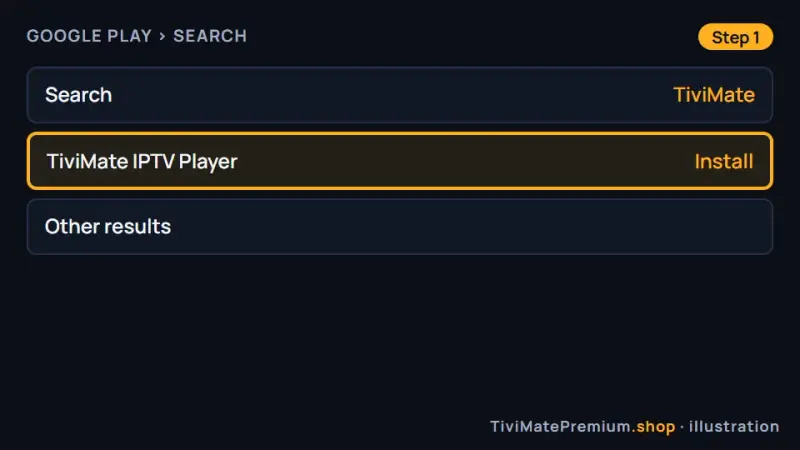
TiviMate in Google Play on Android TV (illustration) -
Step 2: Install and open it
Select Install, then Open when it finishes. With Downloader, select Install on the system prompt, then Done, and delete the installer file.
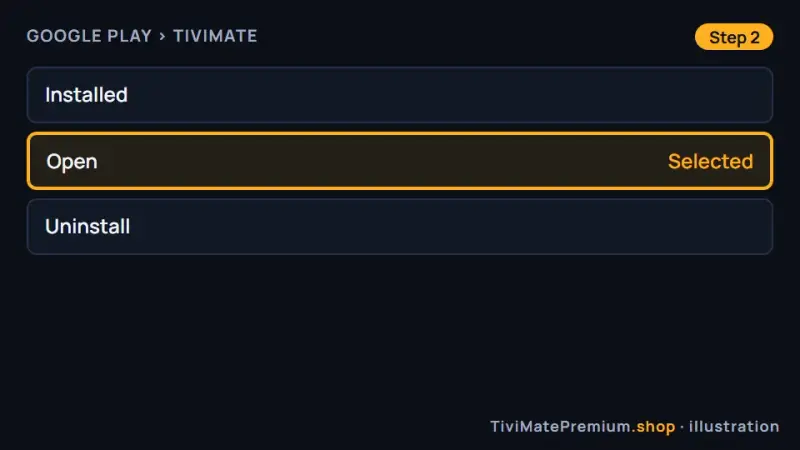
TiviMate installed and ready to open (illustration) -
Step 3: Add your playlist
Choose Add playlist, then Xtream Codes, and enter the server URL, username and password from our WhatsApp message. Prefer one link? Pick M3U playlist instead. Our guide to adding a playlist in TiviMate compares both.
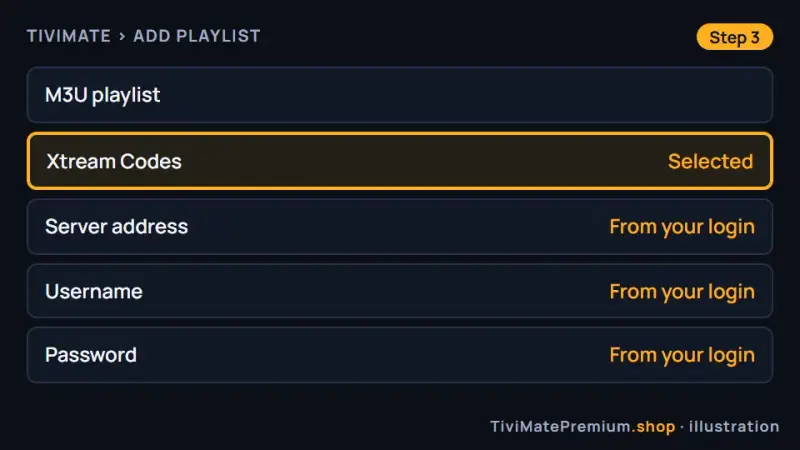
Xtream Codes selected in Add playlist (illustration) -
Step 4: Let the guide load
Name the playlist, select Done and give the guide a minute or two. Your setup of TiviMate on Android TV is then complete; if the guide stays empty, see the troubleshooting below.
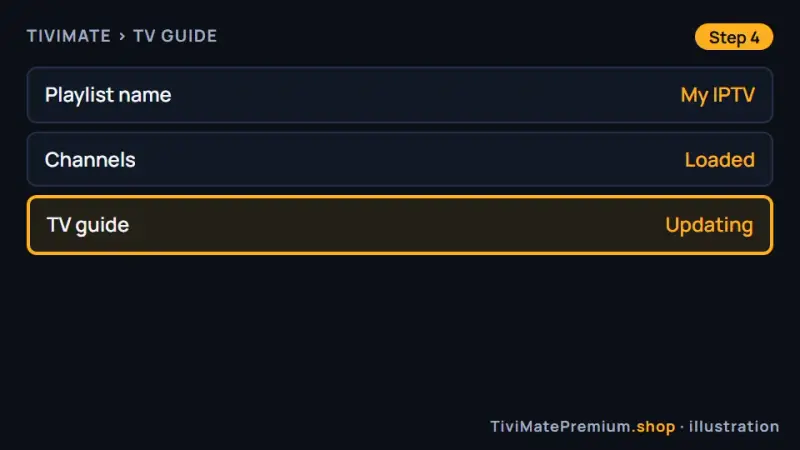
The TV guide filling in (illustration)
Set up IBO Player on Android TV
Free for 7 days, then a yearly or lifetime licence per device, paid to its developer.
-
Step 1: Install Downloader
Install the free Downloader app, then allow it under Settings, Apps, Special app access, Install unknown apps.
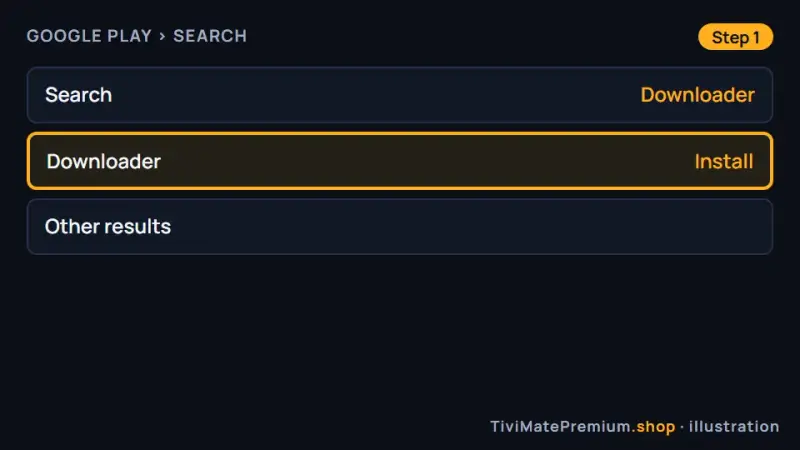
The free Downloader app ready to install (illustration) -
Step 2: Enter the IBO Player code
Open Downloader, type the verified code below, select Go and install the app from iboplayer.com.
511693 Opens the official IBO Player download from iboplayer.com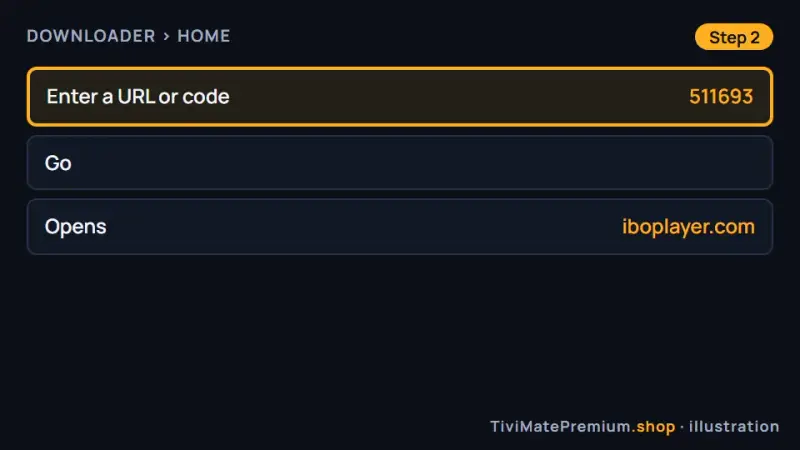
The IBO Player code 511693 in Downloader (illustration) -
Step 3: Note the Device ID and Key
Open IBO Player. Its first screen shows the Device ID and Key. Take a clear photo with your phone, because you will send it to us.
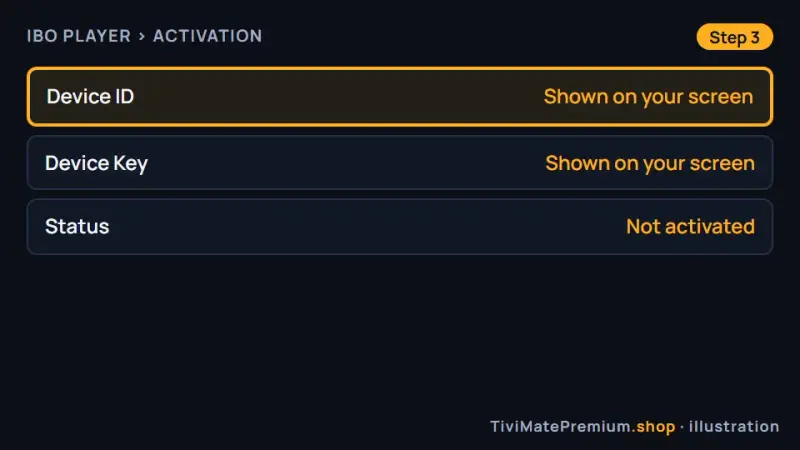
The IBO Player Device ID and Key (illustration) -
Step 4: Send it to us on WhatsApp
Send the photo and say it is IBO Player. We link the details to your plan and confirm, usually within minutes. The fee after the free 7 days goes to the developer.
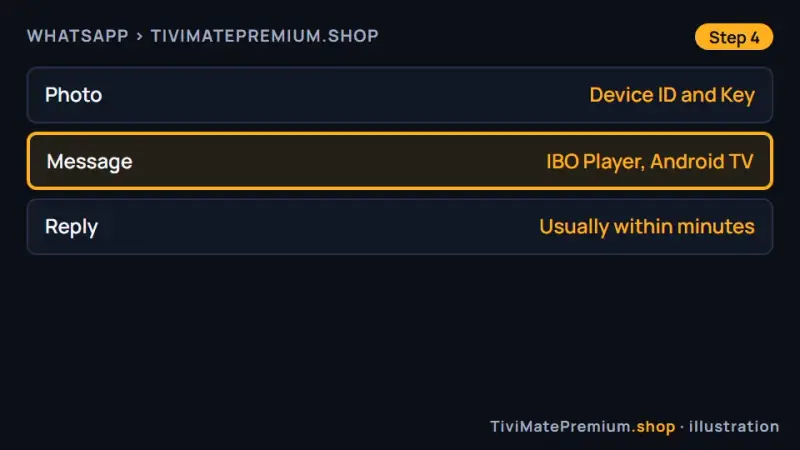
The IBO Player details sent on WhatsApp (illustration) -
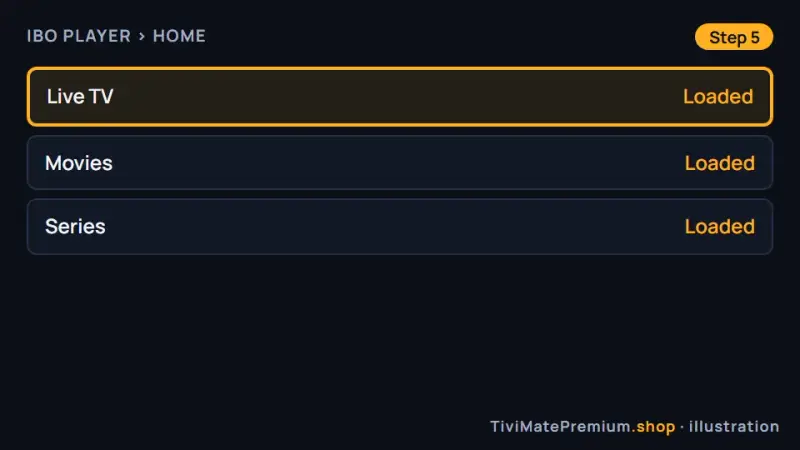
Step 5: Reopen and watch
Close IBO Player completely and open it again. Your channels, movies and series appear. If the list is empty, wait a minute and restart the app.
IBO Player with the playlist loaded (illustration)
Set up ELK Player on Android TV
Free for 14 days, then a one-time fee per device, paid to its developer.
-
Step 1: Install ELK Player from Google Play
Search for ELK Player in Google Play and install it, or use Downloader and the verified code below.
82854 Opens the official ELK Player download from elkplayer.com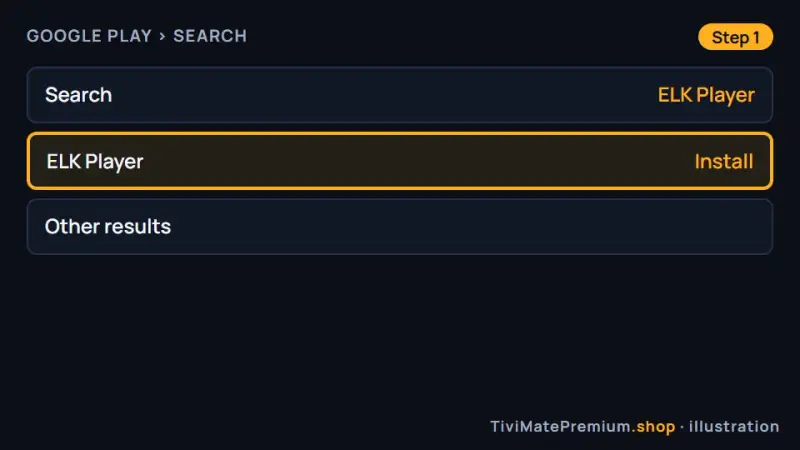
ELK Player ready to install from Google Play (illustration) -
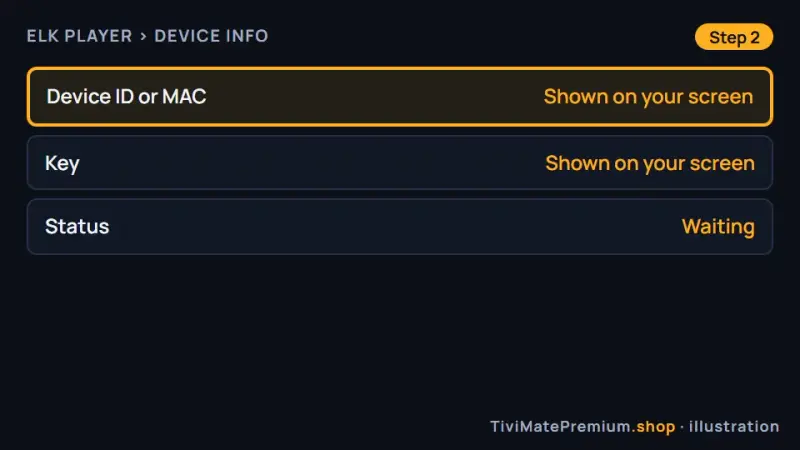
Step 2: Note the Device ID and Key
Open ELK Player. The screen lists a Device ID or MAC and a Key. Photograph it so every character is readable.
The ELK Player Device ID and Key (illustration) -
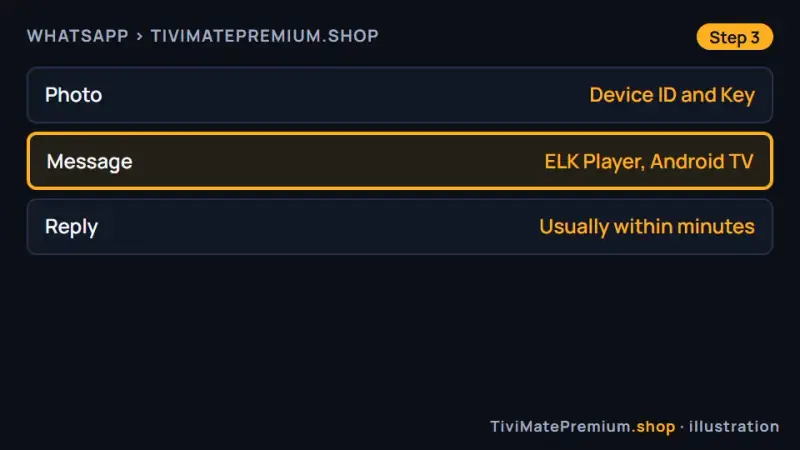
Step 3: Send it to us on WhatsApp
Send the photo and mention ELK Player. We register it and reply once it is active. After the free 14 days, the fee goes to the developer.
The ELK Player details sent on WhatsApp (illustration) -
Step 4: Reopen and watch
Exit ELK Player fully and start it again. Your channels, movies and series load.
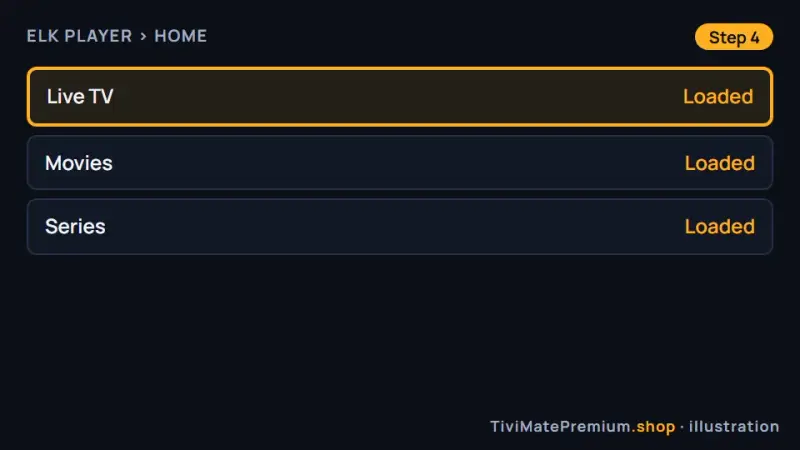
ELK Player with the playlist loaded (illustration)
Set up IPTV Smarters on Android TV
Free app from its developer.
-
Step 1: Install IPTV Smarters
Use Google Play if the app is listed for your device, or open Downloader and type the developer's address below.
getiptvsmarters.com/files/android/iptv-smarters-5.0.apk Opens the official IPTV Smarters download from getiptvsmarters.com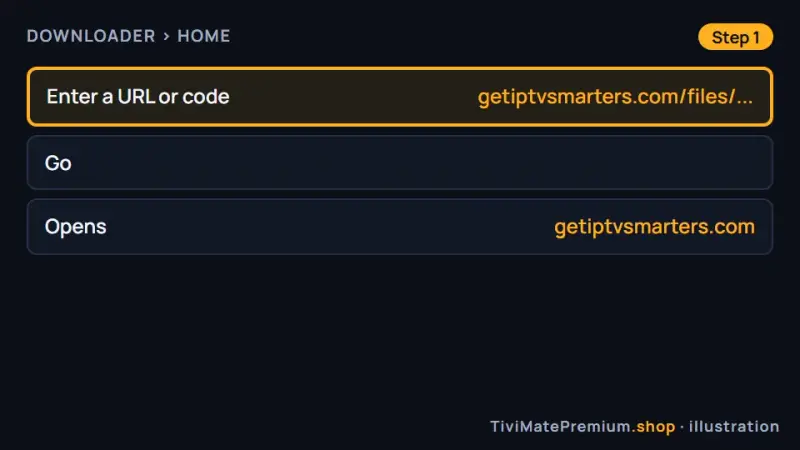
The official IPTV Smarters address in Downloader (illustration) -
Step 2: Log in with Xtream Codes
Choose Login with Xtream Codes API, enter any profile name, then the username, password and server URL from our message, and select Add user.
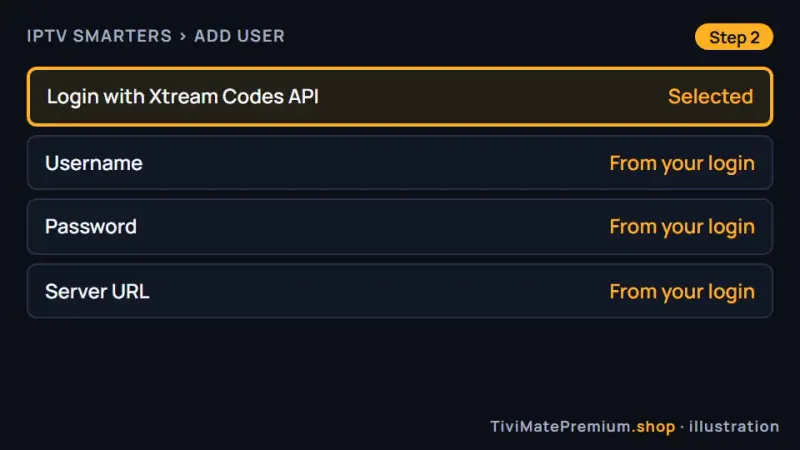
The IPTV Smarters Xtream Codes login screen (illustration)
Which app should you pick?
TiviMate on Android TV is the first choice for most setups: it was built for a remote, has a proper guide grid and takes our Xtream Codes login. The app is free, and Premium is an optional extra from its developer. Choose IBO Player or ELK Player if you would rather send a photo and let us activate the app, and IPTV Smarters if you want a free app with a plain login screen.
Android TV sets and boxes
Android TV sets and boxes, such as Sony and Philips TVs or the Xiaomi Mi Box, have Google Play, so search for TiviMate there and install it. If your model does not list it, use Downloader and code 272483, after allowing Downloader under Settings, Device Preferences, Security and restrictions, Unknown sources. In the network settings, pick Ethernet or 5 GHz Wi-Fi: for 4K that matters more than any app setting. Then add your login as an Xtream Codes playlist.
Google TV and Chromecast with Google TV
Google TV devices, including Chromecast with Google TV, the Google TV Streamer and onn 4K boxes, have Google Play built in, so TiviMate installs like any other app: search, install, open. If the search does not show it on your model, use Downloader and code 272483. On Google TV the Unknown sources switch can stay hidden until you enable developer mode: open Settings, System, About and press Android TV OS build 7 times. A second Google TV only needs the playlist added again.
Tip. Adding a second Android TV or Google TV later takes a few minutes: install the same app, add the same login as a playlist and you are done. Each screen playing at the same time counts toward the devices in your plan.
NVIDIA SHIELD
The SHIELD handles 4K IPTV comfortably, and a few settings get the most from it. In TiviMate Premium, turn on auto frame rate so motion on sport and film looks smoother. In the SHIELD display and sound settings, turn on the option to match content frame rate as well. Use the Ethernet port when you can, because a steady wired connection matters more than Wi-Fi speed for 4K.
Android boxes without a store
Many generic boxes ship without Google Play. To get TiviMate on Android TV boxes like these, install Downloader once from the maker's own app store, then use the verified codes: 272483 for TiviMate, 511693 for IBO Player, and for IPTV Smarters the developer's address getiptvsmarters.com/files/android/iptv-smarters-5.0.apk. Each opens the app developer's own download, never a mirror. When the box asks, allow Downloader under Install unknown apps. Restart low-memory boxes once a week.
Warning. Allow Install unknown apps for Downloader only, and type only the verified codes on this page. Codes from forums or video comments can open modified files, and a so-called TiviMate Premium APK is a cracked copy that can carry malware.
Troubleshooting TiviMate on Android TV
TiviMate is not in the Play Store
Some regions and older boxes do not list it. Install Downloader, type the verified code 272483 and select Go. The code opens the developer's official file on files.tivimate.com, so you still get the genuine TiviMate on Android TV, with the same features.
Install unknown apps is blocked
Open Settings, Apps, Special app access, Install unknown apps, and switch it on for Downloader. The wording changes between Android versions and Google TV builds, but the permission is always granted per app, so enabling it for a browser does not cover Downloader.
Buffering on Wi-Fi
Switch to Ethernet, or use the 5 GHz band and move the box closer to the router. Lowering the stream to FHD or HD also helps on slower boxes. Pause downloads on other devices while you watch, because a steady line matters more than peak speed.
The TV guide is empty
A fresh login can need a minute or two to build the guide. Open the playlist settings in TiviMate, update the guide by hand and check the time shift. Our TiviMate EPG guide shows each setting and how to fix an offset of one hour.
The remote feels slow
Close apps running in the background, restart the device and clear the player cache from Settings, Apps. Low-memory boxes lag badly when many apps stay open at once. If one button stops responding, replace the remote batteries before you change any settings.
Storage is full
Uninstall apps you do not use and clear caches in Settings, Apps. Boxes with 8 GB of storage fill up quickly, and installs fail without a clear message once space runs out. Delete old installer files left in Downloader as well.
Watching from the US, UK, Canada, France or Germany
The setup is identical everywhere: Android TV, Google TV and Google Play behave the same way in the US, the UK, Canada, France and Germany. Only your internet speed and time zone change, so set the guide time shift to your own zone. Our prices are in US dollars, so convert them before you compare us with a local provider quoting in CAD, GBP or EUR.
Need help? We'll set it up with you
Tell us on WhatsApp where you stopped. On a Fire TV Stick instead? Follow the TiviMate on Firestick guide. Formuler owners have their own Formuler setup guide.
Message us, and we guide you all the way to your first channel.
Daily support, usually within the hour.
Android TV FAQ
Does TiviMate work on Google TV?
Yes. Google TV runs Android underneath, so TiviMate installs from Google Play and works exactly as it does on Android TV. Add the Xtream Codes login we send and the guide loads. If the store search does not show it on your model, install Downloader and type the verified code 272483. On some Google TV builds you first enable developer mode to reveal the Unknown sources switch.
Can I use TiviMate on NVIDIA SHIELD?
Yes. Install it from Google Play and add your login as an Xtream Codes playlist. TiviMate Premium adds auto frame rate, so also turn on the SHIELD option to match content frame rate for smoother sport and film. Ethernet gives the steadiest 4K playback, because a wired line matters more than Wi-Fi speed.
Which Downloader code installs TiviMate on Android TV?
Type 272483 in Downloader, or use tivimate.com/download. Both open the developer's own file on files.tivimate.com. We only list codes we have checked. Before the first install, allow Downloader under Install unknown apps. Once the app is installed, delete the installer file, because boxes with 8 GB of storage fill up quickly.
Do I need TiviMate Premium?
No. The free app plays everything in this guide, including live TV and the TV guide with one playlist. Premium is optional, sold only by its developer, and adds recording, catch-up, multi-view and multiple playlists. One Premium account covers up to 5 devices. We never sell Premium or codes for it.
Can I use the same login on two Android TV devices?
Yes, within the number of screens in your plan: a 1-device plan plays on one screen at a time. On the second device, install the same app and add the same login as a playlist; nothing else changes. Compare 2-device and 3-device plans on our IPTV subscription prices page.
Your login is the last step. Choose your plan.
Plans from $4.16/mo · Billed once, no auto-renew · 7-day money-back