
How to install TiviMate on Firestick
By TiviMatePremium.shop · Updated 28 October 2026
Tested on Fire TV Stick 4K Max, Oct 2026
To install TiviMate on Firestick, add the free Downloader app, unlock Developer Options once, then type the verified code 272483 in Downloader to get the app from the developer's own server. Open TiviMate, choose Add playlist, then Xtream Codes, and enter the login we send on WhatsApp. It takes about 10 minutes.
In short
- Two one-time steps come first: install Downloader, then allow it to install apps from Developer Options.
- Code 272483 puts TiviMate on Firestick straight from files.tivimate.com, the developer's own server.
- The free app plays your IPTV login. TiviMate Premium is optional and sold only by its developer.
| Device | Fire TV models on Fire OS, such as the Fire TV Stick 4K Max (not Vega OS models) |
|---|---|
| Time needed | About 10 minutes |
| Difficulty | Easy |
| Apps covered | TiviMate, IBO Player, ELK Player, IPTV Smarters |
| What you need | Your login from WhatsApp, Wi-Fi or Ethernet |
Check your Fire TV Stick model first
Warning. Three Fire TV models run Amazon's Vega OS and cannot install Downloader, TiviMate or any other sideloaded app: the Fire TV Stick 4K Select, the Fire TV Stick HD (2026) (Wi-Fi 6, rounded corners, "Fire TV" printed on the stick) and the Fire TV Stick 4K - 3rd Gen (2026) (white box, "4K" printed next to the HDMI plug). This guide does not work on them.
How to check: open Settings › My Fire TV › About (on newer menus, Settings › Device › Fire TV) and read the software version: "Fire OS" means TiviMate installs; "OS" followed by a number starting with 1 or 2 means Vega OS. Amazon's spec page lists the current Vega models as OS 2.0.
The Fire TV Stick 4K Max and older Fire OS models work with this guide. On a Vega OS model, follow our guide to TiviMate on Android TV and Google TV on a Google TV or Android TV device instead, or message us on WhatsApp before ordering.
Before you start
Gather four things before you open the first menu, and the steps that put TiviMate on Firestick run straight through without a pause.
- Your Fire TV Stick plugged into the TV, switched on and connected to Wi-Fi or an Ethernet adapter.
- A stable connection: 25 Mbps or more for 4K channels. FHD and HD need less.
- Your login from WhatsApp: the server URL, username and password, plus an M3U link. No login yet? Compare our IPTV plans for TiviMate; the details arrive within minutes of your order.
- About 10 minutes, and the Fire TV remote. The Fire TV phone app has a keyboard if you prefer typing on a phone.
Everything below is a one-time setup. After that, you just open the app. Using a different device? Our setup guides for every device cover Android TV, phones, smart TVs and more.
Two one-time steps on your Firestick
Amazon only installs apps from outside its own store after you approve it once. These two steps take about three minutes, and you never repeat them, even when you add a second player or update TiviMate on Firestick months from now.
-
Step 1: Install the Downloader app
On the Fire TV home screen, open Find, select Search and type Downloader. Pick the app with the orange icon, select Get or Download and wait for the install to finish. Downloader is free, comes from the Amazon Appstore and is the small browser that every code on this page is typed into. Leave it on your Firestick afterwards, because you will use it again for updates.
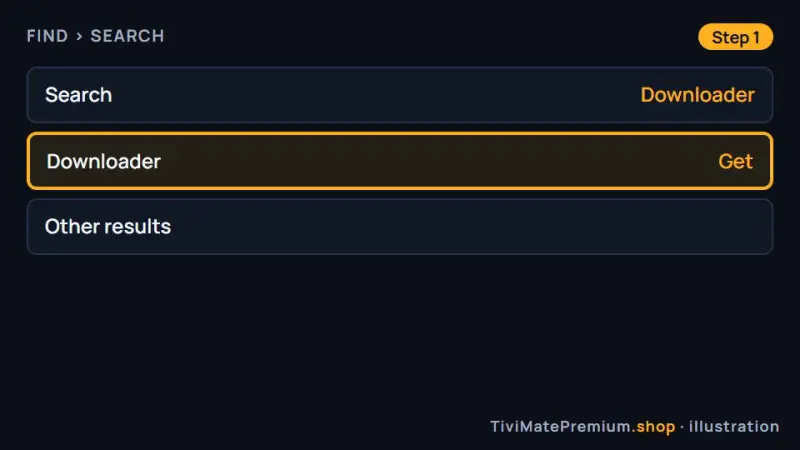
The free Downloader app in the Fire TV store, ready to install (illustration) -
Step 2: Unlock Developer Options and allow Downloader
Open Settings, My Fire TV, About. Highlight your Fire TV name at the top and press the select button 7 times in quick succession, until a message confirms Developer Options is on. Go back to My Fire TV, open Developer Options and turn on Apps from Unknown Sources. On newer Fire OS, open Install unknown apps and set Downloader to ON. Can't see Developer Options? It stays hidden until the 7 presses. The video shows it in under a minute.
▶ Watch: how to unlock Developer Options on a Firestick (1 min) · Video by AFTVnews 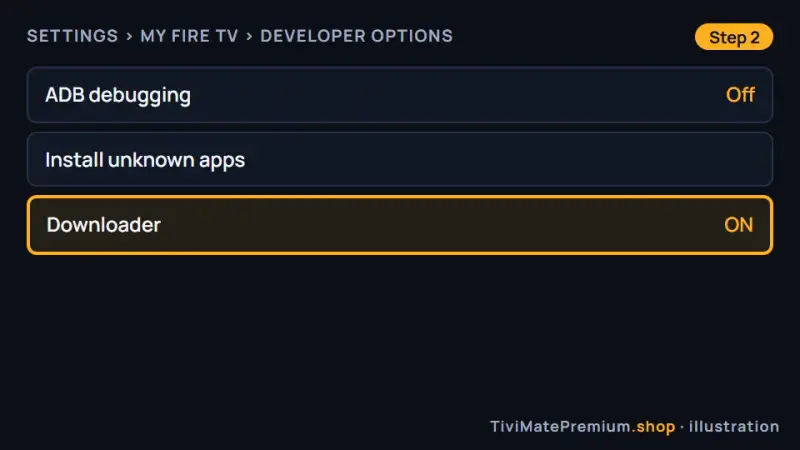
Developer Options on a Fire TV Stick with Downloader allowed to install apps (illustration)
Choose your app on Firestick
TiviMate comes first because it was built for a TV remote and loads our login in a single screen. Every tab starts in Downloader, so finish the two one-time steps above before you install TiviMate on Firestick or any other player. The same login works in each app.
Set up TiviMate on Fire TV Stick
Free app. Premium is optional and sold by its developer.
Premium is optional: about $9.99 a year or $33.99 lifetime on US Google Play in October 2026, for up to 5 devices, paid to the developer. Check today's price in the Companion app or on the official site.
-
Step 1: Type the TiviMate code in Downloader
Open Downloader and allow the storage access it asks for on first launch. Select the address box on the Home tab, type the verified code below with the remote or the on-screen keyboard and select Go. Downloader opens the developer's own file on files.tivimate.com and starts the download. You can type tivimate.com/download instead; it leads to the same official file.
272483 Opens the official TiviMate download from files.tivimate.comPrefer to type an address? Use tivimate.com/download instead.
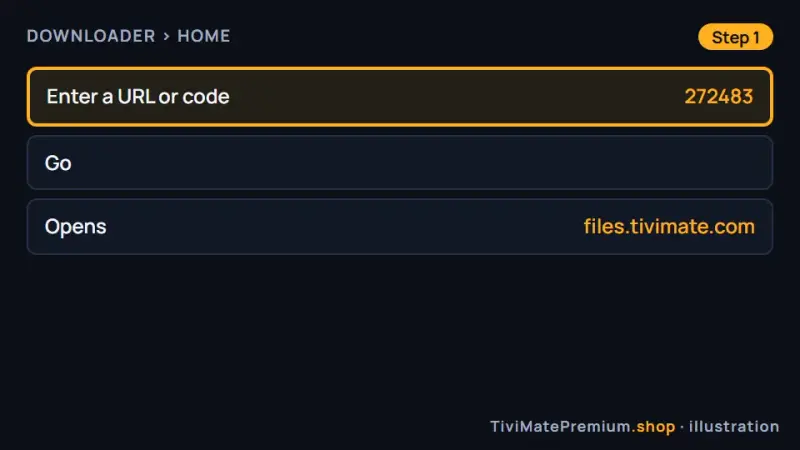
Code 272483 in Downloader, the first step to install TiviMate on Firestick (illustration) -
Step 2: Install and open TiviMate
When the download finishes, Fire OS shows its install screen. Select Install, wait a few seconds, then choose Done rather than Open. Downloader now offers to delete the installer file: select Delete, and Delete again to confirm, because the app is already installed and the file only takes up space. Then move TiviMate to the front row of your apps so it is one click away.
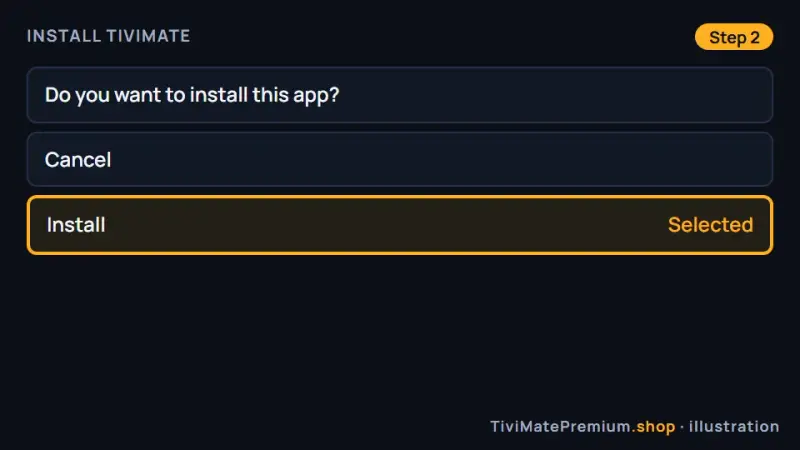
The Fire OS install prompt for TiviMate, followed by Delete to remove the installer (illustration) -
Step 3: Add your playlist with Xtream Codes
Open TiviMate and select Add playlist, then Xtream Codes. Enter the server URL, username and password exactly as they appear in our WhatsApp message, with no spaces at the end, and select Next. TiviMate checks the login and shows how many channels and movies it found. Prefer a single link? Choose M3U playlist and paste the M3U link instead. Our guide to adding a playlist in TiviMate compares both options.
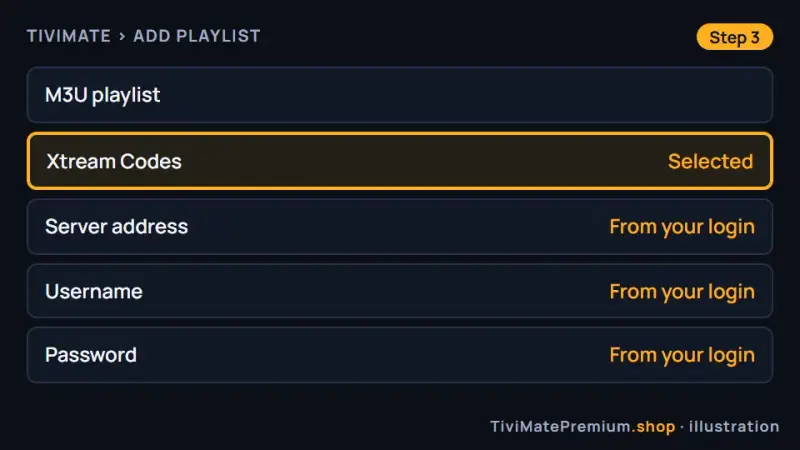
Add playlist in TiviMate with Xtream Codes selected and the login fields filled in (illustration) -
Step 4: Name the playlist and let the guide load
Give the playlist a short name you will recognize and select Done. The channel list appears first, and the programme guide fills in over the next minute or two. If the guide stays empty, the TiviMate EPG guide explains how to refresh it and set the time shift. Your TiviMate on Firestick setup is now complete, so open any channel to check playback.
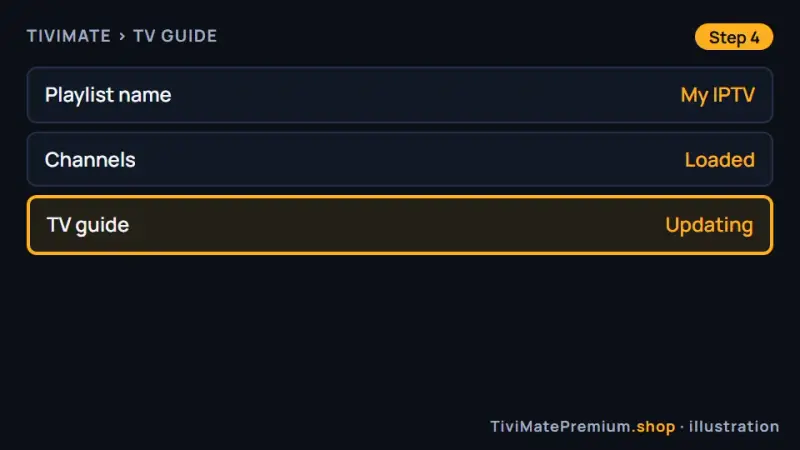
The TV guide filling in after the playlist is saved (illustration)
Set up IBO Player on Fire TV Stick
Free for 7 days, then a yearly or lifetime licence per device, paid to its developer.
-
Step 1: Type the IBO Player code in Downloader
Open Downloader, select the address box and type the verified code below, then select Go. It opens the official IBO Player file on iboplayer.com. Select Install when Fire OS asks, then Done, and delete the installer file when Downloader offers it.
511693 Opens the official IBO Player download from iboplayer.com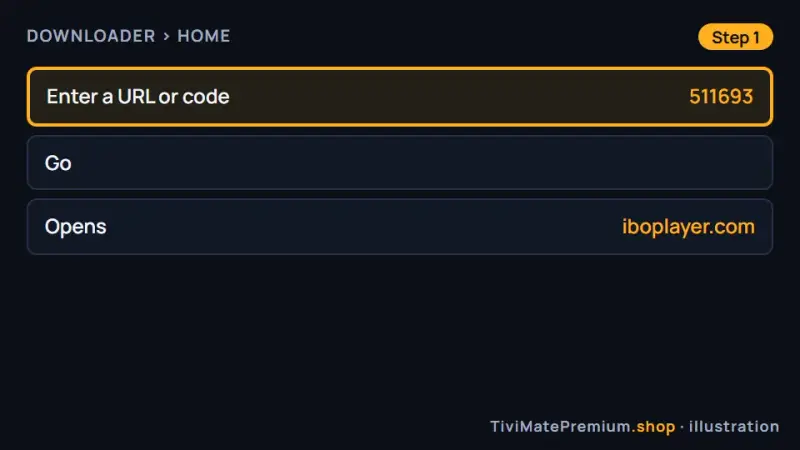
The IBO Player code 511693 in the Downloader address box (illustration) -
Step 2: Note the Device ID and Key
Open IBO Player. The first screen shows two values: the Device ID, which some versions label MAC address, and the Device Key. Take a clear photo of the TV with your phone, or write both values down carefully, because a single wrong character stops the activation.
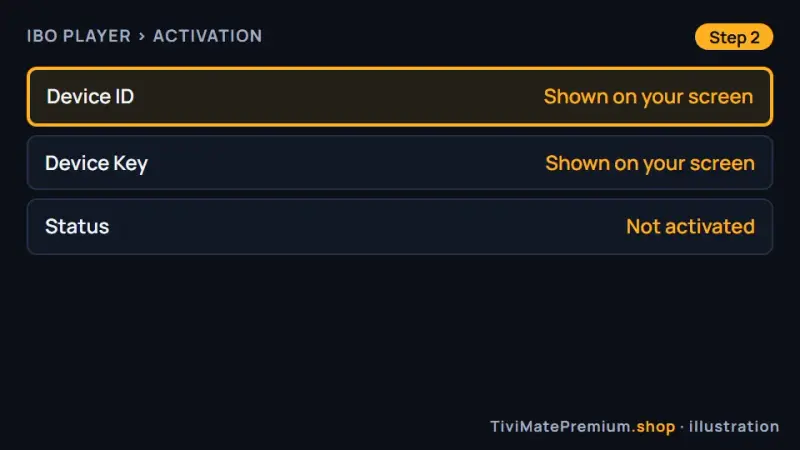
The Device ID and Key that IBO Player shows on its first screen (illustration) -
Step 3: Send it to us on WhatsApp
Tap the button below and send the photo with the words IBO Player, so we know which app it came from. We link the Device ID and Key to your plan and confirm on WhatsApp, usually within minutes. The app fee after the free 7 days goes to its developer, never to us.
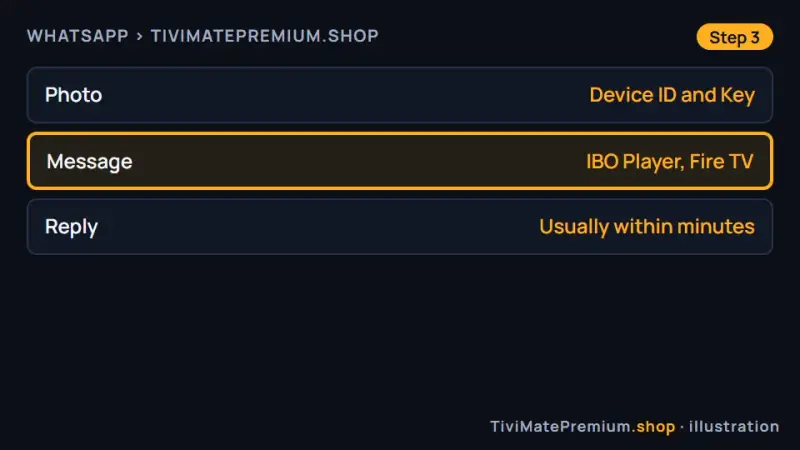
Send the photo of the Device ID and Key on WhatsApp (illustration) -
Step 4: Reopen the app and watch
When we confirm, close IBO Player completely with the Back button and open it again. Your playlist loads with live channels, movies and series in separate sections. If the list is still empty after a minute, restart the Fire TV Stick once and reopen the app.
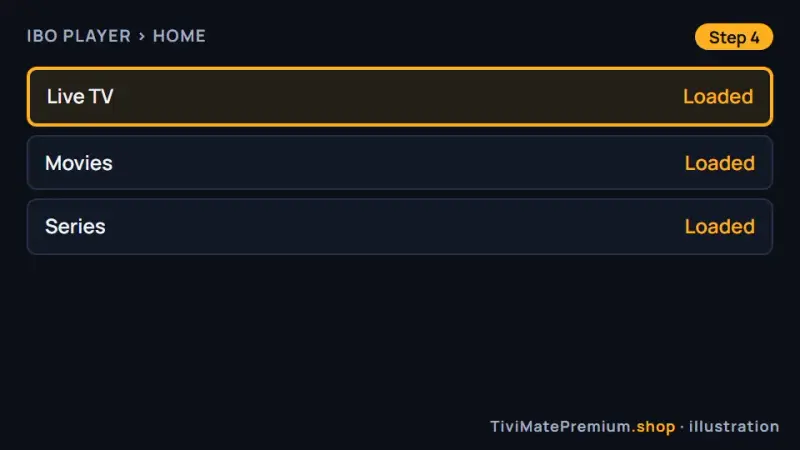
IBO Player after activation, with live TV, movies and series (illustration)
Set up ELK Player on Fire TV Stick
Free for 14 days, then a one-time fee per device, paid to its developer.
-
Step 1: Type the ELK Player code in Downloader
In Downloader, select the address box, enter the verified code below and select Go. The official ELK Player file downloads from elkplayer.com. Confirm with Install on the Fire OS screen, choose Done, and remove the installer file when Downloader asks, to keep storage free.
82854 Opens the official ELK Player download from elkplayer.com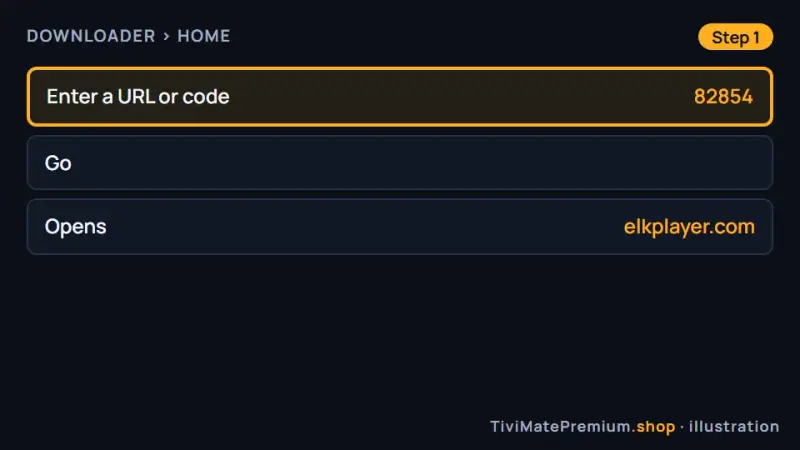
The ELK Player code 82854 in the Downloader address box (illustration) -
Step 2: Note the Device ID or MAC and Key
Launch ELK Player from your apps list. Its opening screen lists a Device ID or MAC address and a Key. Photograph the screen with your phone so every character is readable, or copy both values onto paper, checking similar characters such as 0 and O.
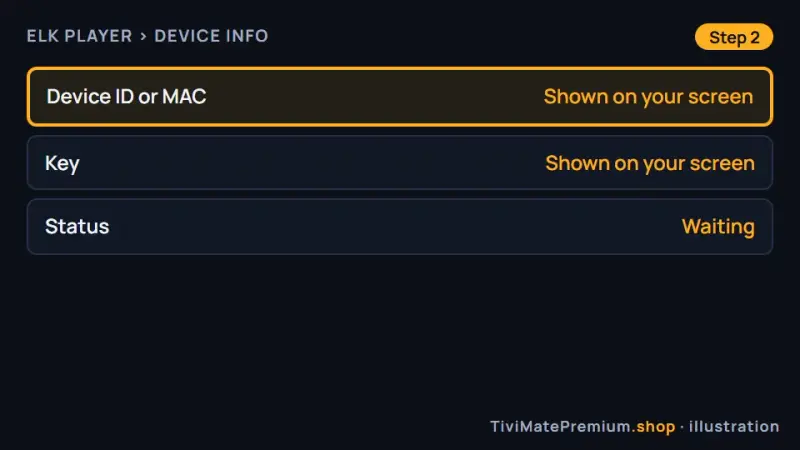
The Device ID or MAC and Key on the ELK Player opening screen (illustration) -
Step 3: Send it to us on WhatsApp
Use the button below to open a chat with us, attach the photo and mention ELK Player. We register the details against your plan and reply on WhatsApp once it is active, usually within minutes. After the free 14 days, the app's one-time fee is paid to its developer, not to TiviMatePremium.shop.
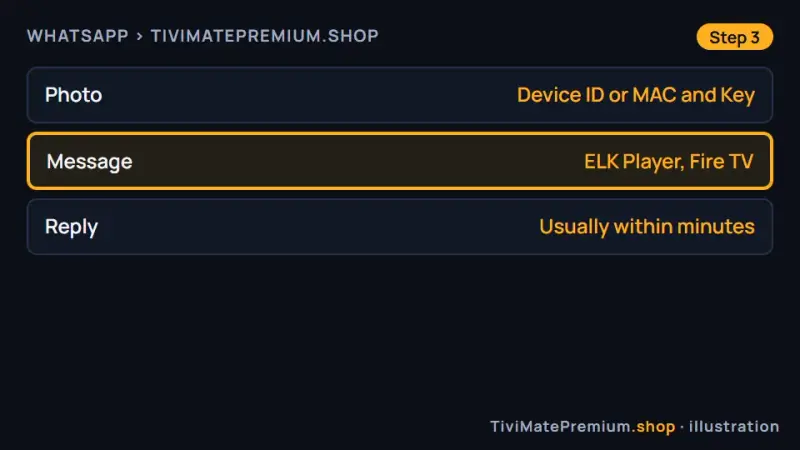
The ELK Player details sent to us on WhatsApp (illustration) -
Step 4: Restart ELK Player and watch
Once we confirm, exit ELK Player fully and start it again so it fetches the new playlist. Live channels, movies and series appear in their own sections. Still nothing after a minute? Clear the app cache in Manage Installed Applications and reopen it.
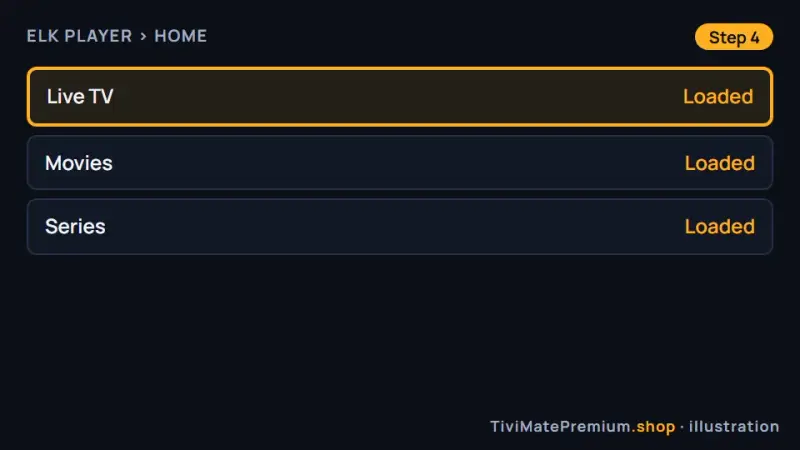
ELK Player with the playlist loaded after activation (illustration)
Set up IPTV Smarters on Fire TV Stick
Free app from its developer.
-
Step 1: Type the IPTV Smarters address in Downloader
Open Downloader, select the address box and type the official address below, then Go. It fetches the IPTV Smarters file from the developer's site, getiptvsmarters.com. Choose Install on the Fire OS prompt, then Done, and delete the installer when Downloader offers it.
getiptvsmarters.com/files/android/iptv-smarters-5.0.apk Opens the official IPTV Smarters download from getiptvsmarters.com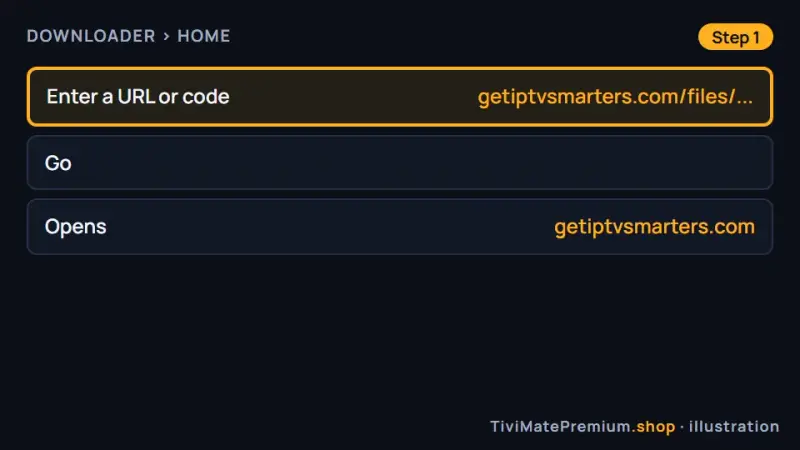
The official IPTV Smarters address in the Downloader address box (illustration) -
Step 2: Choose Login with Xtream Codes API
Open IPTV Smarters, accept the terms on first launch and pick Login with Xtream Codes API. Enter any name for the profile, then the username, password and server URL from our WhatsApp message. Type the URL exactly as we send it, including the http:// part and the port number, because a missing character is the most common reason a login fails.
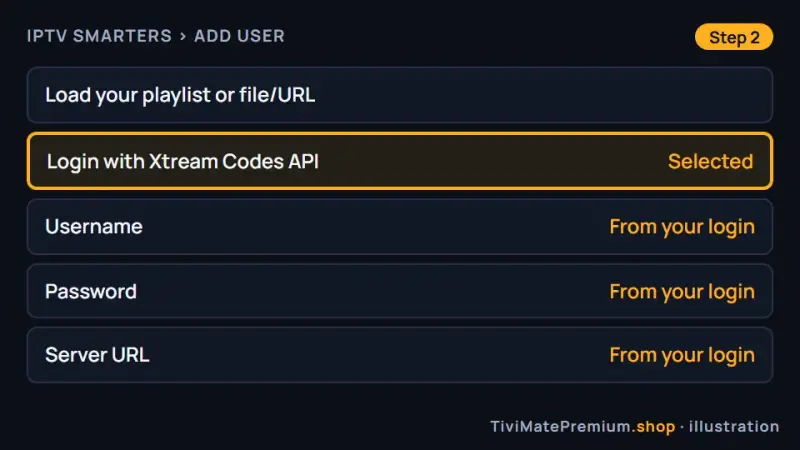
The IPTV Smarters login screen with the Xtream Codes API option (illustration) -
Step 3: Add the user and start watching
Select Add user. Smarters downloads the channel list, movies and series, which can take up to a minute on a Fire TV Stick. Then open Live TV, choose a category and start a channel. The profile is saved, so next time the app opens straight to your dashboard.
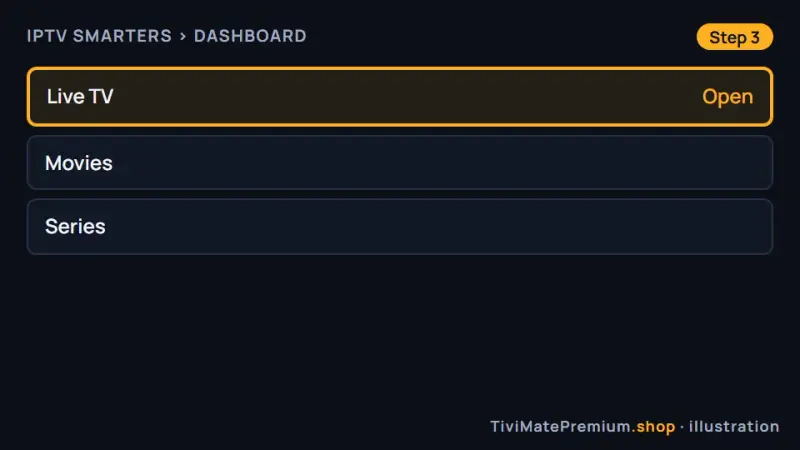
The IPTV Smarters dashboard once the profile is added (illustration)
Which app should you pick?
Pick TiviMate on Firestick if you want a player designed around a TV remote, a clear guide grid and the option to upgrade to Premium later. Choose IBO Player or ELK Player if you would rather send us a photo and let us activate the app for you; each charges its own fee per device after the free period, paid to its developer. IPTV Smarters is the free fallback with a simple login screen. Our comparison of IPTV player apps goes into more detail.
Fire TV models and this guide
The steps that put TiviMate on Firestick are the same on every Fire TV model that runs Fire OS. Some menu names shift between Fire OS versions, such as Install unknown apps, but the order never changes. Models on Vega OS cannot install TiviMate at all.
| Model | Works with this guide | Note |
|---|---|---|
| Fire TV Stick 4K Max | Yes | Fire OS, 4K output |
| Older Fire TV Sticks and Cubes on Fire OS | Yes | About shows "Fire OS" |
| Fire TV Stick 4K Select | No | Vega OS: cannot sideload apps |
| Fire TV Stick HD, 2nd gen | No | Vega OS: Wi-Fi 6, rounded corners, "Fire TV" printed on the stick |
| Fire TV Stick 4K, 3rd gen | No | Vega OS: white box, "4K" printed next to the HDMI plug |
| Fire TV smart TVs | Check About | Fire OS works, Vega OS does not |
On a Full HD television any Fire OS model works. On a 4K television, the Fire TV Stick 4K Max plays the 4K channels at full resolution. Using Android TV or Google TV instead? Follow TiviMate on Android TV and Google TV. A Formuler box has its own Formuler IPTV setup guide with MyTVOnline 3.
Install only from the official source
Warning. Use only the verified codes on this page or the developer's own address. Codes from forums, video comments or strangers can point to modified files, and a so-called TiviMate Premium APK is a cracked copy that can carry malware. Read why a TiviMate Premium APK is not safe before you install anything that promises free Premium.
Each code here opens one file from the app maker: 272483 for TiviMate (files.tivimate.com), 511693 for IBO Player (iboplayer.com), and 82854 for ELK Player (elkplayer.com). IPTV Smarters has no verified code: its old code 6468112 points to a domain that no longer exists, so type the developer's address getiptvsmarters.com/files/android/iptv-smarters-5.0.apk instead. A genuine install of TiviMate on Firestick never asks you to pay or enter a card inside Downloader.
Update TiviMate on Firestick later
A sideloaded app is not updated by the Amazon Appstore, and TiviMate does not always tell you that a newer version exists. Every few months, or when a feature you read about is missing from your menus, repeat the Downloader step.
Tip. To update TiviMate on Firestick, open Downloader, type 272483 again and install the new file over the old one. Your playlist, favorites and settings stay in place, so there is nothing to type in again. Delete the installer file afterwards to keep storage free.
Best picture quality settings on a Fire TV Stick
A few settings make TiviMate on Firestick look noticeably better. Change one at a time, and compare two or three channels before you judge, because source quality varies.
- Fire TV display: in Settings, Display and Sounds, Display, leave Video Resolution on Auto and turn on Match Original Frame Rate where your model offers it.
- TiviMate buffer: in Settings, Playback, raise the buffer size one step if channels stutter only when they start.
- Decoder: if one channel shows blocky artifacts, switch the decoder between hardware and software.
- Auto frame rate inside TiviMate smooths motion on a 4K television, and it needs TiviMate Premium.
- Stream quality: our channels come in 4K, FHD and HD. On a busy network, FHD or HD stays steadier than 4K.
Keep your Fire TV Stick fast
A Fire TV Stick has little memory and storage, so small habits matter. These five keep TiviMate on Firestick quick and steady.
- Restart it weekly: Settings, My Fire TV, Restart.
- Clear the player cache: Settings, Applications, Manage Installed Applications. Your playlist stays.
- Uninstall apps you no longer use, because the storage is small.
- Use an Ethernet adapter if the router is far away.
- Turn off home-screen video previews: Settings, Preferences, Featured Content.
Troubleshooting TiviMate on Firestick
Developer Options will not appear
The 7 presses on your Fire TV name in Settings, My Fire TV, About must be consecutive, because a pause resets the count. Press quickly and keep going until a message confirms Developer Options is on, then go back one screen. The new menu sits just below About in My Fire TV.
Downloader will not install the app
On current Fire OS the permission is per app. Open Settings, My Fire TV, Developer Options, Install unknown apps, and switch it on for Downloader specifically, then run the code again. Turning on a global switch alone is not enough on newer models, and the installer quietly refuses to start.
Downloader says the code is invalid
Type the code again, digits only, with no spaces or letters. The verified code for TiviMate is 272483. If it still fails, type the official address tivimate.com/download in the same box instead, which leads to the same developer file.
App not installed
This message usually means the Fire TV Stick is out of storage. Uninstall apps you do not use, delete old installer files from Downloader's Files tab and clear caches in Manage Installed Applications. Then run the code again, so a fresh file replaces any half-finished download.
Video stutters or freezes
Switch to an FHD or HD stream, restart the router and restart the Firestick. A steady connection matters more than peak speed, especially for 4K. Use the 5 GHz band or an Ethernet adapter, and pause other downloads while you watch.
Channels will not load
Close the app fully, reopen it and wait a minute. Check that the server URL, username and password match our message exactly, with no extra spaces. If the list is still empty, message us on WhatsApp and we check the activation from our side, usually within the hour.
Audio is out of sync
Change channel and come back, which resets the stream. If one channel keeps the problem, switch the player decoder between hardware and software in the playback settings. When every channel drifts, set the Fire TV audio output back to its default format.
The TV guide is empty or shows the wrong times
A fresh playlist can take a minute or two to build the guide. Open the playlist settings, update the guide by hand and check the time shift for your zone. Our TiviMate EPG guide walks through each setting, including how to fix an offset of exactly one hour.
Watching from the US, UK, Canada, France or Germany
Installing TiviMate on Firestick is identical in every country: Fire OS, the Amazon Appstore and the Downloader codes work the same way in the US, the UK, Canada, France and Germany. Only your internet speed and time zone differ, so set the guide time shift to your own zone. Our prices are in US dollars on every page, so convert them before you compare us with a local provider quoting in CAD, GBP or EUR.
Next steps once your first channel plays
Your Fire TV Stick is ready. These three guides help you get more from the app over the next few days.
- Load the programme grid and fix wrong times with our TiviMate EPG guide.
- Set up the layout, parental controls and a smoother picture with the TiviMate settings guide for smooth IPTV.
- Replay or save programmes with TiviMate catch-up and recording explained. Both features come with Premium from the developer.
Need help? We'll set it up with you
Stuck while installing TiviMate on Firestick? Message us on WhatsApp with your Fire TV model and the step where you stopped, and we guide you to your first channel.
Message us, and we guide you all the way to your first channel.
Daily support, usually within the hour.
Firestick FAQ
Is TiviMate free on Firestick?
Yes. TiviMate on Firestick is free and plays your IPTV login with live TV and the TV guide. Premium is an optional upgrade sold by its developer that adds recording, catch-up, multi-view and multiple playlists. Our plans work in both versions.
What is the Downloader code for TiviMate on Firestick?
The code is 272483. Type it into the Downloader address box and select Go, or type tivimate.com/download instead. Both open the developer's own file on files.tivimate.com. We only publish codes we have checked, never codes copied from forums or videos.
Does TiviMate Premium work on Firestick?
Yes. Buy Premium from the developer through the Companion app or the official site, then sign in to the same account in TiviMate on Firestick. Premium unlocks within about a minute and one account covers up to 5 devices. We do not sell Premium or codes for it.
Does this work on the Fire TV Stick 4K Select?
No. The Fire TV Stick 4K Select, the Fire TV Stick HD (2026) and the Fire TV Stick 4K - 3rd Gen (2026) run Amazon's Vega OS, which cannot install TiviMate or any other sideloaded app. In Settings › My Fire TV › About, read the software version: "Fire OS" means TiviMate installs, while "OS" followed by a number starting with 1 or 2 means Vega OS. On Vega OS, use a Google TV or Android TV device instead.
Does this guide work on Fire TV Stick Lite and Fire TV Cube?
Yes, if the device runs Fire OS. The Lite, the Cube, the 4K Max and other Fire OS models use the same Developer Options and Downloader steps, and only a few menu names differ between versions. To check, open Settings › My Fire TV › About (on newer menus, Settings › Device › Fire TV) and read the software version: "Fire OS" means TiviMate installs; "OS" followed by a number starting with 1 or 2 means Vega OS.
Where do I get my Xtream Codes login?
We send the server URL, username, password and an M3U link on WhatsApp and by email, usually within minutes of your order. Keep that message: the same details work in every app on this page, so you can switch players later without a new order. Pick a duration and the number of screens on our IPTV subscription prices page.
Your login is the last step. Choose your plan.
Plans from $4.16/mo · Billed once, no auto-renew · 7-day money-back