
TiviMate Premium not working? 10 fixes
By TiviMatePremium.shop · Updated 28 October 2026
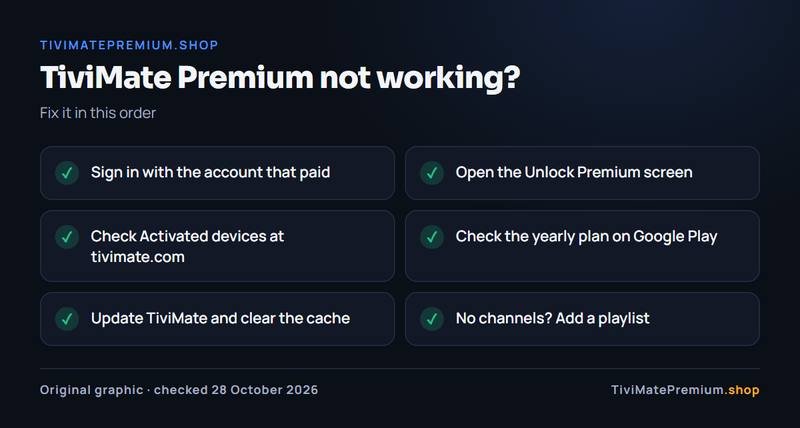
When TiviMate Premium is not working, the cause is almost always the account, the billing or the device, not the app. Open the Unlock Premium screen and follow the on-screen instructions with the account that paid, check your activated devices at tivimate.com, and confirm a yearly plan is still active on Google Play. Premium unlocks features only, never channels.
In short
- Most cases are account problems: a different account on the TV, or a device that was never activated.
- Yearly plans are managed on Google Play, so an expired or failed payment switches Premium off.
- Missing channels are a playlist problem, not a Premium problem: Premium never includes channels.
| Most common cause | Wrong account on the TV |
|---|---|
| Where to activate | The Unlock Premium screen |
| Devices without Google Play | TiviMate Companion app |
| Yearly plan billing | Google Play |
| Premium includes channels | No |
TiviMate Premium not working? Start here
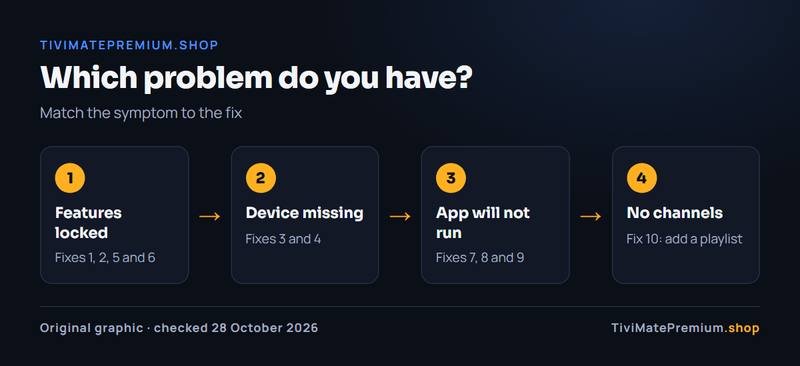
Work through the fixes in order. The first four cover the account, the next two cover billing, the next three cover the app and the device, and the last one covers missing channels. Most people are done by fix 3.
Quick clarity: TiviMate Premium is the app's paid upgrade, sold by its developer. It unlocks features like recording and multiple playlists, but it includes no channels. TiviMatePremium.shop sells the IPTV subscription, the content you load into TiviMate or any other player. They are two separate purchases.
TiviMate Premium is sold only by the TiviMate developer, so the developer's own tools are where a Premium problem gets solved: the Unlock Premium screen inside TiviMate, your account at tivimate.com and the TiviMate Companion app. We sell IPTV subscriptions, not Premium, so we cannot see or change your Premium account. What we can do is make sure the TiviMate Premium not working problem is not really a playlist or device problem in disguise.
What you see, and what it usually means
Before changing anything, note exactly what the TV shows. "TiviMate Premium not working" covers several different problems, and each one has its own short route to a fix. Match your symptom in the table, then jump to the numbered fix.
| What you see | Most likely cause | Try first |
|---|---|---|
| Premium features locked on one TV | That TV was never activated, or uses another account | Fixes 1 and 2 |
| Premium worked, then stopped | A yearly plan ended or a renewal failed | Fix 5 |
| The TV is not under Activated devices | Activation did not complete | Fixes 2 and 3 |
| Fire TV cannot unlock through Google Play | No Google Play on Fire TV | Fix 4 |
| Lifetime purchase blocked | A yearly plan is still running | Fix 6 |
| TiviMate will not install on a new Fire TV | A Vega OS model | Fix 9 |
| Features unlocked, but no channels | No playlist added yet | Fix 10 |
Two symptoms are not Premium problems at all. If TiviMate will not install, the device is the issue, and if the screen is empty after unlocking, the playlist is. Keeping that in mind saves time when TiviMate Premium is not working on a new TV: check the device first, then the account, then the channels. Write down which fix solved it, so the next device you add takes a minute instead of an evening.
Account fixes (1 to 4)
1. Sign in with the account that paid
Premium belongs to the TiviMate account that bought it, not to the device or the Google account in general. If you created a second TiviMate account by mistake, the TV shows the free version. Use the same account details you used in the Companion app or on the TiviMate site.
2. Open the Unlock Premium screen
The developer's own instructions for activating a device are short: install TiviMate, open the Unlock Premium screen and follow the on-screen instructions. Do exactly that on the TV that shows the free version. Our guide to activate TiviMate Premium walks through the whole process.
3. Check Activated devices at tivimate.com
Your account at tivimate.com lists your activated devices. If the TV is not on the list, the activation did not complete: repeat fix 2. If an old TV you no longer use is still listed, manage your devices there or in the Companion app, which the developer describes as a way to manage your activated devices.
4. No Google Play on the device? Use the Companion app
On a device without Google Play, such as a Fire TV, Premium is unlocked through the TiviMate Companion app, which the developer says is intended to unlock Premium on devices without Google Play. It is not a player itself. Our page on the TiviMate Companion app explains it, and how to buy TiviMate Premium covers the purchase.
Billing fixes (5 and 6)
5. A yearly plan expired or a payment failed
TiviMate's terms describe one-time lifetime purchases and auto-renewing subscriptions, with prices shown at the point of purchase. A yearly subscription is managed on Google Play (or Huawei AppGallery), so if a renewal failed or you cancelled it, Premium switches off when the period ends. Open your subscriptions in Google Play and check the status and the payment method. A TiviMate Premium not working message right after a renewal date usually points here.
6. Moving from yearly to lifetime
The developer's account page is clear on the order: if you want to upgrade to lifetime, cancel your yearly subscription first; once it expires, you can buy the lifetime option. Buying lifetime while the yearly plan still runs is not the route the developer describes, and it is a common reason for TiviMate Premium not working after an upgrade. Our TiviMate Premium price page compares the two plans.
App and device fixes (7 to 9)
7. Update TiviMate
An old version can fail to pick up your account status. Update from Google Play, or on a Fire TV install the official file again with Downloader code 272483 or the address tivimate.com/apk, both published on tivimate.com. Your playlists stay in place when you update over the top.
8. Clear the cache and restart
On a Fire TV, go to Settings, Applications, Manage Installed Applications, select TiviMate and choose Clear Cache, then restart from Settings, My Fire TV, Restart. On Google TV, go to Settings, Apps, select TiviMate, then Force stop and Clear cache, and restart from Settings, System, Restart. Avoid Clear Data unless you are ready to set the app up again.
9. Check that your Fire TV runs Fire OS
Amazon's own device specifications list Vega OS on the Fire TV Stick 4K Select, the Fire TV Stick HD (2026) (Wi-Fi 6, rounded corners, "Fire TV" printed on the stick) and the Fire TV Stick 4K - 3rd Gen (2026) (white box, "4K" printed next to the HDMI plug). These models cannot install TiviMate at all, so no Premium fix will help. To check, open Settings › My Fire TV › About (on newer menus, Settings › Device › Fire TV) and read the software version: "Fire OS" means TiviMate installs; "OS" followed by a number starting with 1 or 2 means Vega OS. Fire OS models such as the Fire TV Stick 4K Max work. Our TiviMate on Firestick guide shows how to check your model in a minute.
Fix 10: Premium works, but there are no channels
This is the most common misunderstanding behind a TiviMate Premium not working search. TiviMate is a media player only and provides no content, and the developer states that any premium upgrade unlocks application features only. Premium never adds channels, films or series. If the features are unlocked but the screen is empty, you need a playlist.
Add an IPTV service with an Xtream Codes login or an M3U link, two of the playlist formats TiviMate supports. Our guide to adding a playlist in TiviMate shows both. If you do not have a service yet, our IPTV plans for TiviMate start from $4.16/mo, billed once with no auto-renew, and we send the login on WhatsApp and by email. What TiviMate Premium is explains how the two purchases fit together.
Step by step: unlock Premium again on a TV
If the fixes above point to a failed activation, run the developer's activation again from the start. TiviMate does not publish its menu names beyond the Unlock Premium screen, so follow the instructions shown on your screen at each step.
-
Step 1: Update TiviMate on the TV
Install the latest version from Google Play, or on a Fire TV reinstall the official file with Downloader code 272483. Open TiviMate once it has installed.
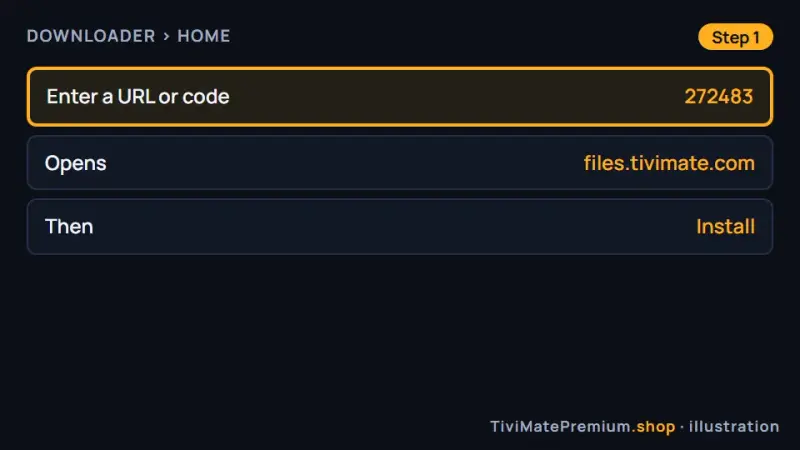
Start from the latest official version (illustration). -
Step 2: Open the Unlock Premium screen
In TiviMate, open the Unlock Premium screen. This is the screen the developer names for activating a device.
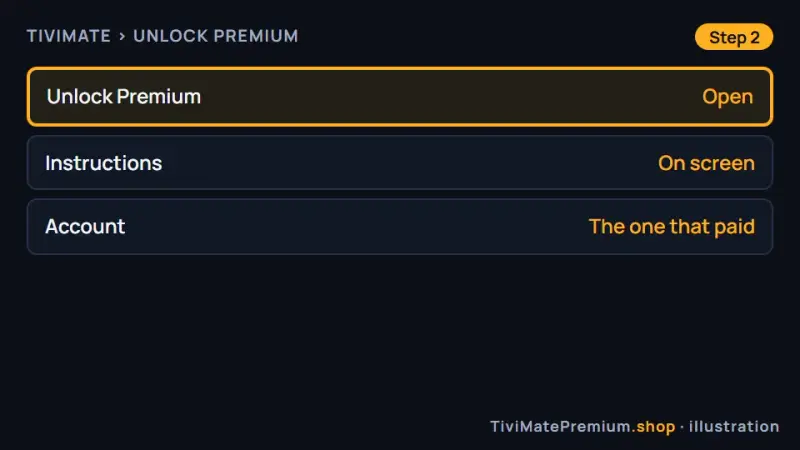
The Unlock Premium screen is where activation starts (illustration). -
Step 3: Follow the on-screen instructions
Complete the steps the screen shows with the account that paid. On a device without Google Play, finish with the TiviMate Companion app on an Android phone, as the screen describes.
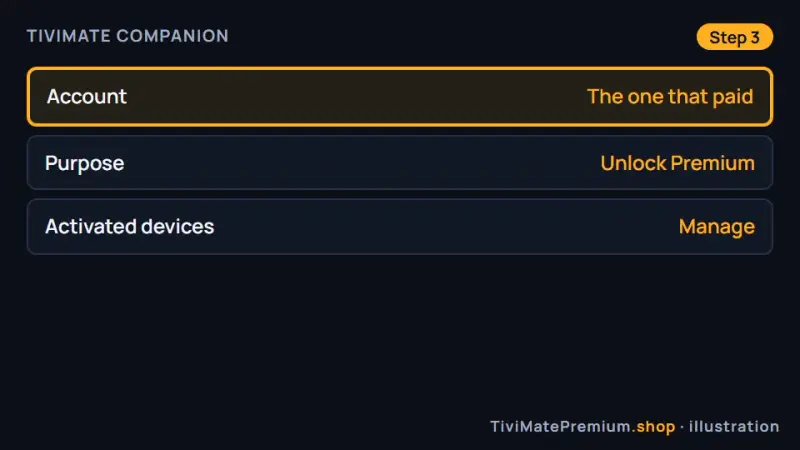
Use the same account in every step (illustration). -
Step 4: Check Activated devices
Sign in at tivimate.com or in the Companion app and confirm that the TV now appears among your activated devices.
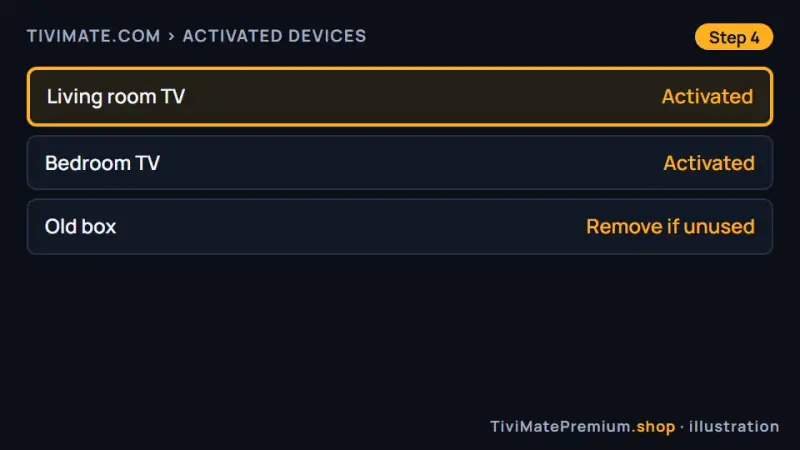
The TV should now be listed under Activated devices (illustration). -
Step 5: Restart TiviMate and test a feature
Close TiviMate, open it again and try a Premium feature, such as adding a second playlist. If it is still locked, contact the developer through tivimate.com.
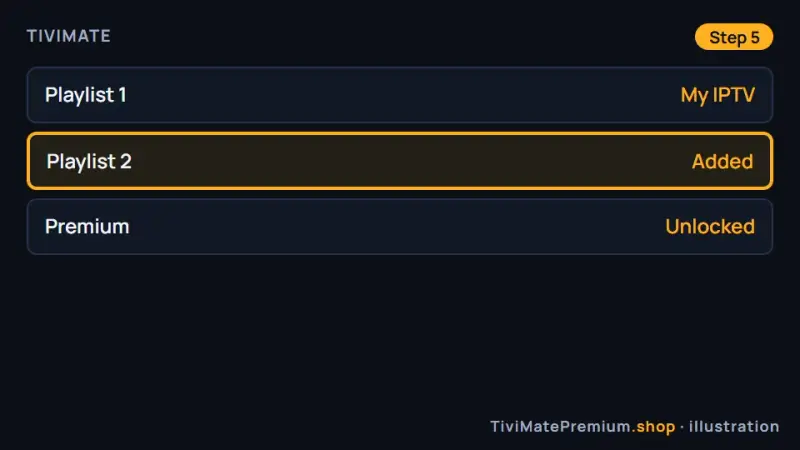
Test with a feature such as multiple playlists (illustration).
When to contact the developer, and when to message us
Contact the TiviMate developer through tivimate.com for anything about Premium itself: a purchase that does not show on your account, a device that will not activate after the steps above, or billing questions about the developer's plans. Only the developer can see your Premium account.
Message us for anything about the channels: a login that fails, a guide that stays empty, buffering or a missing channel group. We reply with daily support, usually within the hour. If TiviMate Premium is not working because the app never installed, our IPTV setup guides show the right app for every device.
TiviMate Premium not working: common questions
Why is TiviMate Premium not working after I paid?
Usually the TV is signed in with a different account, or the device was never activated. Open the Unlock Premium screen, follow the on-screen instructions with the account that paid, then check that the TV appears under Activated devices at tivimate.com.
Why did Premium stop working after a year?
A yearly subscription is managed on Google Play. If the renewal failed or was cancelled, Premium switches off when the period ends. Check your subscriptions in Google Play and the payment method on file. Once the payment is sorted, open the app and sign in to the same account again, and the paid features return on that TV.
Can you fix my TiviMate Premium account?
No. TiviMate Premium is sold only by the TiviMate developer, and only the developer can see your account. Contact them through tivimate.com. We help with IPTV problems such as logins, the guide and buffering. The steps on this page, from updating the app to activating the TV again with the Companion app, solve most cases on their own.
Premium is unlocked but I see no channels. Why?
Premium unlocks app features only and never includes channels. Add a playlist with an Xtream Codes login or an M3U link from an IPTV provider, then the channels and the guide appear. If the playlist is added but stays empty, check that the login is still active and that the server URL is typed exactly as it was sent.
Will TiviMate Premium work on a Fire TV Stick 4K Select?
No. Amazon lists Vega OS on the Fire TV Stick 4K Select, and Vega OS models cannot install TiviMate at all. Use a Fire OS model such as the Fire TV Stick 4K Max, or a Google TV or Android TV device.
Sources
Official pages we checked for the facts on this page, on 28 October 2026.
- TiviMate official website (install and activation instructions)
- TiviMate terms of use (plans and point-of-purchase pricing)
- TiviMate IPTV Player on Google Play
- TiviMate Companion on Google Play
- Amazon developer: Fire TV device specifications (Fire OS and Vega OS models)
- Amazon Fire TV help: clear app cache
- Google TV help: clear an app's cache
- Google TV help: fix problems with your Google TV
Premium sorted. Need the channels?
Plans from $4.16/mo · Billed once, no auto-renew · 7-day money-back