
TiviMate buffering: 9 fixes that actually work
By TiviMatePremium.shop · Updated 28 October 2026
Most TiviMate buffering comes from the connection between your router and the TV device, not from the app. Test your speed first: each screen needs about 5 Mbps for SD, 10 for Full HD and 25 for 4K. Then plug in Ethernet, restart the router, clear the app cache and drop one quality step. These 9 fixes work in that order.
In short
- TiviMate buffering is usually a speed or Wi-Fi problem: test first, then fix the weakest link.
- Ethernet beats Wi-Fi on every streaming device; a Fire TV Stick needs Amazon's adapter for it.
- If a channel still freezes after all 9 fixes, message us on WhatsApp and we check your line.
| Most common cause | Weak Wi-Fi at the TV |
|---|---|
| Speed per screen | SD 5, Full HD 10, 4K 25 Mbps |
| Fastest fix | Ethernet cable or adapter |
| Time needed | 10 to 20 minutes |
| Owning guide | Best TiviMate settings |
Short answer: why TiviMate buffering happens
TiviMate buffering means the stream arrives slower than the picture plays. TiviMate is a player only: it provides no content, so the stream comes from your IPTV service through your router and Wi-Fi. When the speed at the TV drops below what one channel needs, the picture stops while the player catches up. Fix the slowest link and the freezes stop.
We answer TiviMate buffering questions on WhatsApp every day, and the cause is nearly always the same short list: a busy or distant Wi-Fi connection, a router that has run for weeks without a restart, a full app cache, or a 4K channel on a line built for Full HD. The app itself is rarely the problem. The 9 fixes below go from the quickest check to the last resort, so work through them in order and test a channel after each one.
If you are still setting up, start with our guide to adding a playlist in TiviMate and come back here once channels play. For the app side, our guide to the best TiviMate settings is the page this post belongs to. More fixes and device advice are on the TiviMate and IPTV blog.
Fix 1: Test your speed on the device that buffers
A speed test on your phone next to the router says little about the TV in the next room. Run the test on, or right next to, the device that shows TiviMate buffering. Our IPTV speed test downloads a 10 MB file from our own server, twice, and tells you which quality your line can carry.
| Quality | 1 screen | 2 screens | 3 screens |
|---|---|---|---|
| SD | About 5 Mbps | About 10 Mbps | About 15 Mbps |
| Full HD | About 10 Mbps | About 20 Mbps | About 30 Mbps |
| 4K | About 25 Mbps | About 50 Mbps | About 75 Mbps |
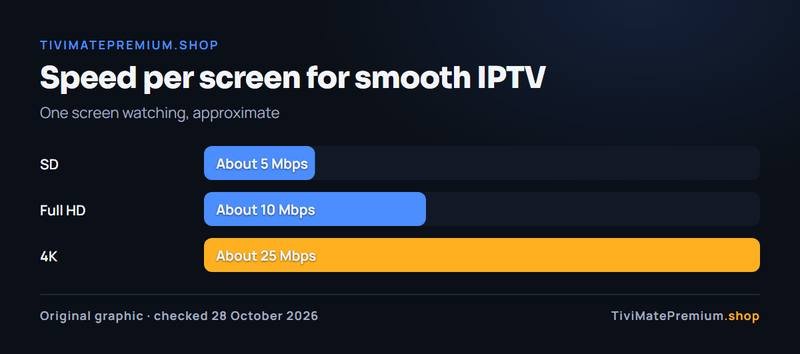
Add up every screen watching at once, plus anything else on the line, such as a game download or a video call. A 30 Mbps connection carries one 4K channel comfortably, but not one 4K channel while someone else downloads a large update. If the result is well below the table, that alone explains the TiviMate buffering. The remaining fixes will help, but a faster plan from your internet provider may be the real answer.
Fix 2: Plug in Ethernet instead of Wi-Fi
Wi-Fi speed falls with distance, walls and neighbouring networks, and it changes minute by minute. A cable does not. If you can run one, this is the single biggest fix for TiviMate buffering. Google's own advice for streaming devices is the same: "Use an Ethernet adapter to connect your streaming device to your router."
| Device | Ethernet | Wi-Fi |
|---|---|---|
| Fire TV Stick 4K Max (2nd Gen, 2023) | 10/100 Mbps with an external adapter | Wi-Fi 6E |
| Fire TV Cube (3rd Gen, 2022) | Built-in 10/100 Mbps port | Tri-band Wi-Fi (2.4, 5 and 6 GHz) |
| Google TV Streamer | Built-in 1 Gbps port | Wi-Fi 802.11ac |
| NVIDIA SHIELD TV and SHIELD TV Pro | Built-in Gigabit Ethernet | Built in |
On a 10/100 port, 100 Mbps is still four times what a 4K stream needs, so the limit never matters for IPTV. What matters is that the speed stays steady. Can't run a cable? Move the router or the device so they are close, ideally in the same room. Google suggests keeping the router "within 20 feet of your streaming device", and on a dual-band router choose the 5 GHz network over 2.4 GHz when the device is near the router. Many Android TV boxes for TiviMate have a built-in port for exactly this reason. Our Firestick setup guide and Android TV setup guide show where the network settings are on each device.
Fix 3: Restart the router and the TV device
Routers slow down after long uptime, and a restart clears their memory and renegotiates the line. Google's first connection tip is simply: "Restart your modem or router." Unplug it, wait 30 seconds, plug it back in and give it two minutes to come back.
Restart the streaming device too. On Google TV, open Settings, then System, then Restart. On a Fire TV, Amazon's help pages give Settings, My Fire TV, Restart, or you can unplug the power for a few seconds. A cold start closes apps that were running in the background and takes TiviMate buffering caused by a stuck network connection with it.
Fix 4: Close background apps and clear the cache
Streaming sticks have little memory. An app left open in the background, or a cache that has grown for months, leaves less room for the stream. A full cache is a quiet cause of TiviMate buffering on a stick with 2GB of memory, such as the Fire TV Stick 4K Max. Clearing the cache keeps your playlist and settings; clearing data removes them, so use cache first.
- Google TV: Settings, then Apps, then TiviMate (look under See all apps), then Clear cache. Google's help also shows Force stop on the same screen to close an app that misbehaves.
- Android TV: Settings, then Apps, then TiviMate, then Clear cache.
- Fire TV: Settings, then Applications, then Manage Installed Applications, then TiviMate, then Clear Cache. Do the same for apps you rarely use, or uninstall them.
Tip. After clearing the cache, open TiviMate and let the channel list and the TV guide reload fully before you judge the result. Our TiviMate EPG guide explains what to do if the guide stays empty afterwards.
Fix 5: Drop one quality step on the channel that freezes
Our service streams in 4K, FHD and HD. A 4K channel needs about two and a half times the speed of the Full HD one. If only 4K channels show TiviMate buffering while Full HD plays cleanly, your line is the limit, not the channel. Many channels in our playlists are listed in several qualities, for example FHD, HD and SD, so switch to a lighter version of the same channel in the channel list and keep 4K for the TV that has Ethernet.
On a 1080p television, 4K brings no visible gain anyway, so Full HD is the better choice there. Watching on a Samsung or LG TV instead? TiviMate is not available on those, and our smart TV setup guide covers the apps that are. Our TiviMate Premium explained page covers what the app adds on top of the free version, and the plans page shows that every plan includes all three qualities.
Fix 6: Give the player more buffer, if your version offers it
A buffer is the few seconds of video a player stores before it starts. A larger buffer rides out short dips in speed. TiviMate does not publish a list of its settings, so we cannot confirm a buffer setting by name. If your version offers a buffer option in its playback settings, try one step larger and test the same channel again to see whether the TiviMate buffering stops.
A bigger buffer only hides short dips. It cannot make a slow line fast, and channel changes take a moment longer. If fixes 1 to 3 showed a weak connection, go back to those first. The best TiviMate settings guide lists the options we can confirm and how to approach the rest, and our comparison of the best IPTV player apps helps if you want to try another player on the same line.
Fix 7: Try a different DNS server on the router
DNS turns a server name into an address. A slow DNS server makes channels slow to start, though it rarely causes TiviMate buffering once a channel plays. If channels take many seconds to open, set a different DNS server in your router, following its maker's manual, so every device in the house uses it.
Change one thing at a time and keep a note of the old values so you can switch back. If start-up times do not improve, return to your provider's default and move on to the next fix.
Fix 8: Update TiviMate and the device software
Updates fix playback bugs, and an old version can cause TiviMate buffering that no network fix will cure. TiviMate version 5.3.3 on Google Play, for example, lists "Fixes and improvements" among its changes. On Google TV, check for a system update under Settings, System, About, System update. On a Fire TV, check under Settings, then My Fire TV or Device and Software, then About.
Update TiviMate from the same source you installed it from: Google Play on Google TV and Android TV, or tivimate.com/apk through Downloader on a Fire TV, as our TiviMate on Firestick guide shows. Never install a modified APK; it is a common cause of crashes and freezes, and our page on the TiviMate Premium APK explains why.
Fix 9: Message us and we check your line
If fixes 1 to 8 did not stop the TiviMate buffering, tell us on WhatsApp which channel freezes, at what time, on which device, and your speed test result. We check your line and the channel on our side and reply with the next step. We offer daily support, usually within the hour.
Message us about buffering on WhatsApp or write to us through the contact page. Our FAQ answers the common setup questions too. If the problem is a Premium feature that will not unlock rather than playback, see TiviMate Premium not working.
The order that fixes most freezes
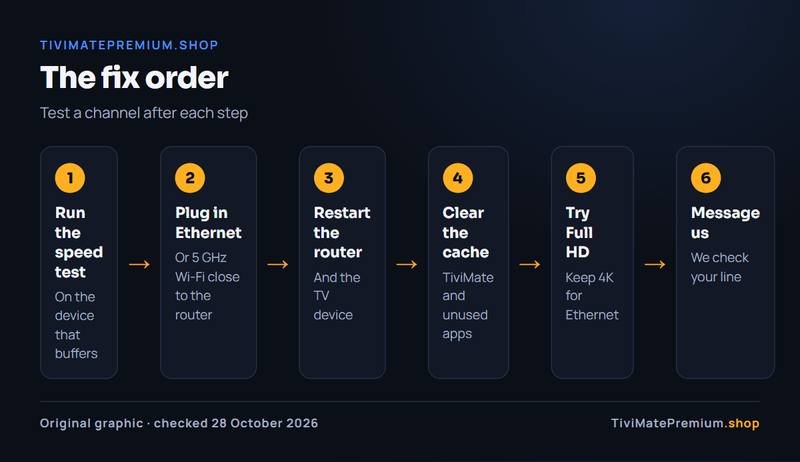
Each fix rules out one cause. Following them in this order clears TiviMate buffering fastest, because the early ones fix the most cases and take the least effort.
| What you see | Likely cause | Try first |
|---|---|---|
| Every channel freezes in the evening | Busy home or provider network | Fix 1, then Fix 2 |
| Only 4K channels freeze | Line too slow for 4K | Fix 5 |
| Freezes started after weeks without a problem | Router or device needs a restart | Fix 3 |
| Channels are slow to start but then play | Slow DNS | Fix 7 |
| One channel freezes, others are fine | That channel or its source | Fix 9 |
Still buffering? Check these before you message us
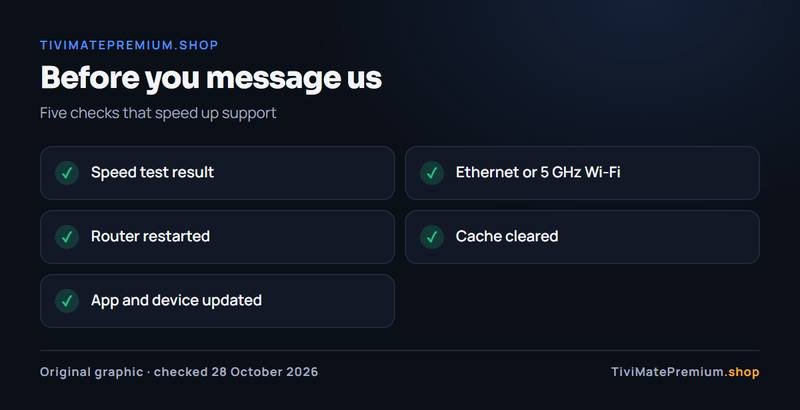
A short checklist makes the support conversation faster, because we can skip straight to your line instead of the basics.
- Speed test result taken on the device that buffers.
- Ethernet or 5 GHz Wi-Fi close to the router.
- Router restarted in the last day.
- TiviMate cache cleared.
- TiviMate and the device updated.
- Only one stream per screen your plan covers: a 1-device plan plays on one screen at a time.
If TiviMate buffering continues after this list, send us the results. The last point matters. If a second TV starts the same line, the first one can stop. Plans for two and three screens are on our IPTV plans for TiviMate page, and the refund policy explains the 7-day money-back if the service is not right for you.
TiviMate buffering: questions
Is TiviMate buffering caused by the app or by the IPTV service?
Usually neither. TiviMate is a player only, and most freezes come from Wi-Fi or the home connection between the router and the TV. Run our IPTV speed test on the device that buffers: if the result is below about 10 Mbps for Full HD, the connection is the cause. If the speed is fine and one channel still freezes, message us and we check it.
How fast should my internet be to stop TiviMate buffering?
About 5 Mbps per screen for SD, 10 Mbps for Full HD and 25 Mbps for 4K, measured at the TV, not at the router. Add the speeds of every screen watching at the same time, and leave headroom for other downloads in the house.
Does a Fire TV Stick need Ethernet to stop buffering?
Not always, but it is the most reliable fix. Amazon lists Ethernet for the Fire TV Stick 4K Max as 10/100 Mbps with an external adapter, while the Fire TV Cube has a built-in port. If you stay on Wi-Fi, keep the stick close to the router. Our best Firestick for TiviMate post compares the models.
Will clearing the cache delete my playlist?
No. Clearing the cache removes temporary files only, and your playlist and settings stay. Clearing data, the option next to it, resets the app, so you would need to add the playlist again with our playlist guide. That makes clearing the cache a safe first step whenever streams start to buffer.
What if only one channel keeps buffering?
If every other channel plays and your speed test is fine, the problem is likely that channel or its source rather than your setup. Note the channel name and the time, then message us on WhatsApp. We offer daily support, usually within the hour.
Sources
Official pages we checked for the facts on this page, on 28 October 2026.
- TiviMate IPTV Player on Google Play (features, version 5.3.3 changes)
- Google Chromecast Help: fix Wi-Fi and connection problems
- Google TV Help: fix problems with your Google TV (restart, updates, network)
- Google TV Help: clear an app's cache
- Google TV Help: force stop an app
- Android TV Help: fix problems playing videos or games
- Amazon Help: clear the cache of an app on Fire TV
- Amazon Developer: Fire TV streaming media player specifications
- Amazon Developer: Fire TV Cube specifications
- Google Store Help: Google TV Streamer technical specifications
- NVIDIA: SHIELD TV and SHIELD TV Pro
Ready for TiviMate without the buffering?
Plans from $4.16/mo · Billed once, no auto-renew · 7-day money-back