
Best TiviMate settings for smooth IPTV
By TiviMatePremium.shop · Updated 28 October 2026
The best TiviMate settings start outside the app: a wired or strong 5 GHz connection, an up-to-date TiviMate and a clean cache. Inside TiviMate, set up the TV guide, the layout and parental controls to suit your home. TiviMate does not publish its menu names, so this guide says what each option is for and shows the official device menus for resets.
In short
- Smooth playback depends on the connection first: Ethernet or 5 GHz Wi-Fi beats any setting in the app.
- TiviMate officially documents its TV guide, layout personalization, parental controls and multiple playlists.
- When playback gets stuck, clear the cache and restart through the official Fire TV or Google TV menus.
| Biggest win | Ethernet or 5 GHz Wi-Fi |
|---|---|
| Speed for 4K | About 25 Mbps per screen |
| Documented options | Guide, layout, parental controls |
| Clean reset | Clear cache, then restart |
| Time needed | About 10 minutes |
The best TiviMate settings in one minute
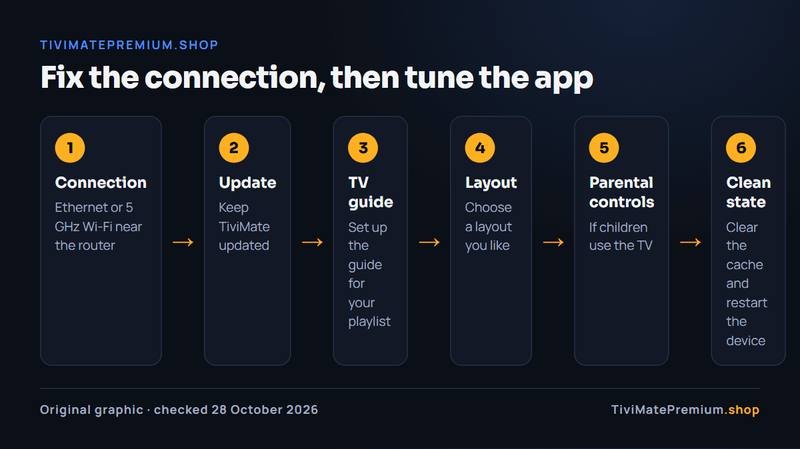
Fix the connection, then tune the app. Plug in Ethernet or use 5 GHz Wi-Fi near the router, keep TiviMate updated, set up the TV guide for your playlist, choose a layout you like and turn on parental controls if children use the TV. When something sticks, clear the cache and restart the device.
Most lists of the best TiviMate settings jump straight to menu tweaks. In practice, the settings that matter most sit one level lower: your network, your device and a clean app state. Once those are right, the options inside TiviMate decide how the guide looks and who can watch what, rather than whether the picture plays smoothly.
Check your line first with our IPTV speed test. Smooth viewing needs about 5 Mbps for SD, 10 Mbps for Full HD and 25 Mbps for 4K on each screen. If you are below that, no app setting will hide it.
What TiviMate documents, and what it does not
TiviMate's developer describes the app on tivimate.com and on its Google Play listing, and it publishes no help pages with menu names. The official feature list is short and clear, so that is what we build on here.
| Area | Officially documented | What this guide does |
|---|---|---|
| TV guide (EPG) | Yes: a fast, clear program grid | Explains how to keep it accurate |
| Look and layout | Yes: personalization of look and layout | Suggests a calm, readable setup |
| Parental controls | Yes: manage access | Explains when to use them |
| Multiple playlists | Yes | Explains how to keep them tidy |
| Buffer, frame rate, decoder | No public documentation | Describes them generically, if your version offers them |
| Backup and restore | No public documentation | Gives a safe routine that works either way |
That honesty matters because menus move between versions. A guide that names a menu which no longer exists sends you hunting. Here you get the goal of each setting, so you can find the option in whatever version you run, plus exact menu paths only where Amazon or Google publish them.
Playback: start with the connection, not the menu
Every live channel is a continuous stream, so a weak link shows up as buffering long before any app option makes a difference. Google's own help for streaming devices gives three plain fixes: restart your modem or router, use an Ethernet adapter to connect the streaming device to the router, and keep the router within about 20 feet of the device.
- Use Ethernet where you can. The Google TV Streamer, NVIDIA SHIELD TV and Fire TV Cube (3rd Gen) have a built-in Ethernet port. The Fire TV Stick 4K Max takes Ethernet through an external adapter.
- Prefer 5 GHz Wi-Fi. It is faster at short range than 2.4 GHz. The Fire TV Stick 4K Max also supports Wi-Fi 6E with a compatible router.
- Count your screens. Two people watching 4K at the same time need about 50 Mbps between them.
- Keep TiviMate current. Update from Google Play, or reinstall the official file with Downloader code 272483 on Fire TV.
If buffering continues on a good line, our post on fixing TiviMate buffering walks through nine checks in order, from the router to the stream itself.
Buffer size: when a bigger buffer helps
A buffer is the few seconds of video a player stores before it shows the picture. A larger buffer rides out short drops in speed; a smaller one starts channels faster. TiviMate does not document a buffer option publicly, so we will not name a menu or a value.
Among the best TiviMate settings, buffer size is the one most often misunderstood. If your version offers a buffer setting, change it one step at a time, then watch the same busy channel for a few minutes. Keep the change only if stalls become rarer. If they do not, set it back: the cause is usually the network, not the buffer.
Tip. Test at the time you usually watch. A line that is fine at noon can slow down in the evening when the whole street is streaming.
Auto frame rate and decoder choice
Auto frame rate switches the TV to the frame rate of each channel, so motion in sport looks smooth instead of slightly jerky. A decoder choice lets a player use the device's video chip (hardware) or the processor (software). Both are common in Android TV players, but TiviMate does not document either one publicly.
If your version offers frame-rate matching, try it with a sports channel and a film channel and keep it on if both look right. If it offers a decoder choice, leave the default unless one channel shows a green or frozen picture; then switch, test that channel and switch back if nothing changes. Neither option belongs in the best TiviMate settings for every TV, so write down what you changed and undo it if nothing improves.
On a Fire TV, the right device matters more than either option. Fire OS models such as the Fire TV Stick 4K Max run TiviMate; Vega OS models such as the Fire TV Stick 4K Select cannot install it at all. Our TiviMate on Firestick guide shows how to check which one you have.
TV guide settings that keep the EPG accurate
The guide belongs among the best TiviMate settings to get right on day one. It is one of the features TiviMate highlights: a fast, clear grid of the full schedule. With an Xtream Codes login, the guide usually arrives with the playlist. With an M3U link, the guide may need its own address.
Three habits keep it right: refresh the guide after you add or change a playlist, check that the programme times match your local time zone, and give the grid a minute to fill on first load. Our TiviMate EPG guide covers empty guides, wrong times and how to shift the schedule for the US, UK, Canada, France and Germany.
Appearance and layout: the best TiviMate settings for a family TV
TiviMate lists personalization among its features: you can adjust the app's look and layout. For a shared living-room TV, the best TiviMate settings here are the ones that make channels easy to find from the sofa.
- Favorites first. Bookmark the channels you watch most, so they sit at the top instead of deep in a list of thousands.
- Fewer groups on screen. If your version lets you hide channel groups, hide the ones nobody watches.
- Readable guide. Choose a layout where programme titles are not cut off at your viewing distance.
- Use search. TiviMate's search finds channels and shows quickly, which beats scrolling with a remote.
With two or more playlists, give each a short name you will recognize, so switching between them never needs guesswork.
Parental controls
Parental controls are on TiviMate's official feature list, described as a way to manage access for a safe viewing environment. Use them before children get the remote, not after: in a home with children, they belong in the best TiviMate settings from day one.
Plan the setup first: decide which channel groups should be locked, choose a code that children have not seen you type, and test it by opening a locked channel. TiviMate does not publish the exact steps, so follow the on-screen options in your version. Keep the code somewhere safe; a forgotten code usually means resetting the app.
Backup and restore before you move devices
Moving TiviMate to a new TV box is easier when you can bring your settings along. TiviMate does not document a backup option publicly. If your version offers one, save the backup before you reset or replace the device, and check that the file opens on the new one.
Either way, keep a simple record that rebuilds everything in minutes: your login details from our WhatsApp message, the names of your favorite channels and groups, and any changes you made from this page. With that list, a fresh install is back to normal quickly. The best TiviMate settings are the ones you can restore.
Reset TiviMate cleanly on a Fire TV
A clean reset completes the best TiviMate settings routine. When playback starts to stall or the app feels slow after weeks of use, clear TiviMate's cache and restart. These menu paths come from Amazon's Fire TV help.
-
Step 1: Open Manage Installed Applications
On the Fire TV home screen, go to Settings, then Applications, then Manage Installed Applications. The list shows every app on the device, including TiviMate.
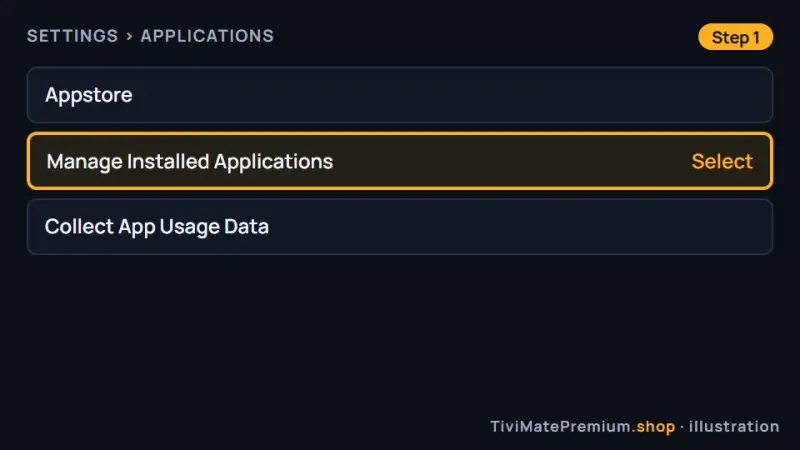
Fire TV: Settings, Applications, Manage Installed Applications (illustration). -
Step 2: Clear the TiviMate cache
Select TiviMate, then Clear Cache. Choose Clear Cache, not Clear Data: clearing data removes what the app has stored, so you would add your playlist and settings again.
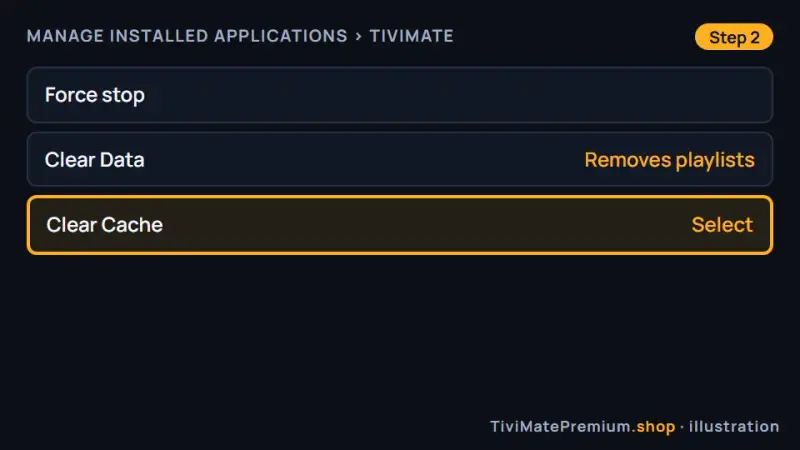
Clear Cache keeps your playlist; Clear Data does not (illustration). -
Step 3: Restart the Fire TV
Go to Settings, then My Fire TV, then Restart. On newer menus the same option sits under Device and Software. You can also unplug the power for a few seconds. Open TiviMate again and test the channel that stalled.
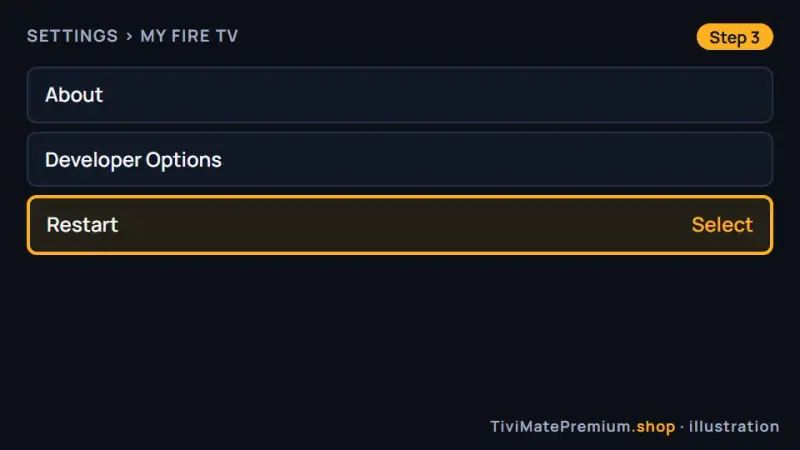
Fire TV: Settings, My Fire TV, Restart (illustration).
Reset TiviMate cleanly on Google TV and Android TV
Google TV devices, including the Google TV Streamer and Google TV televisions, use the paths below from Google's help center. Older Android TV menus are similar, with Clear cache under the app's storage options.
-
Step 1: Find TiviMate in Apps
From the Google TV home screen, select Settings, then Apps. If TiviMate is not in the short list, select See all apps.
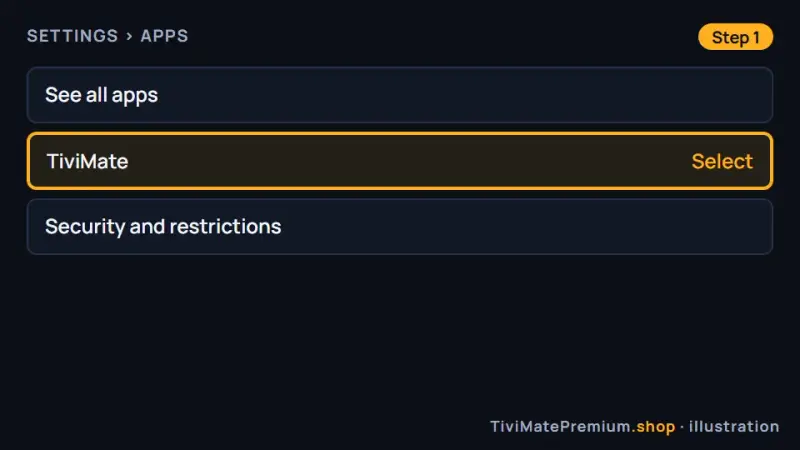
Google TV: Settings, Apps, See all apps (illustration). -
Step 2: Force stop, then clear the cache
On the TiviMate page, select Force stop and OK, then Clear cache and OK. Leave Clear data alone unless you want to set the app up from scratch.
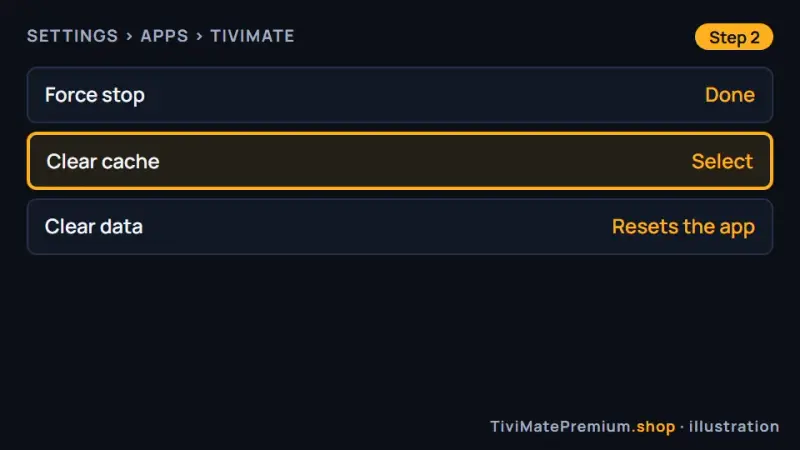
Force stop first, then Clear cache (illustration). -
Step 3: Check for a system update
Go to Settings, then System, then About, then System update, and select Check for update. Install anything waiting before you test again.
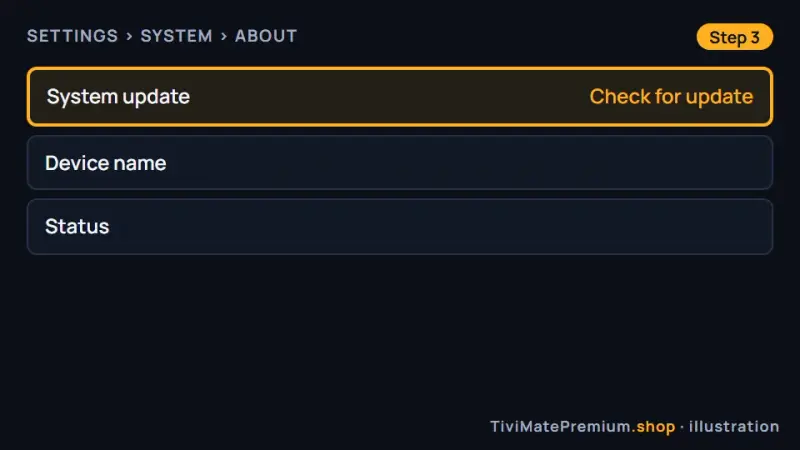
Google TV: Settings, System, About, System update (illustration). -
Step 4: Restart the device
In Settings, select System, then Restart, and confirm. When the home screen is back, open TiviMate and play a channel for a few minutes to confirm the stalls are gone.
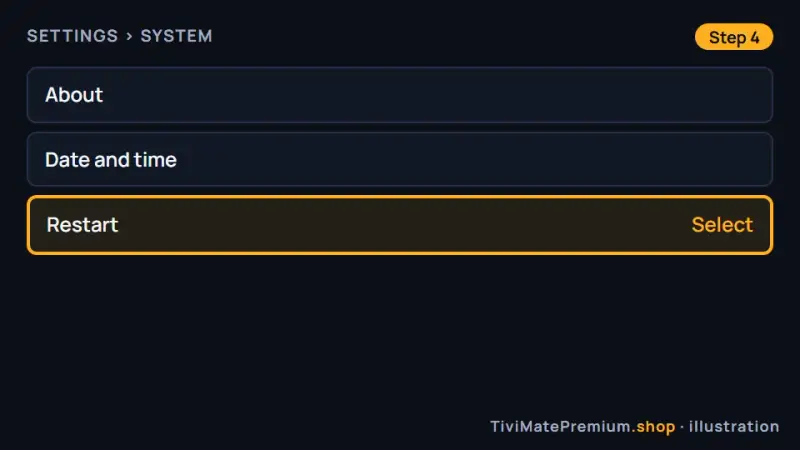
Google TV: Settings, System, Restart (illustration).
Still stuck after a clean reset on a good connection? The stream itself may be the issue. Our IPTV plans for TiviMate come with daily support, usually within the hour, and the Android TV setup guide covers a fresh install step by step.
TiviMate settings: common questions
What are the best TiviMate settings for buffering?
Start with the connection: Ethernet or 5 GHz Wi-Fi near the router, and about 25 Mbps per 4K screen. Then clear the cache and restart the device. If your version offers a buffer option, change it one step at a time and keep it only if stalls become rarer.
Does TiviMate publish its menu names?
No. tivimate.com and the Google Play listing describe features such as the TV guide, layout personalization, parental controls and multiple playlists, but there are no public help pages with menu paths. That is why this guide explains what each option is for instead of naming menus.
Will clearing the cache delete my playlist?
Clearing the cache should not remove your playlist. Clear Data is different: it removes what the app has stored, so you would add your playlist and set up TiviMate again. On Fire TV and Google TV, choose Clear Cache only.
Do the best TiviMate settings differ on Fire TV and Google TV?
The goals are the same on both: a strong connection, an updated app and a clean cache. Only the device menus differ, and both sets of official paths are on this page. On Fire TV, check first that your model runs Fire OS, because Vega OS models cannot install TiviMate.
Can parental controls lock channels in TiviMate?
TiviMate lists parental controls as a way to manage access for a safe viewing environment. The developer does not publish the steps, so follow the on-screen options in your version, test a locked channel afterwards and keep your code somewhere safe.
Sources
Official pages we checked for the facts on this page, on 28 October 2026.
- TiviMate official website (feature list)
- TiviMate IPTV Player on Google Play
- Amazon Fire TV help: clear app cache
- Amazon Fire TV help: restart your device
- Amazon developer: Fire TV device specifications
- Google TV help: fix problems with your Google TV
- Google TV help: clear an app's cache
- Google TV help: force stop an app
- Google help: fix Wi-Fi connection problems on streaming devices
Settings done. Ready for the channels?
Plans from $4.16/mo · Billed once, no auto-renew · 7-day money-back