
TiviMate catch-up and recording explained
By TiviMatePremium.shop · Updated 28 October 2026
TiviMate catch-up and recording solve the same problem in two ways. Catch-up replays programmes that already aired, straight from your IPTV provider's archive, with nothing stored on your device. Recording saves a programme to your device or a drive to watch later. Both are on TiviMate's official feature list; catch-up also needs a provider that keeps an archive, as our plans do.
In short
- Catch-up plays past programmes from the provider's archive; our plans include 7-day catch-up.
- Recording saves shows to your device, so storage space and the device you pick matter.
- Check on the Unlock Premium screen or at tivimate.com which features your account has unlocked.
| Catch-up source | Your IPTV provider's archive |
|---|---|
| Our archive | 7-day catch-up |
| Recording saves to | Device storage or a drive |
| Where you start | The TV guide |
| Time needed | About 5 minutes |
What catch-up is
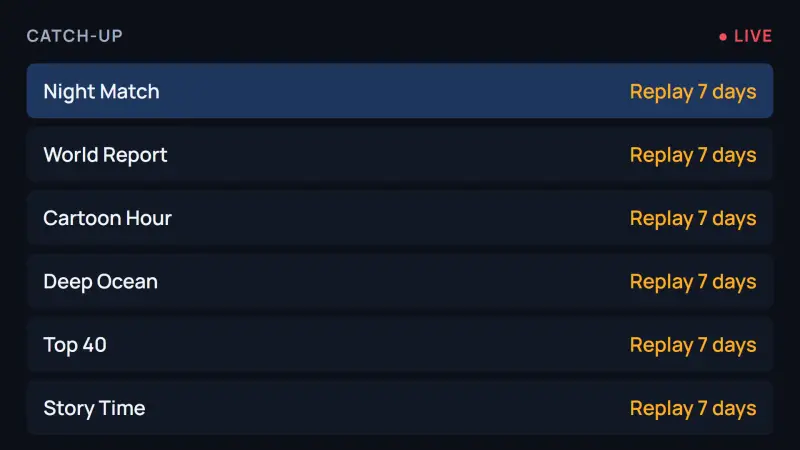
Catch-up lets you watch a programme after it has aired, without having set anything up in advance. TiviMate describes it on its official site as convenient access to past broadcasts, so you never miss a show. The video does not come from TiviMate: the app is a player and provides no content. It comes from your IPTV provider, which keeps a rolling archive of recent programmes for the channels that support it.
That is the key difference in TiviMate catch-up and recording. Catch-up streams from the provider's archive and needs no space on your TV box. Recording copies a programme to storage you control, so it stays available after the archive has moved on.
| Catch-up | Recording | |
|---|---|---|
| Where the video lives | Provider's archive | Your device or drive |
| Plan ahead? | No | Yes, start before or during the show |
| How far back | As long as the archive keeps it (7 days with our plans) | As long as you keep the file |
| Uses device storage | No | Yes |
| Needs | A channel with an archive | Free space and recording unlocked on your account |
Which channels have catch-up
Catch-up exists only where the provider archives the channel, so it varies from channel to channel. In TiviMate, channels that offer it are marked by the app in the channel list and the TV guide. The developer does not publish what the marker looks like, so for TiviMate catch-up and recording the quickest check is practical: open the guide, move back a few hours on a channel and see whether past programmes can be selected.
Our IPTV plans for TiviMate include full EPG and 7-day catch-up. If a channel shows past programmes in the guide but none will play, the cause is usually the guide data or the playlist type rather than the archive; the fixes further down cover both.
Tip. Catch-up depends on an accurate guide. If programme times are off by an hour, set the time shift first with our TiviMate EPG guide, or you will land in the wrong part of the show.
How to watch catch-up in TiviMate
These steps cover the first half of TiviMate catch-up and recording. TiviMate does not publish menu names, so they describe what to do rather than which label to press. They work the same with an Xtream Codes login or an M3U link, as long as the guide has loaded.
-
Step 1: Open the TV guide
Start TiviMate and open the TV guide, the program grid that TiviMate lists among its main features. Wait until the grid has filled for your channels.
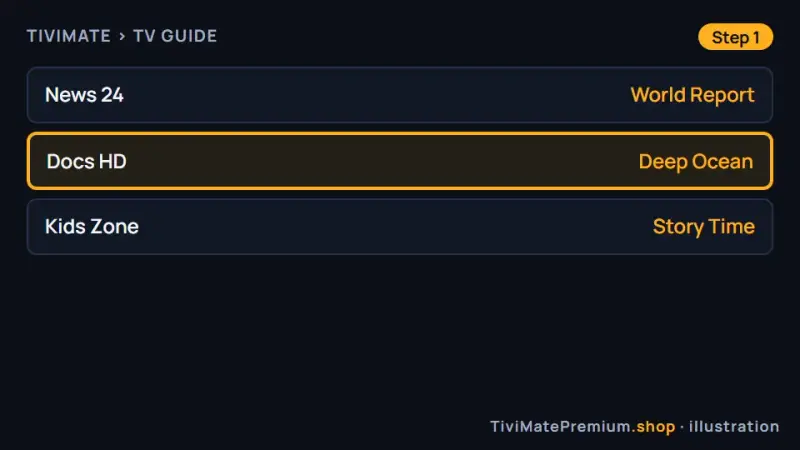
Start from the TV guide grid (illustration). -
Step 2: Move back to a programme that already aired
On a channel that offers catch-up, move left in the grid to earlier today or a previous day. Past programmes on archived channels can be selected; on other channels they cannot.
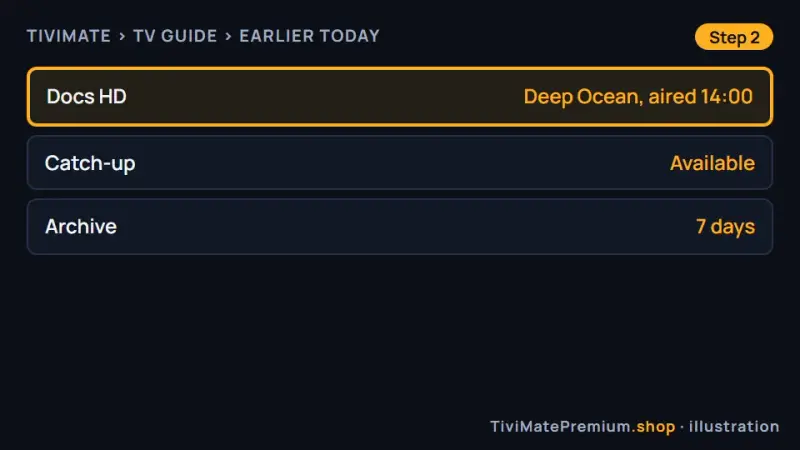
Move back in the guide to a programme that already aired (illustration). -
Step 3: Play it from the archive
Select the programme and start it. The video now streams from the provider's archive. Use the remote to pause or move through the programme, and return to live TV from the channel list when you are done.
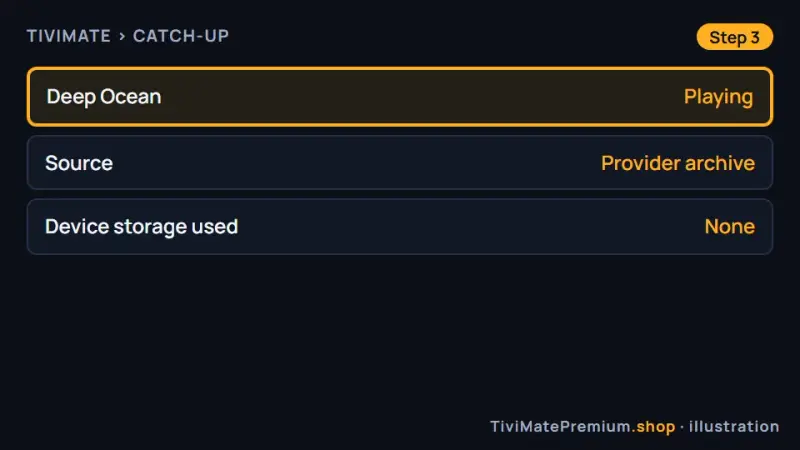
The programme plays from the provider's archive (illustration).
How to record a programme
Recording is on TiviMate's official feature list: record your favorite shows to watch them later. Which features your account has unlocked is shown on the Unlock Premium screen in the app and in your account at tivimate.com. TiviMate Premium is sold only by its developer; our TiviMate Premium explained page covers what the upgrade is.
-
Step 1: Check that recording is unlocked
Open the Unlock Premium screen in TiviMate, or sign in at tivimate.com, and confirm your account status. If you bought Premium but nothing unlocked, follow our guide to activate TiviMate Premium.
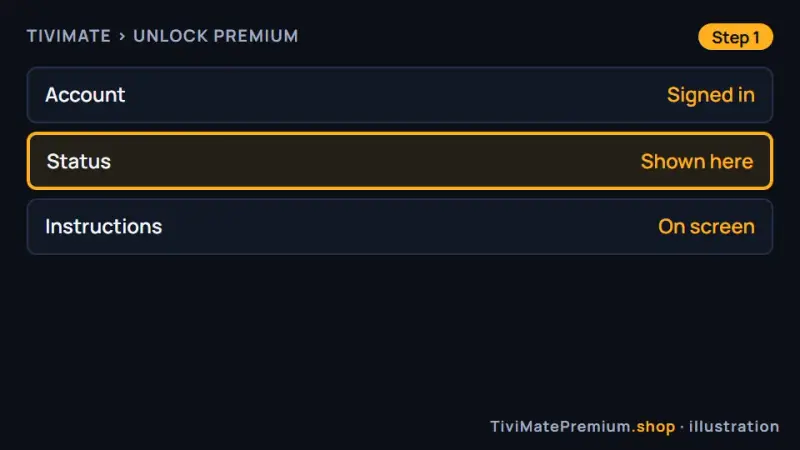
Confirm your account status on the Unlock Premium screen (illustration). -
Step 2: Choose the programme in the guide
Open the TV guide, select a programme that is on now or later, and choose the recording option the app offers for it. TiviMate does not publish the exact label, so follow the options on your screen.
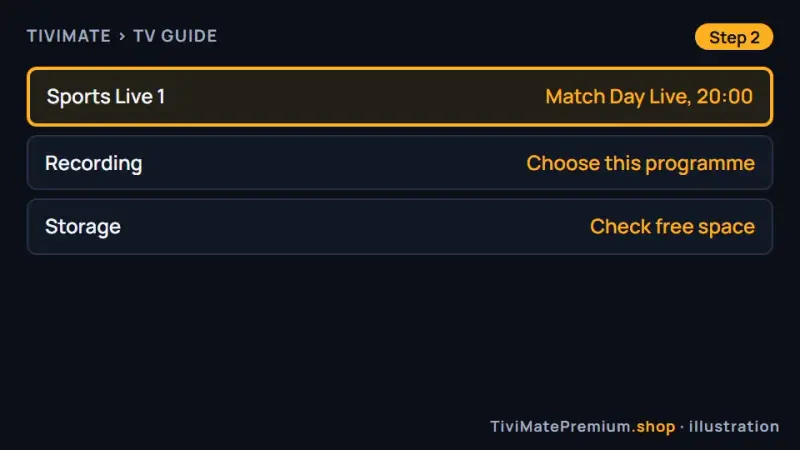
Pick the programme to record from the guide (illustration). -
Step 3: Watch the recording later
When the programme has finished, open your recordings from inside TiviMate and play it. Keep the device powered on while a recording runs, because a device in deep sleep or switched off cannot save the stream.
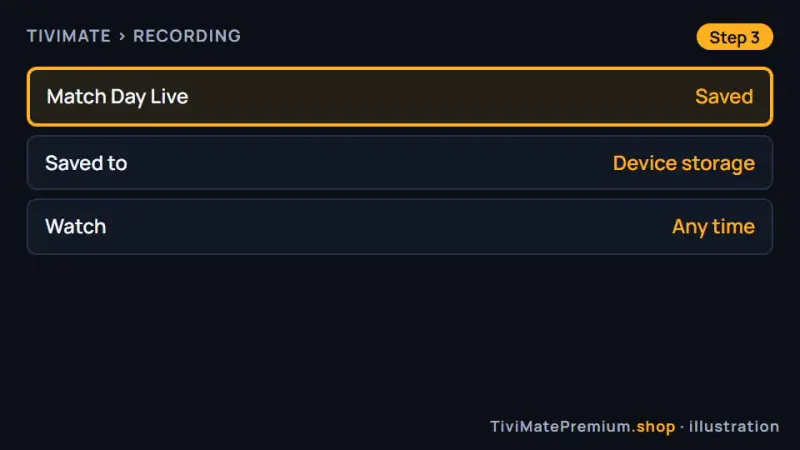
A finished recording, ready to watch (illustration).
Scheduled recordings
Recording a programme that starts later is the most useful part of TiviMate catch-up and recording, because it covers shows that your provider does not archive. TiviMate does not publish how scheduling works in each version, so treat these as good habits rather than menu steps.
- Leave the device on. Sleep settings on some TV boxes can stop a recording. Check the device's own display and sleep options.
- Allow a margin. Live events often run late. If your version lets you extend a recording, add a few minutes at the end.
- Avoid clashes. Recording and watching at the same time uses one stream each, which counts against the screens on your plan.
- Check the guide first. A scheduled recording follows the guide times, so a wrong time shift records the wrong hour.
Where recordings are saved and storage tips
Recordings live on storage you control. TiviMate does not document where it saves files, so if your version lets you choose a location, pick the one with the most free space. Built-in storage on popular TiviMate devices, from the manufacturers' spec pages:
| Device | Built-in storage | Expansion |
|---|---|---|
| Fire TV Stick 4K Max (2nd Gen) | 16 GB | None listed |
| Fire TV Cube (3rd Gen) | 16 GB | 1 USB 2.0 port |
| Google TV Streamer | 32GB | None listed |
| NVIDIA SHIELD TV | 8GB | MicroSD card slot |
| NVIDIA SHIELD TV Pro | 16 GB | Two USB 3.0 ports |
| Formuler Z11 Pro Max | 32GB | USB 3.0 and USB 2.0 |
A Fire TV Stick shares its space with apps and system updates, so it suits occasional recordings. If you plan to use TiviMate catch-up and recording every week, storage decides the device. For regular use, a box with a USB port such as the SHIELD TV Pro or the Formuler Z11 Pro Max, with an external drive attached, holds far more. Delete what you have watched, because a full disk is the most common reason a recording fails. Our Android TV and SHIELD setup guide and TiviMate on Firestick guide cover installing TiviMate on these devices.
TiviMate catch-up and recording not working: 6 fixes
Most problems with TiviMate catch-up and recording come down to the guide, the app version, the account or the storage. Work through these in order.
1. The guide is empty or the times are wrong
Catch-up and scheduled recordings both follow the guide. Refresh it and set the time shift with the TiviMate EPG guide, then try again.
2. TiviMate is out of date
TiviMate's own release notes for version 5.3.3 on Google Play list a fix for missing catch-up on some M3U playlists. Update from Google Play, or install the official file again with Downloader code 272483 on Fire TV.
3. The channel has no archive
Catch-up only works on channels the provider archives. Try another channel that shows past programmes in the guide. If none play at all, message us with the channel name.
4. The playlist type
If you added your service with the M3U link, add the Xtream Codes login from our WhatsApp message as a test and compare. Our guide to adding a playlist in TiviMate shows both.
5. Recording is not unlocked, or the disk is full
Check your account status on the Unlock Premium screen or at tivimate.com, then check free space on the device. Delete watched recordings or attach a drive.
6. Playback stalls on catch-up
Archive streams need the same speed as live ones: about 10 Mbps for Full HD and 25 Mbps for 4K. Run our IPTV speed test, then clear the cache and restart as shown in the best TiviMate settings.
Catch-up and recording: common questions
How long does catch-up last?
As long as your IPTV provider keeps its archive. Our plans include 7-day catch-up on the channels that support it. After that, a programme is gone from catch-up, which is when recording it yourself helps. If you often watch programmes more than a week after they air, set a recording before they start.
Does catch-up use storage on my device?
No. Catch-up streams from the provider's archive, so nothing is saved on your TV box. Recording is different: it copies the programme to your device or an attached drive. If you plan to record often, a device with spare storage or a USB port for an external drive makes the most sense.
Is TiviMate catch-up and recording part of Premium?
Both are on TiviMate's official feature list. The developer does not publish which features need Premium on a public page, so check the Unlock Premium screen in the app or your account at tivimate.com. TiviMate Premium is sold only by the developer.
Why can I see past programmes but not play them?
Usually the guide times are off, the app is out of date or the channel has no archive. Set the time shift, update TiviMate and try a channel that shows replayable programmes. If none play, message us with the channel name.
Which device is best for recording?
A device with room to grow. The Fire TV Stick 4K Max has 16 GB built in, while the SHIELD TV Pro adds two USB 3.0 ports and the Formuler Z11 Pro Max has 32GB plus USB, so an external drive can hold many more recordings.
Sources
Official pages we checked for the facts on this page, on 28 October 2026.
- TiviMate official website (catch-up and recording features)
- TiviMate IPTV Player on Google Play (features, version 5.3.3 notes)
- Amazon developer: Fire TV streaming media player specifications
- Amazon developer: Fire TV Cube specifications
- Google: Google TV Streamer technical specifications
- NVIDIA: SHIELD TV
- NVIDIA: SHIELD TV Pro
- Formuler: Z11 Pro Max
Never miss a show. Ready for the channels?
Plans from $4.16/mo · Billed once, no auto-renew · 7-day money-back