
TiviMate EPG: how to load and fix the TV guide
By TiviMatePremium.shop · Updated 28 October 2026
The TiviMate EPG is the programme grid that shows what is on each channel now and next. With an Xtream Codes login it loads on its own a few minutes after the channels. If it stays empty or shows the wrong times, check the device clock, reload the playlist and clear the app cache: those three fixes solve most cases.
In short
- With Xtream Codes, the TiviMate EPG arrives with the login; M3U may need a separate guide link.
- Wrong programme times almost always mean a wrong device clock or time zone.
- An empty guide usually comes back after a reload of the playlist and a cleared cache.
| What it is | The programme grid (TV guide) |
|---|---|
| Loads with | Xtream Codes, or an M3U guide link |
| First fill | A few minutes after the channels |
| Wrong times | Check the device clock first |
| Fix time | About 5 minutes |
What the TiviMate EPG is
EPG stands for electronic programme guide. In TiviMate it is the grid you scroll through to see what is on now, what comes next and what aired earlier. The developer describes it as a TV guide where you "browse the full program schedule in a fast, clear grid".
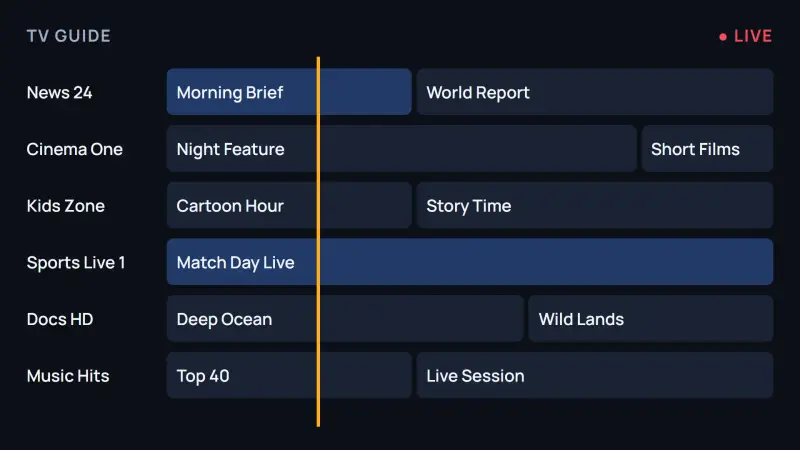
TiviMate does not make the guide itself. It reads programme data that your IPTV provider supplies, matches it to the channels in your playlist and draws the grid. So when the TiviMate EPG is empty or wrong, the cause is almost always the data, the link to it or the device clock, not the app. The guide also powers catch-up: programmes you can replay show in the past part of the grid, covered in our guide to catch-up and recording.
How the guide loads with Xtream Codes
An Xtream Codes login carries everything in one: channels, movies, series and the programme data. When you add a playlist in TiviMate with Xtream Codes, the channel list appears first and the TiviMate EPG fills in a few minutes later. Nothing extra to type.
That is why we recommend Xtream Codes on every TV device. Our login message includes the server URL, username and password, and the guide for our 20,000+ live channels comes with them. If you are not with us yet, see the IPTV plans for TiviMate, from $4.16/mo.
Tip. Give the first load time. A full guide for thousands of channels is a lot of data, and on a slow connection the grid can take several minutes to fill in completely the first time. Later updates are quicker.
Adding a guide link for M3U playlists
An M3U playlist is a list of channels. Some providers put the guide inside it; others send a second link for the guide, often called an EPG or XMLTV link. If your provider sends one, add it where TiviMate asks for the guide source for that playlist. If not, the TiviMate EPG for that playlist may stay empty.
We send an Xtream Codes login as well as the M3U link, so with our service the quick fix for an empty TiviMate EPG on an M3U playlist is simple: add the same login again with Xtream Codes and use that playlist. The guide comes with it.
Updating the TiviMate EPG
The app refreshes the TiviMate EPG on its own over time. When it looks stale, or after you change something, these five steps bring it up to date. The developer does not publish its menu names, so the TiviMate steps describe what to do, and the device steps use the menu paths from Amazon and Google help. The screens are illustrations.
-
Step 1: Check the device date, time and time zone
Open the device's own date and time settings and make sure automatic time is on and the time zone is where you live. A clock that is wrong by an hour moves the whole TiviMate EPG by an hour.
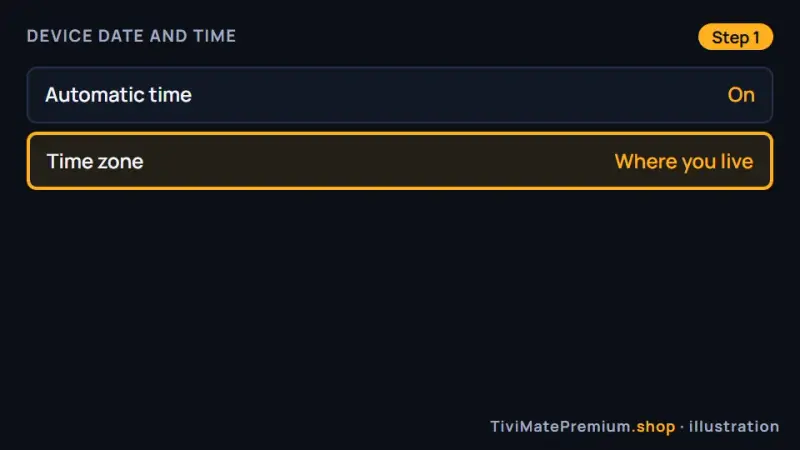
Illustration: automatic time on, and the time zone set to where you live. -
Step 2: Close TiviMate completely
On Google TV, go to Settings › Apps, select TiviMate and choose Force stop. On a Fire TV, go to Settings › Applications › Manage Installed Applications, select TiviMate and choose Force stop. Then reopen TiviMate.
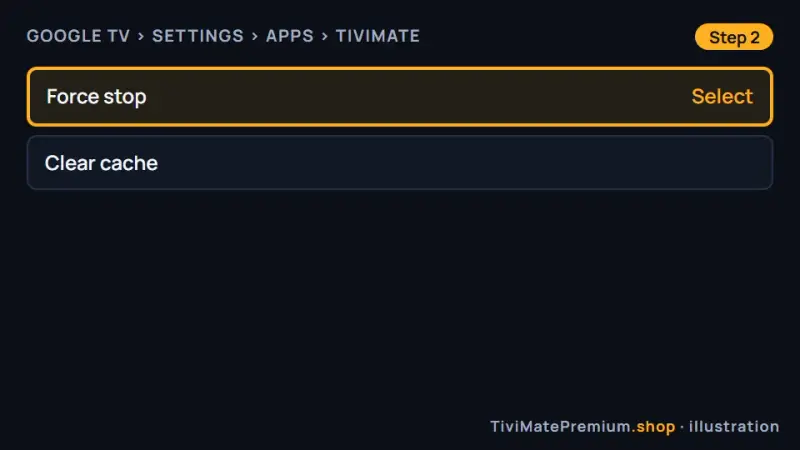
Illustration: Force stop in the Google TV app settings. -
Step 3: Clear the TiviMate cache
In the same app screen, choose Clear cache. On Fire TV the option is called Clear Cache. Do not choose Clear data: that removes your playlists and settings as well.
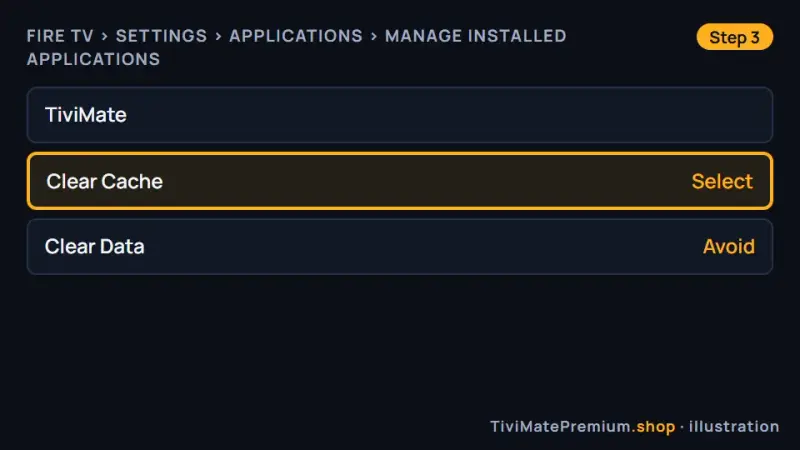
Illustration: Clear Cache on a Fire TV. Clear Data would remove your playlists. -
Step 4: Reload the playlist, or add it again
If your version of TiviMate offers a guide update for the playlist, run it. If not, or if the grid is still empty, add the login again with Xtream Codes; your old playlist can stay until the new one works.
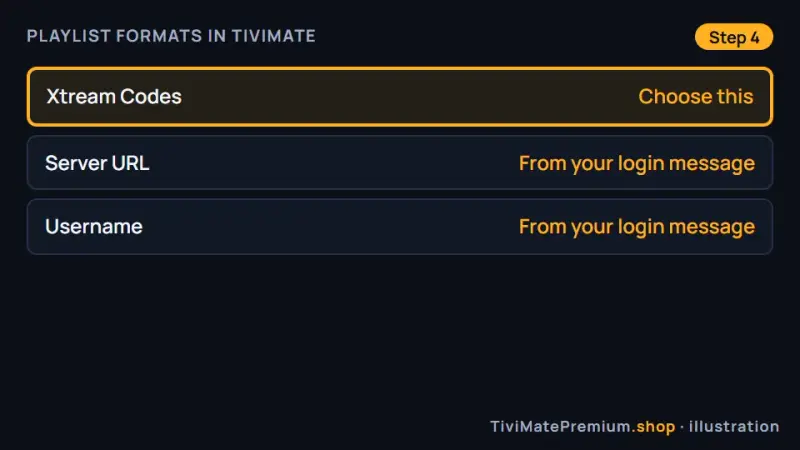
Illustration: adding the same login again with Xtream Codes brings a fresh guide. -
Step 5: Wait a few minutes and check the grid
Leave TiviMate open on the guide for a few minutes, then scroll through several channels. If the programmes now match what is on air, you are done. If one channel is still blank, its programme data may be missing at the source; tell us which one.
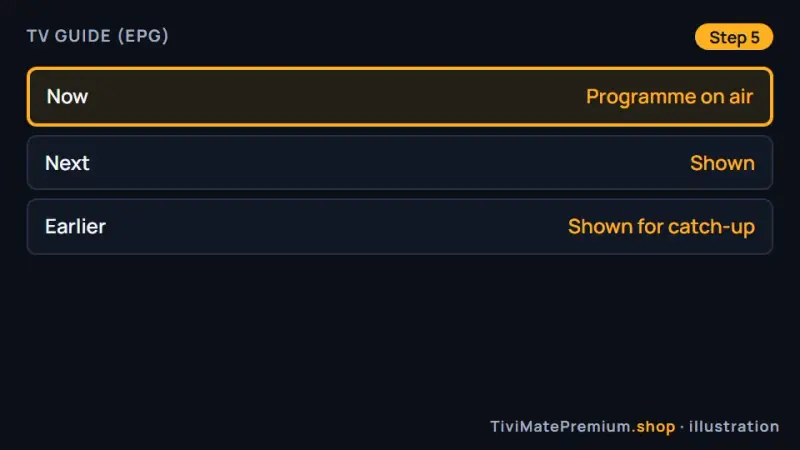
Illustration: the guide is back, with the current programme on each channel.
Setting the time shift for your time zone
Programmes that show an hour early or late are a common TiviMate EPG complaint. Most often the device clock is the cause, so fix that first (step 1 above). The rest come from daylight saving changes or from guide data published for another time zone.
If your version of TiviMate offers a guide time shift, set it in whole hours until the programme on screen matches the grid. TiviMate does not publish the exact label, so we do not name it here; we will add it once we can confirm it. Here is what to expect where our customers live:
| Country | Time zones | Clock changes |
|---|---|---|
| USA | Eastern, Central, Mountain, Pacific, Alaska, Hawaii | Second Sunday in March to first Sunday in November; Hawaii and most of Arizona do not change |
| UK | GMT in winter, BST in summer | Last Sunday in March (1am) to last Sunday in October (2am); in 2026, 29 March and 25 October |
| Canada | Pacific, Mountain, Central, Eastern, Atlantic, Newfoundland | Most provinces change; Yukon, Saskatchewan and parts of BC, Quebec and Nunavut do not |
| France | CET (UTC+1), CEST (UTC+2) in summer | Last Sunday in March to last Sunday in October |
| Germany | CET (UTC+1), CEST (UTC+2) in summer | Last Sunday in March to last Sunday in October |
The weeks around a clock change are when the TiviMate EPG most often looks off by an hour, because the guide data and the device do not always switch at the same moment. Give it a day before you change anything. Our country pages for the UK, Canada, the USA, France and Germany have local tips.
TiviMate EPG shows "No information": 7 fixes
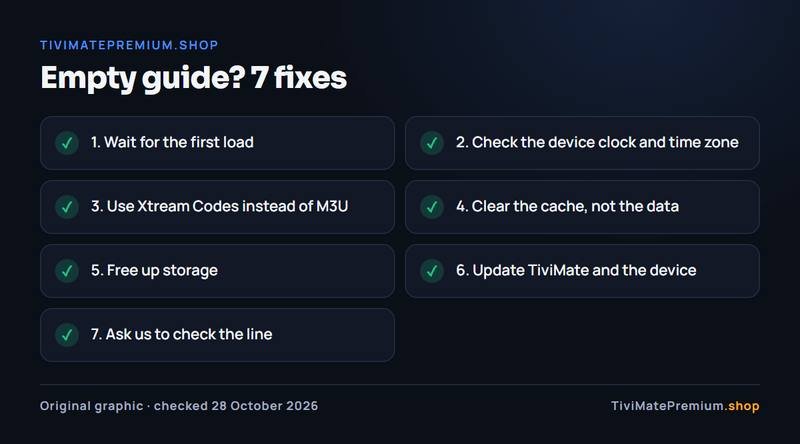
When the TiviMate EPG grid is blank or every channel shows no programme details, work through these fixes in order. Most people are done by fix 3.
1. Wait for the first load
Right after you add a playlist, the TiviMate EPG can take several minutes to fill. Leave the guide open and come back.
2. Check the device clock and time zone
A wrong date can make the TiviMate EPG look empty, because the app looks for programmes at the wrong time. Turn automatic time on.
3. Use Xtream Codes instead of M3U
If you added an M3U link without a guide link, the guide has nothing to read. Add the same login with Xtream Codes.
4. Clear the cache, not the data
Use Clear cache on Google TV or Clear Cache on Fire TV. Clear data removes your playlists too.
5. Free up storage
A full TiviMate EPG takes space. On a stick with little free storage, remove apps you no longer use, then reopen TiviMate.
6. Update TiviMate and the device
Install the latest TiviMate from Google Play or the developer's download, and check for a system update: on Google TV under Settings › System › About › System update.
7. Ask us to check the line
If one channel is blank while others are fine, its data may be missing at the source. Send us the channel name and we look into it.
Buffering is a different problem: if the guide is fine but the picture stops, see the TiviMate buffering fixes and run the IPTV speed test.
Guide update interval and storage
Programme data is stored on the device, and a guide for thousands of channels over several days takes real space. That matters most on sticks: the Fire TV Stick 4K Max has 16 GB of storage, shared with every app you install, while a box such as the Google TV Streamer has 32 GB.
If your version of TiviMate lets you choose how often the guide updates or how many days it keeps, a shorter range uses less storage and loads faster, and a longer one shows more catch-up history. We will add the exact options once we can confirm their labels. In any case, keep a little free space: a nearly full device is a common reason for a TiviMate EPG that stops updating.
For a smoother app overall, the best TiviMate settings page covers the options worth checking, and every other topic is in our TiviMate guides. Device-specific steps are in the Firestick setup guide and the Android TV and Google TV guide.
Guide still empty? We'll check it with you
Tell us your device and what the guide shows, and we check your line and walk you through the fix. We offer daily support, usually within the hour.
Message us, and we guide you all the way to your first channel.
Daily support, usually within the hour.
TV guide questions
Why is my TiviMate EPG empty?
Usually because the guide has not finished its first load, the device clock is wrong, or an M3U playlist was added without a guide link. Wait a few minutes, turn on automatic time, and if you use M3U, add the same login with Xtream Codes.
Why are the programme times an hour off?
Most often the device clock or time zone is wrong, or a daylight saving change just happened. Set the device to automatic time and your own time zone first. If your TiviMate version offers a guide time shift, adjust it in whole hours.
Do I need an EPG link with Xtream Codes?
No. An Xtream Codes login carries the programme data along with the channels, so the guide fills in on its own. A separate guide link is only needed for some M3U playlists, when the provider sends one. If an M3U playlist leaves the guide empty, adding the same login with Xtream Codes is usually the quickest fix.
How often does the TiviMate EPG update?
TiviMate refreshes the guide on its own over time. The developer does not publish the schedule or the menu names. If the guide looks stale, close the app, clear its cache and reload the playlist. Also check that the device clock is set to automatic, because a wrong time makes the guide show the wrong programmes.
Will clearing the cache delete my playlist?
No. Clear cache removes temporary files only. Clear data is the option that deletes your playlists and settings, so avoid it unless you plan to set TiviMate up again from the start. If a cache clear does not help, adding the Xtream Codes login again is the next step, and it takes only a few minutes.
Sources
Official pages we checked for the facts on this page, on 28 October 2026.
- TiviMate IPTV Player on Google Play (TV guide feature)
- TiviMate official website
- Google TV Help: clear an app's cache
- Google TV Help: force stop an app
- Google TV Help: fix problems (restart, system update)
- Amazon Fire TV Help: clear app cache and data
- Amazon developer: Fire TV device specifications
- Google TV Streamer technical specifications
- NIST: daylight saving time in the US
- GOV.UK: when do the clocks change
- Government of Canada open data: time zones
- PTB (Germany): summer time rules
Want a guide that fills in by itself?
Plans from $4.16/mo · Billed once, no auto-renew · 7-day money-back