
IPTV on Android Phone and Tablet: Setup Guide
By TiviMatePremium.shop · Updated 28 October 2026
To watch IPTV on Android phone or tablet, install a player such as TiviMate from Google Play or IPTV Smarters from its official APK, choose the Xtream Codes login and type the server URL, username and password we send on WhatsApp. The whole setup takes about 5 minutes on Android 5.0 or newer.
In short
- TiviMate, IBO Player and ELK Player install from Google Play; IPTV Smarters comes from its official APK.
- TiviMate is built for TV screens, so IPTV Smarters is often easier to use on a small touch screen.
- Cast to a TV with Chromecast; your plan streams in 4K, FHD and HD.
| Device | Android 5.0 or newer, phones and tablets |
|---|---|
| Time needed | About 5 minutes |
| Difficulty | Easy |
| Apps covered | TiviMate, IBO Player, ELK Player, IPTV Smarters |
| What you need | Your login from WhatsApp |
Before you start
Setting up IPTV on Android phone is quicker when everything is ready before you open the store. Check these four things first.
- Your phone or tablet, charged and running Android 5.0 or newer.
- A stable connection: Wi-Fi is best, and 25 Mbps or more if you want 4K.
- Your login from WhatsApp: server URL, username, password and the M3U link. No login yet? Compare our IPTV plans for TiviMate and it arrives within minutes of your order.
- About 10 minutes, including the app download.
Everything below is a one-time setup. After that, you just open the app. If you own several devices, the full list of setup guides covers each one.
Choose your app
Four players handle IPTV on Android phone and tablet. TiviMate and IPTV Smarters take a typed login; we activate IBO Player and ELK Player.
Set up TiviMate on Android phone
Free app. Premium is optional: $9.99 a year or $33.99 lifetime on US Google Play in October 2026, up to 5 devices, paid to its developer. Check today's price in the Companion app or on the official site.
TiviMate is designed for TV screens and a remote. It runs on phones and tablets, but on a phone IPTV Smarters is often easier.
-
Step 1: Install TiviMate from Google Play
Open the Play Store, search for TiviMate and tap Install.
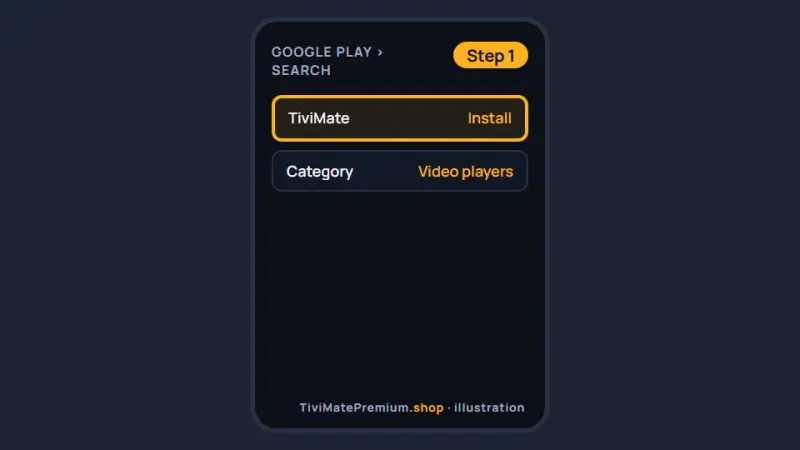
Install TiviMate from Google Play on your phone or tablet (illustration) -
Step 2: Choose Add playlist
Open the app and tap Add playlist on the first screen. Turning the phone sideways gives the guide more room.
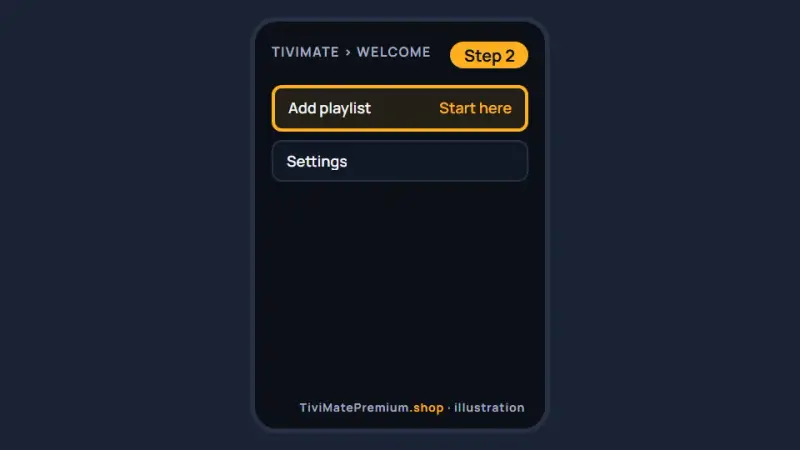
Tap Add playlist on the TiviMate welcome screen (illustration) -
Step 3: Pick Xtream Codes and enter your login
Select Xtream Codes, then type or paste the server URL, username and password from our WhatsApp message. M3U playlist works too if you prefer it.
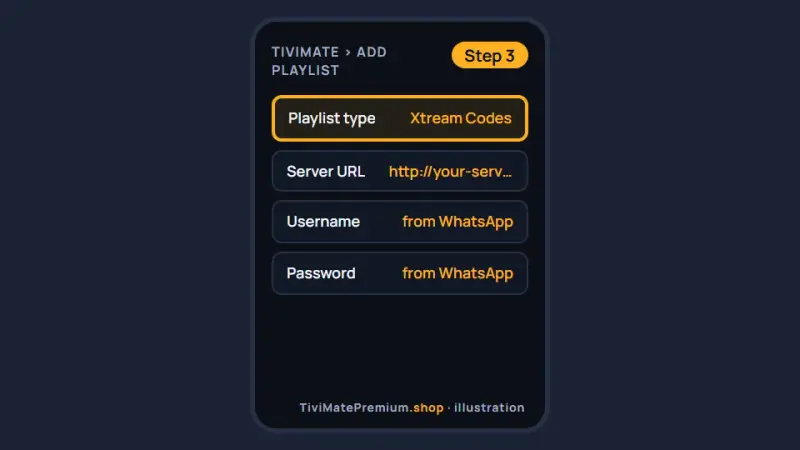
Enter the Xtream Codes login for IPTV on Android phone (illustration) -
Step 4: Save and let the guide load
Tap Next, then Done. Channels appear first and the guide fills in within a minute. See how to add a playlist in TiviMate and fix the TiviMate TV guide for the extras.
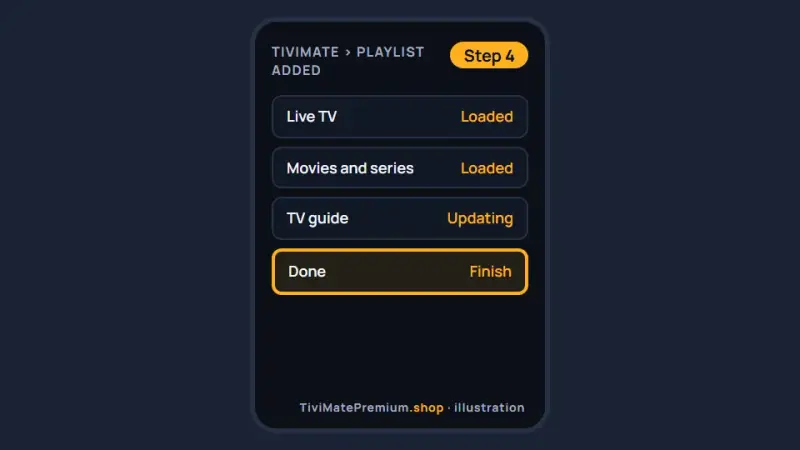
Save the playlist and wait for the channels to load (illustration)
Set up IBO Player on Android phone
Free for 7 days, then a yearly or lifetime licence per device, paid to its developer.
-
Step 1: Install IBO Player
Install IBO Player from Google Play if it is listed for your phone or tablet, or get the Android APK from the developer's downloads page. Several apps use similar names, so pick the one whose listing points to iboplayer.com.
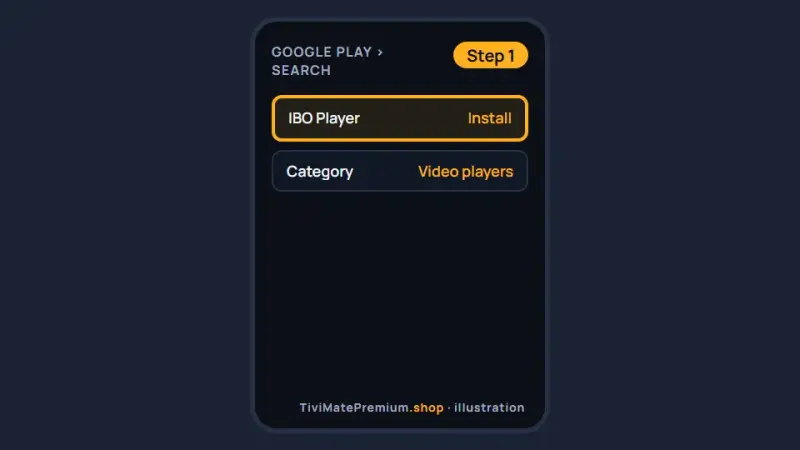
Install IBO Player from Google Play (illustration) -
Step 2: Note the Device ID and Key
Open the app. Its first screen shows a Device ID and a Key. Take a screenshot, because you send it to us next.
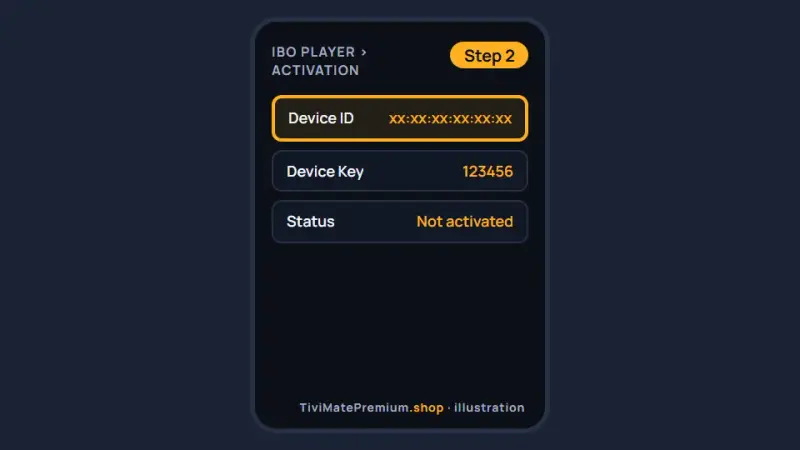
Screenshot the Device ID and Key shown by IBO Player (illustration) -
Step 3: Send it to us on WhatsApp
Message us the screenshot and say it comes from IBO Player. We link the device to your plan and confirm, usually within minutes.
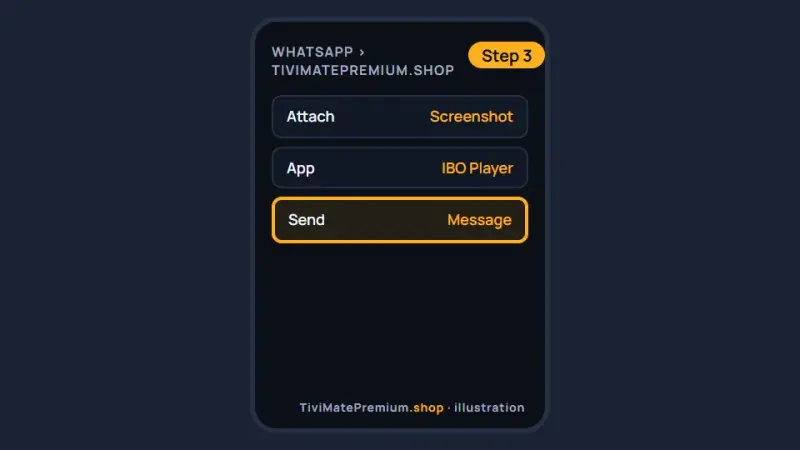
Send the Device ID and Key to us on WhatsApp (illustration) -
Step 4: Reopen the app and watch
Close the app fully from recent apps and open it again. Your channels appear. If the list is empty, wait a minute and restart it.
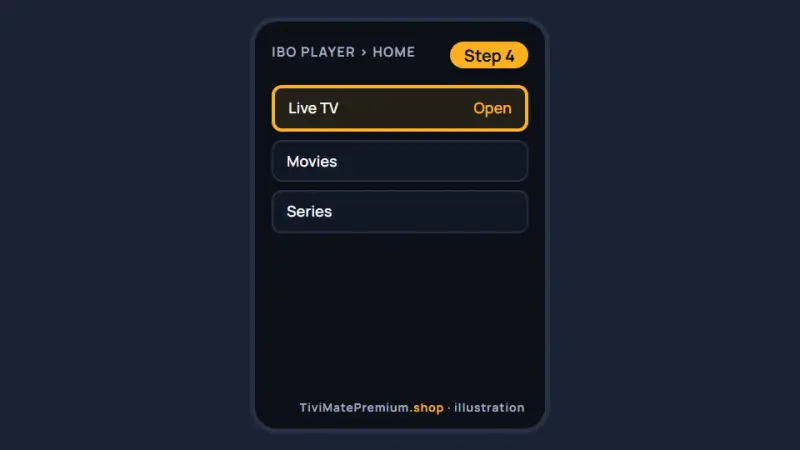
Reopen IBO Player and choose Live TV (illustration)
Set up ELK Player on Android phone
Free for 14 days, then a one-time fee per device, paid to its developer.
-
Step 1: Install ELK Player
Open Google Play, search for ELK Player and install it.
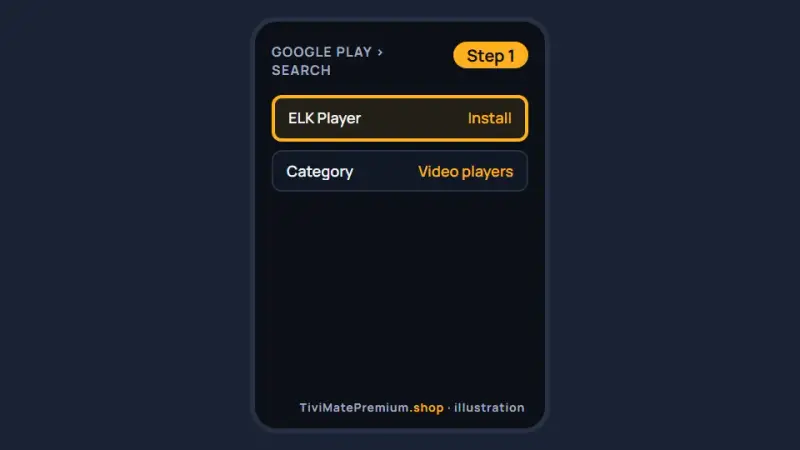
Install ELK Player from Google Play (illustration) -
Step 2: Note the Device ID and Key
Open ELK Player and screenshot the Device ID and Key on the first screen.
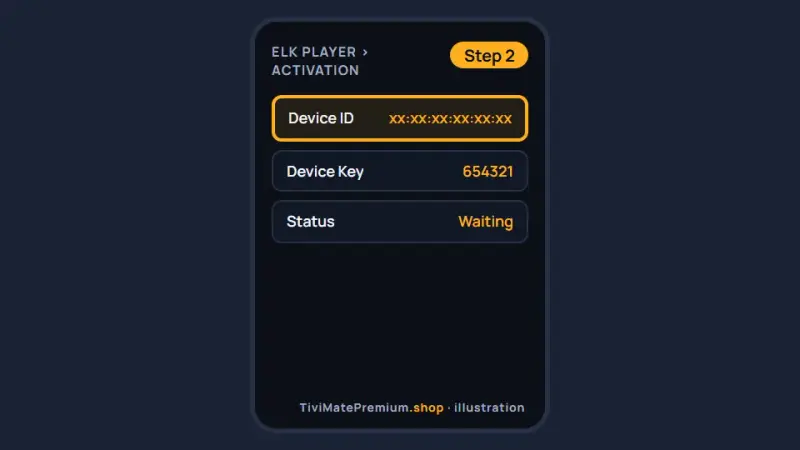
Screenshot the Device ID and Key shown by ELK Player (illustration) -
Step 3: Send it to us on WhatsApp
Send the screenshot and name the app. We activate it on your plan and tell you when it is ready.
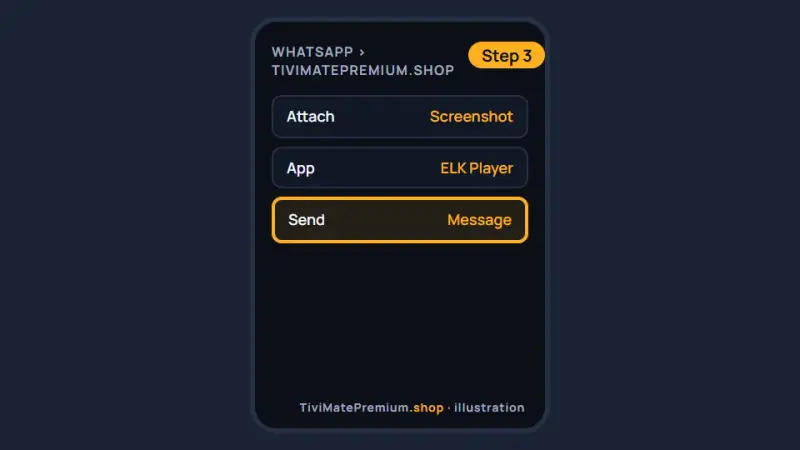
Send the ELK Player details to us on WhatsApp (illustration) -
Step 4: Reopen the app and watch
Close ELK Player completely, open it again and pick a channel.
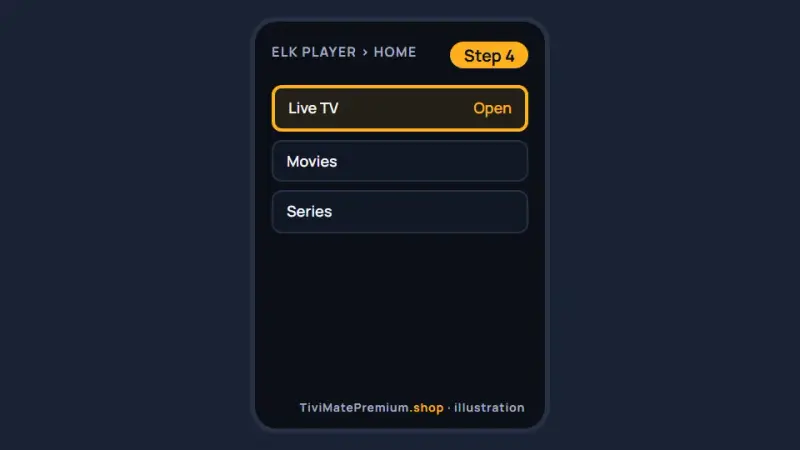
Reopen ELK Player and start watching (illustration)
Set up IPTV Smarters on Android phone
Free app, installed from the developer's official APK.
-
Step 1: Download the official APK
Open the link below in your phone's browser to download the official file from the developer.
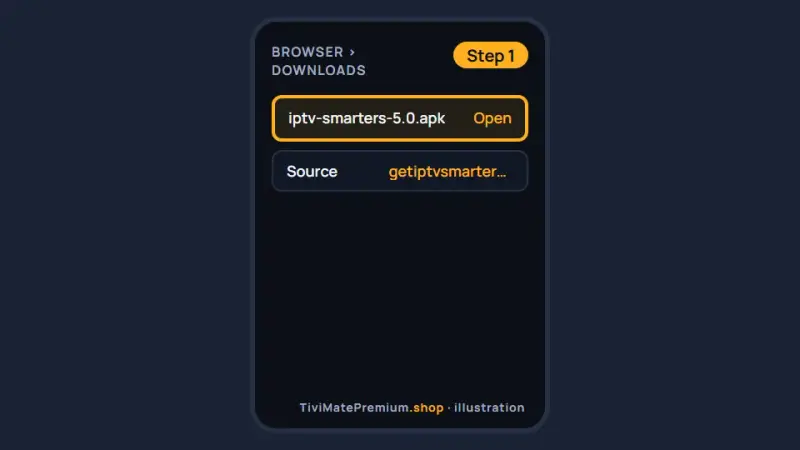
Download the IPTV Smarters APK from the official site (illustration) -
Step 2: Allow the install once
Tap the file. If Android asks, allow your browser to install apps for this one file, then tap Install.
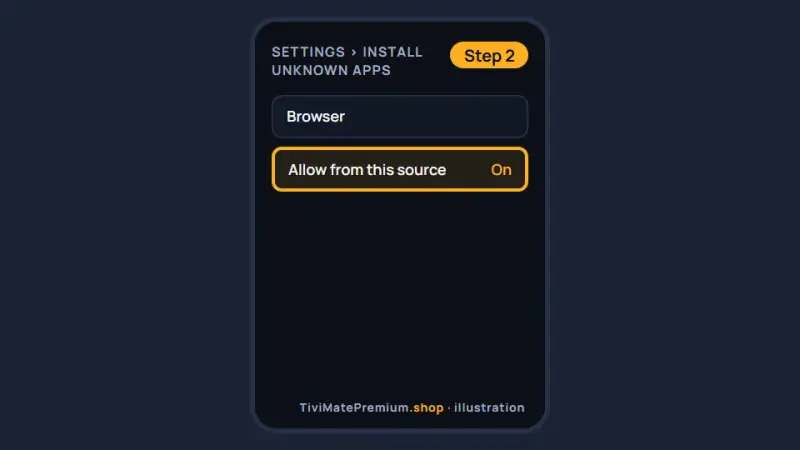
Allow the browser to install this one file (illustration) -
Step 3: Log in with Xtream Codes API
Open the app, choose Login with Xtream Codes API, enter any name, then the server URL, username and password from us, and tap Add user.
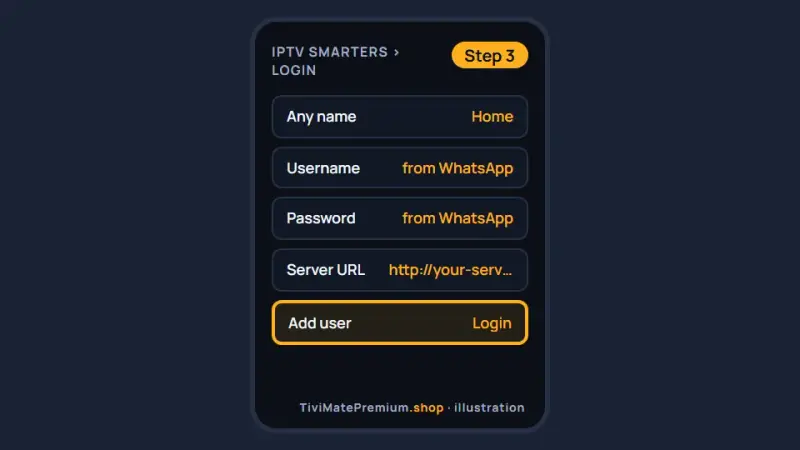
Log in to IPTV Smarters with your Xtream Codes details (illustration)
Which app should you pick for IPTV on Android phone?
On a phone, IPTV Smarters is usually the simplest: one login screen and a layout made for touch. TiviMate works well too, especially on a tablet, but its menus expect a remote and a big screen. IBO Player and ELK Player suit you if you would rather we activate the app, with each app's own fee per device paid to its developer. Your login works in all four, so you can switch at any time. Our comparison of the best IPTV player apps goes deeper.
Watch on your TV from your phone
Your phone can send the picture to a bigger screen. With a Chromecast, or a TV with Chromecast built in, start a channel and tap the cast icon in the player. Pick the TV, and the stream moves across while the phone acts as the remote. Both devices must be on the same Wi-Fi network.
No cast button? Use the Cast tile in Quick Settings to mirror the whole screen. A player installed on the TV itself still gives a steadier picture. For daily viewing, follow the Android TV and Google TV guide for your box.
Tip. Before you cast, check that the phone and the TV are on the same Wi-Fi network and plug the phone in for long evenings. If the picture stutters, lower the stream quality in the player settings from 4K to FHD or HD.
Troubleshooting IPTV on Android phone
The APK will not install
Android blocks files from a browser until you allow it once. When the prompt appears, open Settings, allow your browser to install unknown apps, go back and tap Install. Switch the permission off again afterwards, and only ever use the official IPTV Smarters link from this page.
Warning. Allow unknown apps only for the one official IPTV Smarters file, then switch the permission off again. APKs shared in forums or messaging groups can be modified copies, and a so-called TiviMate Premium APK is a cracked app that can carry malware.
The app closes as soon as it opens
Update Android System WebView and the player from Google Play, then restart the phone. Very old phones can struggle with current player versions, so check that you are on Android 5.0 or newer. If it still closes, clear the app cache in Settings, Apps.
Video stutters on mobile data
Mobile networks vary with location, time of day and signal strength. Switch to Wi-Fi when you can, or lower the stream quality in the player settings from 4K to FHD or HD. Turning off Data Saver for the player also helps.
The login is rejected
Most rejected logins come from a stray space or a mistyped character. Copy the server URL, username and password from our WhatsApp message and paste each one into its field. Check that the URL starts with http and includes the port number if our message shows one.
No sound on some channels
Open the audio menu while the channel plays and pick another audio track. If that does not help, switch the decoder between hardware and software in the player settings. Also check that the sound is not going to a Bluetooth headset you forgot about.
The battery drains quickly
Streaming video keeps the screen, the processor and the radio busy, so it always uses power. Lower the brightness, close apps running in the background and prefer Wi-Fi over mobile data. Battery saver mode can also lower the picture quality, and on a tablet you can simply plug in for long evenings.
Watching from the US, UK, Canada, France or Germany
The setup is identical in every one of these countries, because Android and Google Play behave the same everywhere. Our prices are in US dollars on every page, so convert them first if you compare us with a local provider quoting in CAD, GBP or EUR. After setup, set the TV guide time shift in the player to your own time zone so programs line up.
Need help? We'll set it up with you
Stuck on a step? Send us a WhatsApp message with your phone model and the app you chose, and we guide you to your first channel.
Message us, and we guide you all the way to your first channel.
Daily support, usually within the hour.
Android phone FAQ
Is TiviMate good for IPTV on Android phone?
It works, but it is designed for TV screens and a remote. On a phone, many people find IPTV Smarters easier, while TiviMate feels at home on a tablet. The same login works in both, so you can try each one and keep the app you like.
Can I watch on my phone and my TV at the same time?
Yes, if your plan covers two devices. A 1-device plan streams on one screen at a time, a 2-device plan on two and a 3-device plan on three. Phones, tablets and TV boxes all count the same way. Install a player on each device and add the same login from our WhatsApp message.
Does the setup work on Android tablets?
Yes. Tablets use exactly the same apps and steps as phones, and the larger display suits TiviMate and its TV guide very well. Turn the tablet sideways to give the guide more room, check that it runs Android 5.0 or newer, and keep it plugged in during long evenings of viewing.
Is the IPTV Smarters APK safe to install?
Use only the official link on this page, which downloads the developer's own file from getiptvsmarters.com. Never install a copy shared in a forum or a messaging group. When Android asks, allow your browser to install apps for that one file, then switch the permission off again once the install has finished.
How much data does IPTV on Android phone use?
An hour of HD video can use a few gigabytes, and 4K uses more. If your mobile plan has a cap, watch on Wi-Fi at home and lower the stream quality in the player when you are out. Switching from 4K to FHD or HD in the player settings saves the most data.
Your login is the last step. Choose your plan.
Plans from $4.16/mo · Billed once, no auto-renew · 7-day money-back