
TiviMate guides
By TiviMatePremium.shop · Updated 28 October 2026
These TiviMate guides take you from an empty app to a full TV guide: how to add a playlist with Xtream Codes or M3U, how to load and fix the EPG, which settings to check for smooth playback, and how catch-up and recording work. Each one uses plain steps and says clearly where TiviMate does not publish its menu names.
In short
- Start with the playlist guide, then the EPG guide: together they take about 10 minutes.
- The settings, catch-up and recording guides come next, once channels play.
- Two comparison pages help if you are choosing between TiviMate, IPTV Smarters and IBO Player.
| Guides | 4 app guides, 1 player roundup, 2 comparisons |
|---|---|
| First step | Add a playlist |
| Time to first channel | About 10 minutes |
| Works with | Android TV, Google TV and Fire OS devices |
| Login formats | Xtream Codes, M3U, Stalker Portal |
Every guide in this section
Each card below opens one guide. The four TiviMate guides cover the app itself, the player roundup compares the main IPTV apps, and the two comparison pages put TiviMate side by side with a rival. If TiviMate is not installed yet, begin with the IPTV setup guides for every device and come back here once the app opens. The full sitemap of the site lists every guide and page in one place.
- How to add a playlist in TiviMate Xtream Codes is the easiest format: three short fields, and the TV guide comes with it.
- TiviMate EPG: how to load and fix the TV guide With Xtream Codes, the TiviMate EPG arrives with the login; M3U may need a separate guide link.
- Best TiviMate settings for smooth IPTV Smooth playback depends on the connection first: Ethernet or 5 GHz Wi-Fi beats any setting in the app.
- TiviMate catch-up and recording explained Catch-up plays past programmes from the provider's archive; our plans include 7-day catch-up.
- Best IPTV player apps in 2026 TiviMate leads on a Firestick, Android TV, Google TV and Formuler, and the free version covers live TV.
- TiviMate vs IPTV Smarters On an Android TV box or a Fire TV on Fire OS, TiviMate is the stronger pick: recording, catch-up and Multiview are all on its official feature list.
- TiviMate vs IBO Player On Android TV, Google TV, SHIELD or a Fire TV on Fire OS, TiviMate is the stronger app: guide, catch-up and recording are on its feature list.
Start here: your first 10 minutes in TiviMate
Most people open TiviMate for the first time with a login in one hand and a remote in the other. Follow this order and you go from a blank screen to a working channel list and guide without backtracking.
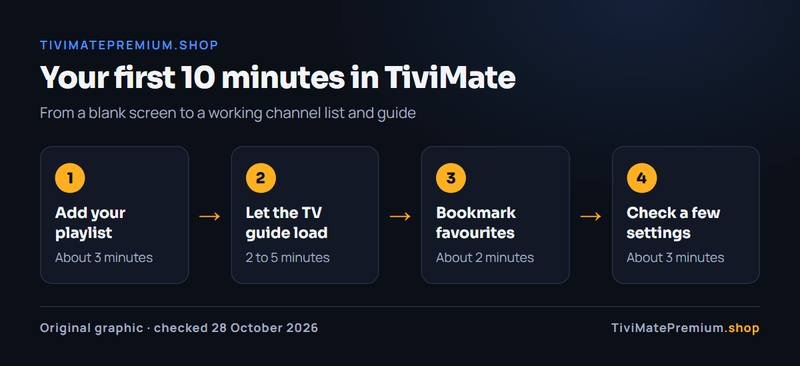
- Add your playlist (about 3 minutes). Choose Xtream Codes and type the server URL, username and password from your login message. Our guide to adding a playlist in TiviMate shows both Xtream Codes and M3U.
- Let the TV guide load (2 to 5 minutes). With an Xtream Codes login the programme data arrives on its own after the channels. If the grid stays empty or the times are off, the TiviMate EPG guide has the fixes.
- Bookmark your favourite channels (2 minutes). TiviMate lets you mark the channels you watch most so they sit together and open in one click. Start with five or six, then add more as you go.
- Check a few settings (3 minutes). Picture, guide layout and parental controls are worth a look on day one. Our page on the best TiviMate settings explains what to check first and what to leave alone.
Tip. Type the login on the TV with care: a space at the end of the password is the most common reason a first login fails. Copy it exactly as written in the message we send.
Which guide answers your question?
Not sure where to look? Find your situation in the left column. Every guide below opens with a short answer, so you can stop reading as soon as you have what you need.
| Your situation | Read this |
|---|---|
| TiviMate is installed but shows no channels | Add a playlist in TiviMate |
| Channels play but the guide says no information | TiviMate EPG: load and fix the guide |
| Programmes show at the wrong time | Set the guide time for your time zone |
| Picture stutters or the menus feel slow | Best TiviMate settings |
| You missed a show and want to watch it now | Catch-up and recording explained |
| You are choosing a player for a Samsung or LG TV | TiviMate vs IBO Player |
| You want to see every option before you pick | Best IPTV player apps |
Before you open TiviMate
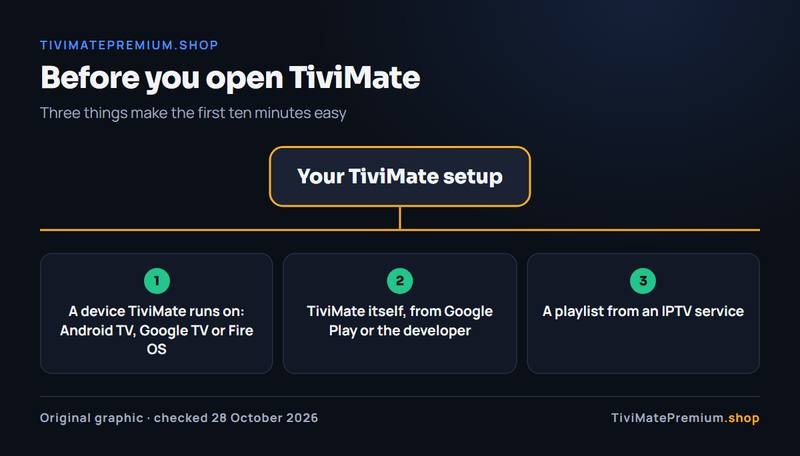
Three things make the first ten minutes easy. First, a device TiviMate runs on: its developer describes it as designed for Android TV and remote control navigation, so it fits Google TV, Android TV, NVIDIA SHIELD and Fire TV models that run Fire OS. On a Fire TV Stick, check the model first, because the Vega OS models cannot install it; the Firestick setup guide shows how to tell, and the Android TV and Google TV guide covers the rest.
Second, TiviMate itself, from Google Play or from the developer's own download. Third, a playlist. TiviMate is a media player only and comes with no channels, so you add a login from an IPTV service. Ours arrives on WhatsApp and by email within minutes of payment, and the IPTV plans for TiviMate start from $4.16/mo, billed once, no auto-renew.
On a Samsung or LG TV, TiviMate is not available, because those TVs run Tizen and webOS with their own app stores. Use another player there: the smart TV setup guide lists the options.
When a guide is not enough
Short fixes and device tips live on the TiviMate and IPTV blog, starting with buffering, the best Fire TV models and Multiview. If Premium features stop working after a device change, the page on TiviMate Premium not working walks through the usual causes.
Still stuck? Send us a message and we go through it with you, one step at a time. We offer daily support, usually within the hour.
Message us, and we guide you all the way to your first channel.
Daily support, usually within the hour.
TiviMate guides: common questions
Which TiviMate guide should I read first?
Start with how to add a playlist in TiviMate, because nothing else works until channels load. Then read the EPG guide so the programme grid fills in. Settings, catch-up and recording can wait until you have watched a few channels.
Do these guides work on a Fire TV Stick?
Yes, on Fire TV models that run Fire OS, such as the Fire TV Stick 4K Max. Models on Vega OS, such as the Fire TV Stick 4K Select, cannot install TiviMate, so check yours with the Firestick setup guide first.
Why do the guides not name every TiviMate menu?
The developer does not publish a manual or menu list, and menu names change between versions. We describe what to look for and name only labels we can confirm. When we confirm an exact label, we add it to the guide.
Do I need TiviMate Premium to follow these guides?
No. Every guide starts from the free app. Where a step may need Premium, the guide says so. Premium is sold only by its developer and includes no channels; your IPTV subscription supplies those. If you are deciding whether to upgrade, read what TiviMate Premium is first.
Can you help me if a guide does not match my screen?
Yes. Message us on WhatsApp with your device and what you see, and we guide you to your first channel. Tell us the step where you stopped, and we answer with a fix or a precise next step. We offer daily support, usually within the hour, in English or French.
Ready to fill TiviMate with channels?
Plans from $4.16/mo · Billed once, no auto-renew · 7-day money-back