
MAG box IPTV setup
By TiviMatePremium.shop · Updated 28 October 2026
MAG box IPTV setup uses a MAC address and a portal URL instead of a username and password. Find the MAC in System Settings or on the label under the box, send it to us on WhatsApp, enter the portal URL we return under Servers, Portals, then save and reboot. It takes about five minutes.
In short
- The box connects with a portal, not a login: its MAC address ties it to your plan.
- You send the MAC, we reply with a portal URL, and you type it once.
- TiviMate does not run on MAG boxes; the built-in portal has its own TV guide.
| Device | MAG set-top boxes |
|---|---|
| Time needed | About 5 minutes |
| Difficulty | Easy |
| Method | The built-in portal |
| What you need | The box's MAC address and a phone with WhatsApp |
Before you start
- The box connected to your TV and router, switched on. Ethernet is best.
- A stable connection: 25 Mbps or more for 4K.
- An active plan: your portal URL arrives on WhatsApp. No plan yet? See our IPTV plans for TiviMate; every plan works on these boxes too.
- About 10 minutes, and the remote within reach.
Everything below is a one-time setup. After that, you just switch on the box.
How MAG box IPTV setup works
A MAG box does not use a username and password the way an Android player does. It is a set-top box with a fixed identity, and that identity is its MAC address. A portal URL tells the box where to find the channels, and our server recognizes your box by its MAC. That is why the first step is always to send us the address.
The address has six pairs of characters and starts with 00:1A:79 on these boxes. It is printed on the label under the box and shown in System Settings, so you can read it from the couch. Once we register it, the portal loads your channels, the TV guide and on-demand menus on every start, with nothing else to install.
Tip. Before MAG box IPTV setup, photograph the label under the box while it is still easy to reach. The photo gives you the MAC address character for character, so you can send it to us without mistyping it.
MAG box IPTV setup in six steps
The portal is built into the firmware, so there is nothing to download. Follow the steps with the remote in hand.
Set up the built-in portal on MAG box
Built into the box's firmware. No app fee.
You send the MAC address, we register it and send your portal URL.
-
Step 1: Connect the box and switch it on
Your box connects with a MAC address and a portal URL, not a username and password. Plug it into the TV and the router, then switch it on.
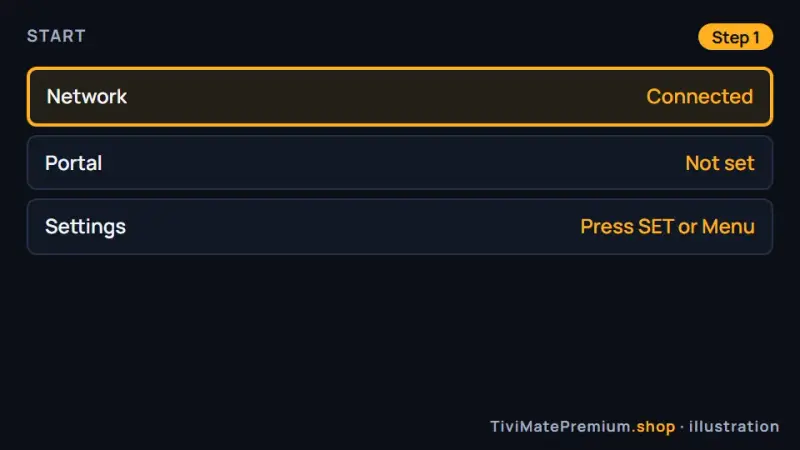
Step 1: the start screen on first power-on (illustration) -
Step 2: Find the MAC address
Open Settings, then System Settings, and look for the MAC address. It is also on the label under the box, in the form 00:1A:79:xx:xx:xx.
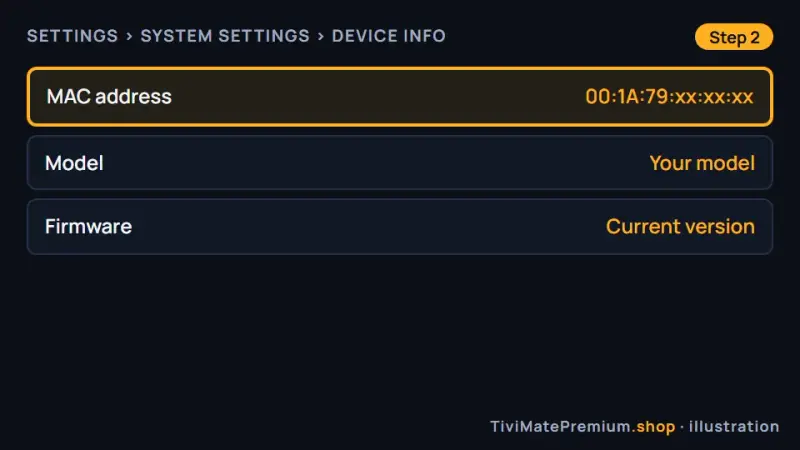
Step 2: the MAC address in System Settings (illustration) -
Step 3: Send the MAC to us
Message the MAC address to us on WhatsApp, or send a photo of the label. Check every character first.
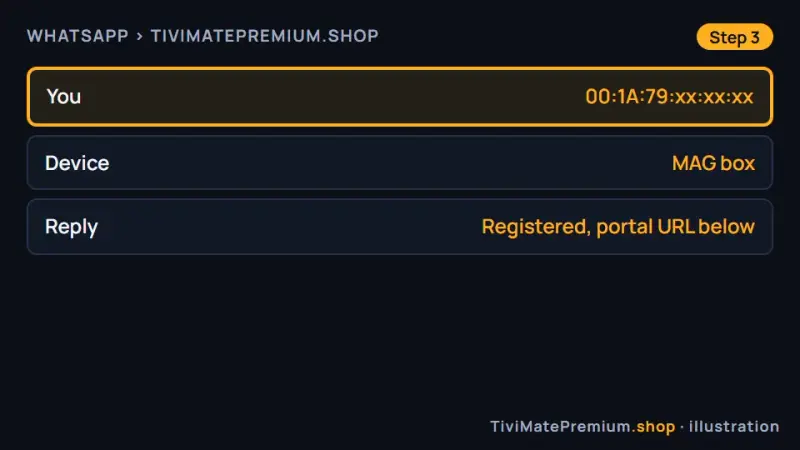
Step 3: the MAC address on WhatsApp (illustration) -
Step 4: Receive your portal URL
We register the box and reply with your portal URL. It looks like http://portal.example.com/c.
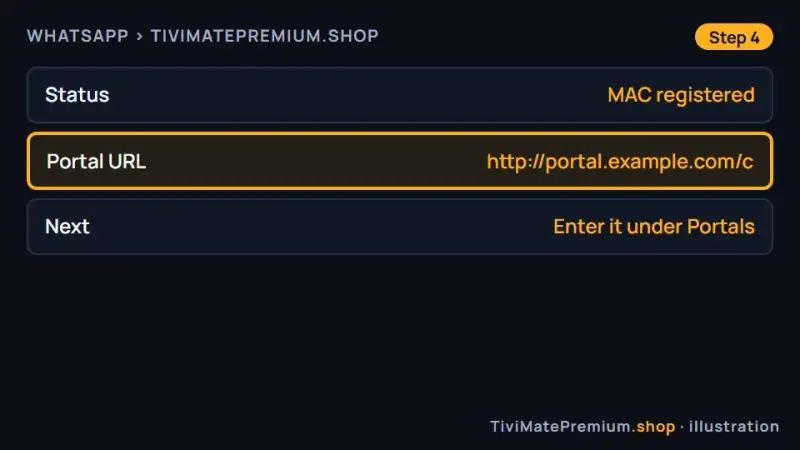
Step 4: your portal URL, ending in /c (illustration) -
Step 5: Enter the portal
Go to System Settings, Servers, Portals. Type any portal name, then the URL exactly as we sent it.
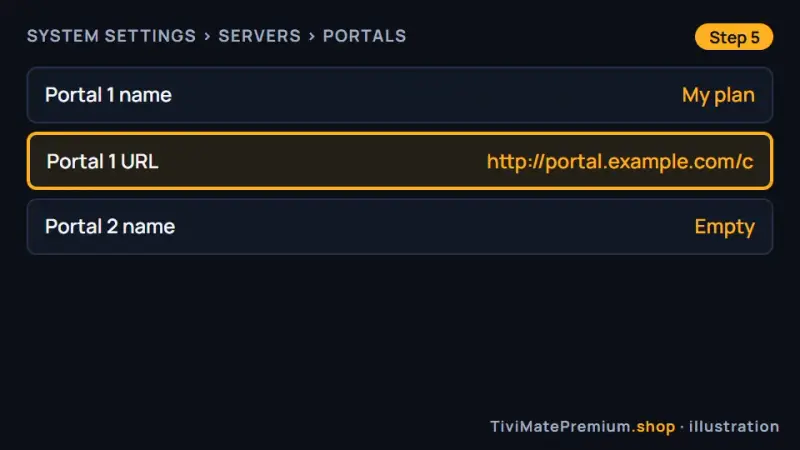
Step 5: portal name and URL under Servers, Portals (illustration) -
Step 6: Save and reboot
Press OK to save, go back and choose Reboot. The portal loads on start with your channels and guide.
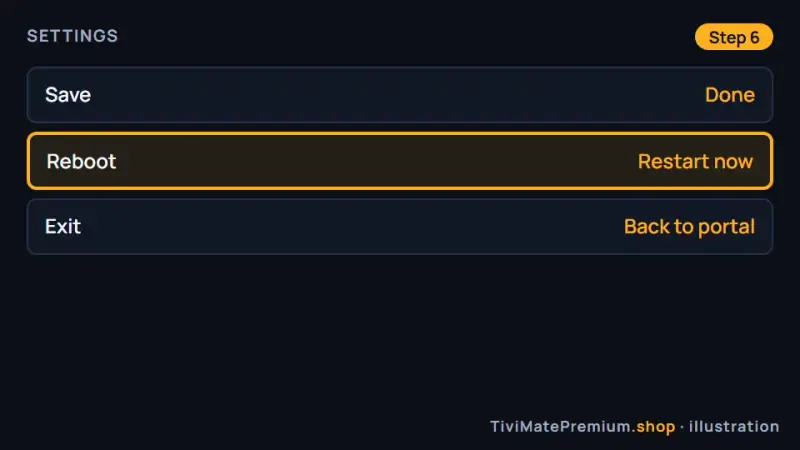
Step 6: save, then reboot to load the portal; MAG box IPTV setup done (illustration)
Which method should you pick?
There is only one method on this device: the built-in portal. It is part of the firmware, so there is nothing to install and no app fee. If you would rather use a different player, the box cannot install one. Our STB Emu guide shows how to get the same portal on an Android device, and the Formuler setup guide covers a box with both a portal and a full player.
MAG box troubleshooting
"STB is blocked"
This message means the box is not yet linked to your plan. Check that the MAC address you sent matches the one on the label, character for character. Wait for our confirmation on WhatsApp, then reboot the box from the power button or the menu. The message clears once the link is active.
"Portal not found"
The URL usually has a typo. Open Servers, Portals again and compare it with our message: it must start with http:// and end with /c. Check for a space at the end, save, then reboot. If the error stays, test the network from the settings menu, since the box may be offline.
I sent the wrong MAC address
It happens, often with a similar address read from the wrong device. Send us the correct one from the label under the box, or from System Settings. We move the link to the right address on our side, and you reboot. There is nothing to change on the box itself.
Channels load but the guide is empty
A new activation needs a few minutes to fill the program guide. Leave the box on, then reboot it once. If the guide stays empty after an hour, tell us on WhatsApp. Our TiviMate EPG guide explains how guide data reaches any player, including the portal.
Program times are wrong
The time zone is almost always the cause. Open System Settings, choose your own city under the time zone setting, then reboot. If times are still off by an hour, adjust the guide offset in the portal settings. The section below walks through it step by step.
The picture freezes
These boxes are designed around a wired connection. Use an Ethernet cable if you can, or move the box closer to the router. On Wi-Fi, choose the FHD or HD version of a channel instead of 4K. A steady speed matters more than a high one for smooth playback.
The box restarts by itself
A box that reboots on its own is usually short of power or overheating. Use the original power adapter, leave air on all sides and keep it away from the back of the TV. If it still restarts, update the firmware from the settings menu and reboot once more.
The remote does nothing in the portal
Replace the batteries first and point the remote straight at the box, not at the TV. If only some buttons fail, press Menu to leave the portal and enter it again. Unplugging the box for one minute resets the interface and usually brings the remote back.
Time zone and guide offset
If programs start at the wrong time, open System Settings, choose the time zone and select your own city. Then open the portal settings and move the guide offset one hour at a time until the schedule matches what is on air. Daylight saving changes can shift it twice a year; adjust the offset again when the clocks change. The setting stays stored in the box.
Moving to a new box
A replacement box has a new MAC address, so it needs to be linked to your plan again. Message us the new address and we move the link; the old box stops loading the portal, so there is nothing to cancel. Before a factory reset, write down the portal URL: a firmware update keeps the portal list in most cases, but a reset clears it.
Warning. A factory reset clears the portal list. Write down the portal URL before you reset the box, and keep your MAC address and portal URL private, because our server recognizes your box by that address.
Settings worth checking
The defaults suit most homes. After your MAG box IPTV setup, these few changes give a steadier picture and the right schedule.
- Use Ethernet where you can; the box is designed around a cable.
- Set the video output to match your TV, such as 1080p or 4K.
- Keep the firmware current with the update option in the settings menu.
- Choose your time zone before you judge the guide.
- Reboot the box once a month.
Setting up a second screen as well? Our setup guides for every device follow the same pattern, and your plan works on all of them.
Watching from the US, UK, Canada, France or Germany
MAG box IPTV setup is identical in all five countries: the firmware, the menus and the portal behave the same everywhere. Our prices are in US dollars, so convert them before you compare with a local provider quoting in CAD, GBP or EUR. Set the box's time zone to your own city so the guide shows local times.
Need help? We'll set it up with you
Send us a photo of the screen where you stopped, with your box's MAC address. We guide you on WhatsApp until the portal loads.
Message us, and we guide you all the way to your first channel.
Daily support, usually within the hour.
MAG box FAQ
Does TiviMate work on a MAG box?
No. TiviMate does not run on MAG boxes. Use the built-in portal, which gives you live channels, a TV guide and on-demand menus. For TiviMate itself, use a Fire TV Stick or an Android box. Your plan works there with a normal login, and on a 2-device plan the box and the stick can play at the same time.
Where do I find the MAC address?
On the label under the box, and in System Settings on screen. It is six pairs of characters starting with 00:1A:79. Send it to us exactly as shown. A phone photo of the label is the easiest way to avoid a mistyped character. If you send the wrong address, we move the link to the right one on our side.
Which models work?
The models use the same portal method, from older boxes to current ones. Menu names can differ slightly between firmware versions, but you always look for System Settings, then Servers, then Portals. If the menus look different on your box, send us a photo of the screen on WhatsApp and we point you to the right place.
Do I pay any app fee for MAG box IPTV setup?
No. The portal is built into the box, so there is no app to buy. You only pay for your plan with us, billed once, no auto-renew. Setup needs only the MAC address you send us and the portal URL we return, and the portal already includes live channels, a TV guide and on-demand menus.
Can I use the box and another device on one plan?
Yes, if your plan covers enough devices. The box counts as one device; a phone or second TV watching at the same time needs a 2-device or 3-device plan. The box is linked by its MAC address, while the other device uses a normal login. Choose when you compare plans and prices.
Your login is the last step. Choose your plan.
Plans from $4.16/mo · Billed once, no auto-renew · 7-day money-back