
IPTV on Windows and Mac: Apps and Setup
By TiviMatePremium.shop · Updated 28 October 2026
To watch IPTV on Windows and Mac, install IBO Player and send us the Device ID and Key, install IPTV Smarters and type the Xtream Codes login we send, or open the M3U link in VLC. Download only from the official links on this page. Setup takes about 5 minutes on a PC, laptop or Mac.
In short
- IBO Player and IPTV Smarters have official downloads for both Windows and macOS.
- VLC is free and plays the M3U link, but it has no TV guide.
- TiviMate does not run on Windows or Mac, so TiviMate Premium cannot be used on a computer.
| Device | Windows PC, Mac, laptops |
|---|---|
| Time needed | About 5 minutes |
| Difficulty | Easy |
| Apps covered | IBO Player, IPTV Smarters, VLC |
| What you need | Your login from WhatsApp |
Before you start
A computer is the quickest place to test your service, and these four things make it smooth.
- Your PC or Mac, with current system updates and permission to install apps.
- A stable connection: a cable is best, and 25 Mbps or more for 4K.
- Your login from WhatsApp: server URL, username, password and the M3U link. No login yet? Compare our IPTV plans for TiviMate and other players; the login arrives within minutes of your order.
- About 10 minutes, including the download.
Everything below is a one-time setup. After that, you just open the app. Guides for your TV and phone are in the setup guides hub.
Choose your app
Three players handle IPTV on Windows and Mac. We activate IBO Player; IPTV Smarters takes a typed login, and VLC plays the M3U link.
Set up IBO Player on Windows and Mac
Free for 7 days, then a yearly or lifetime licence per device, paid to its developer.
-
Step 1: Download IBO Player
Open the official downloads page, pick the Windows or Mac version and install it like any other app.
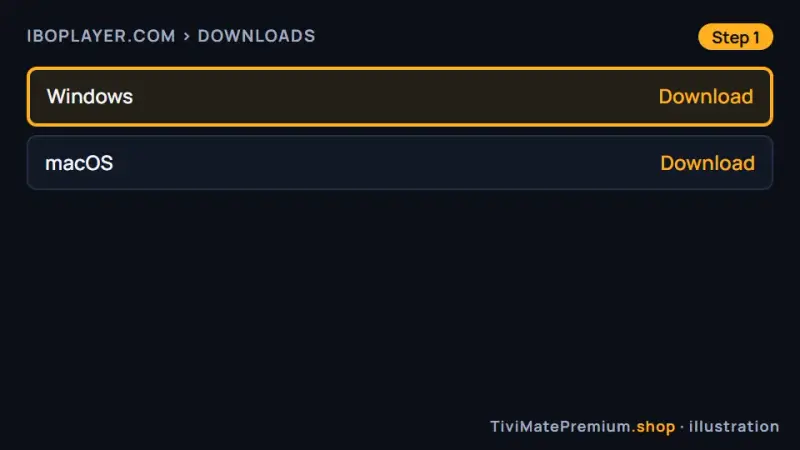
Download IBO Player for IPTV on Windows and Mac (illustration) -
Step 2: Note the Device ID and Key
Open the app. The first screen shows a Device ID and a Key. Take a screenshot (Windows+Shift+S on Windows, Command+Shift+4 on Mac).
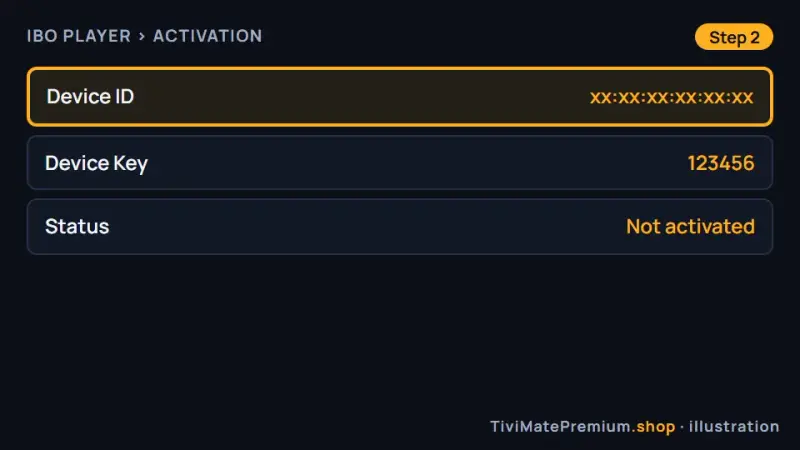
Screenshot the Device ID and Key shown by IBO Player (illustration) -
Step 3: Send it to us on WhatsApp
Send us the screenshot from WhatsApp on your phone or WhatsApp Web, and say it comes from IBO Player. We confirm, usually within minutes.
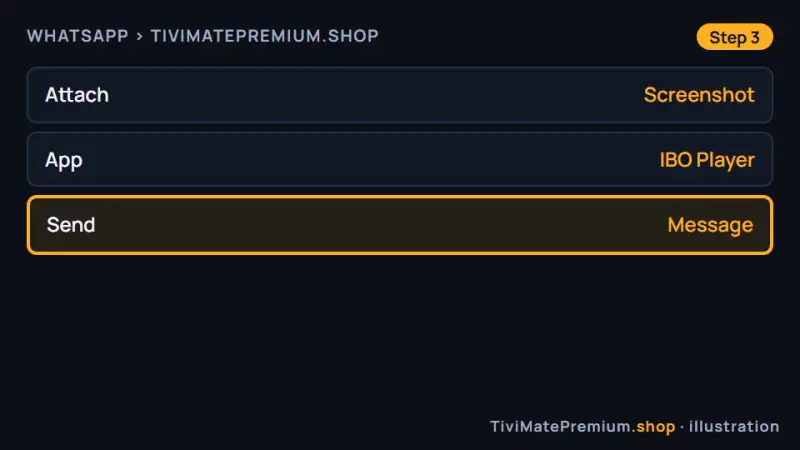
Send the Device ID and Key to us on WhatsApp (illustration) -
Step 4: Reopen the app and watch
Quit the app completely, open it again and your channels appear. If the list is empty, wait a minute and restart it.
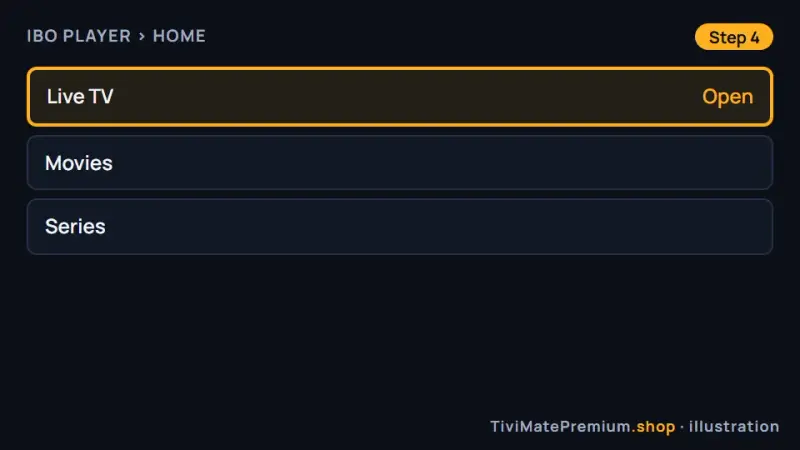
Reopen IBO Player and choose Live TV (illustration)
Set up IPTV Smarters on Windows and Mac
Free desktop app from the developer's official site.
-
Step 1: Download IPTV Smarters
Download the official installer for your system.
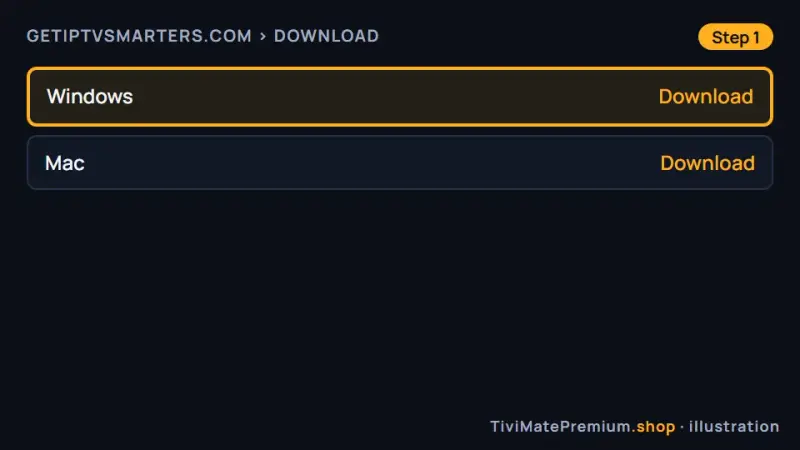
Download IPTV Smarters for Windows or Mac (illustration) -
Step 2: Install and open the app
Run the installer on Windows, or drag the app to Applications on a Mac, then open it. If your system warns you, see the troubleshooting section below.
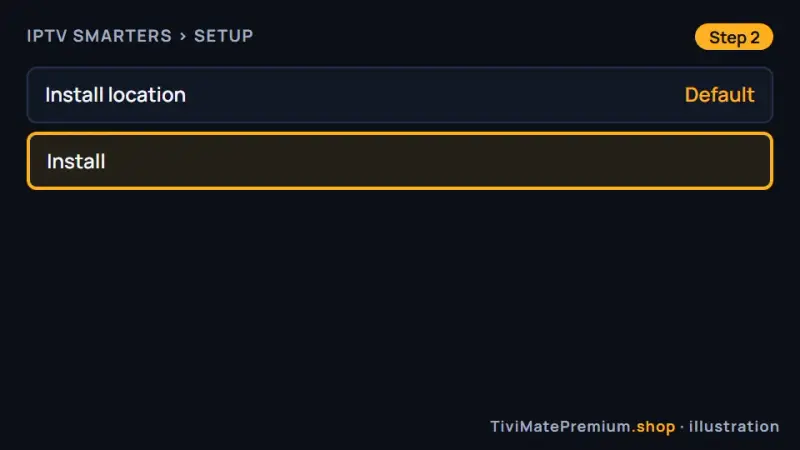
Install IPTV Smarters and open it (illustration) -
Step 3: Log in with Xtream Codes API
Choose Login with Xtream Codes API, enter any name, then the username, password and server URL from our message, and select Add user.
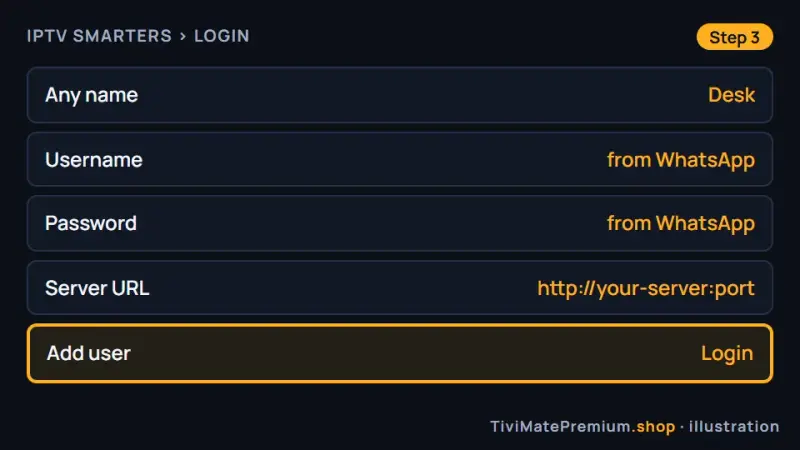
Log in to IPTV Smarters with your Xtream Codes details (illustration)
Set up VLC on Windows and Mac
Free and open source. Plays the M3U link, with no TV guide.
-
Step 1: Install VLC
Download VLC from the official VideoLAN site and install it.
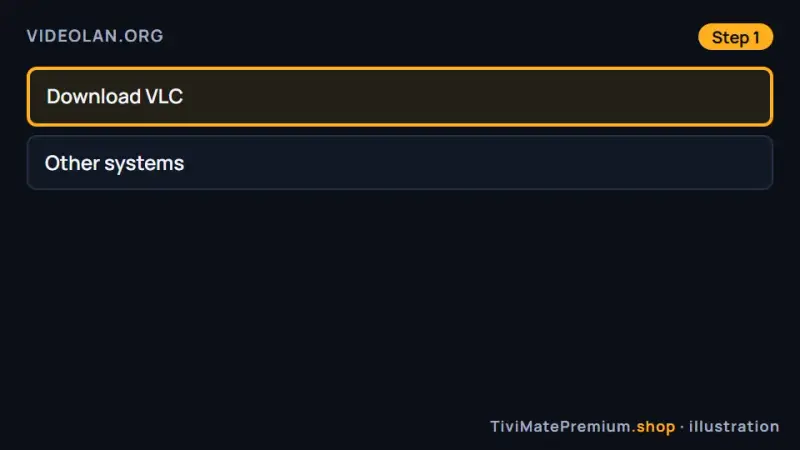
Install VLC from videolan.org (illustration) -
Step 2: Copy your M3U link
Copy the full M3U link from our WhatsApp message, from the first character to the last.
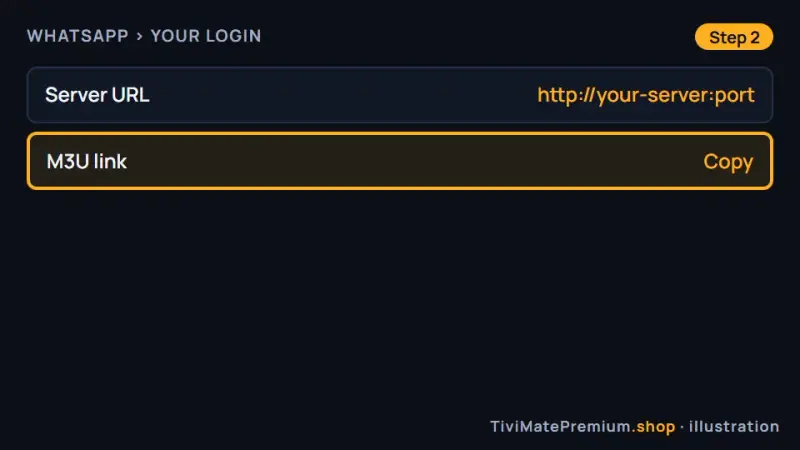
Copy the M3U link from our message (illustration) -
Step 3: Open the network stream
In VLC choose Media, Open Network Stream on Windows, or File, Open Network on a Mac. Paste the link and select Play.
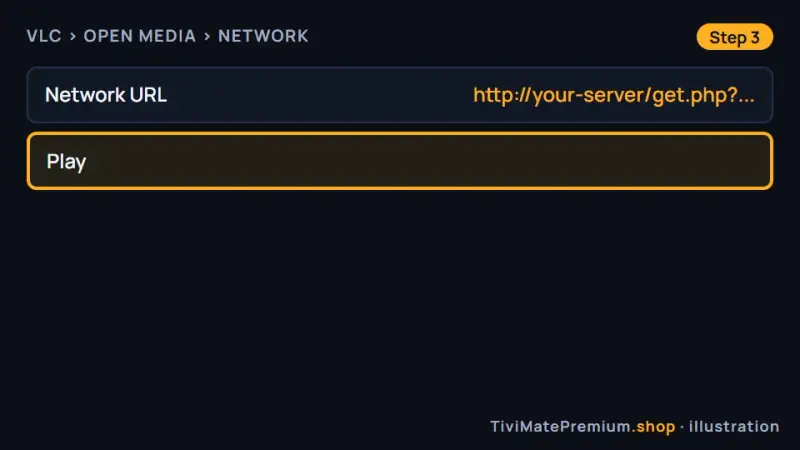
Paste the M3U link into VLC and press Play (illustration) -
Step 4: Pick a channel from the playlist
Open the playlist view to see every channel and double-click one. VLC has no TV guide, so you see channel names only.
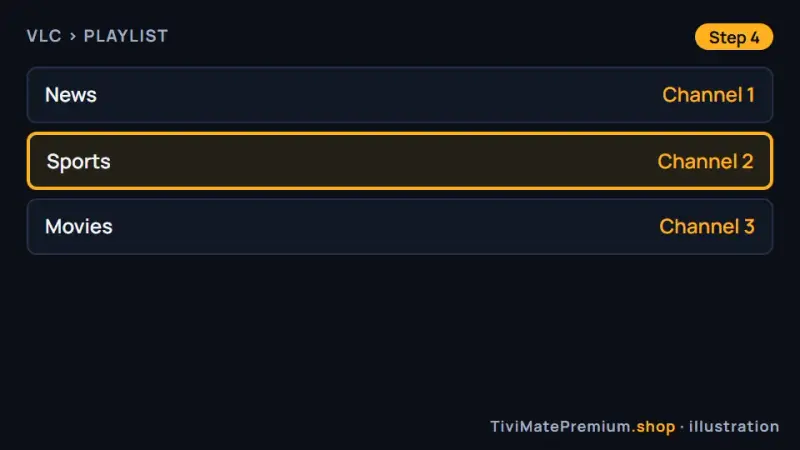
Choose a channel in the VLC playlist (illustration)
Which app should you pick for IPTV on Windows and Mac?
IBO Player gives the most complete experience on a computer, with a proper channel layout and a TV guide, and we activate it from your Device ID and Key. IPTV Smarters is free, has a guide too, and takes your typed login. VLC is free and quick, which makes it a good test tool, but without a guide it suits short viewing more than daily use. Our comparison of the best IPTV player apps covers each one in depth.
Tip. Test with VLC first: paste the M3U link and open one channel. If it plays smoothly, your connection and login are fine, and you can then set up IBO Player or IPTV Smarters for a TV guide and daily viewing.
VLC, desktop apps or the browser?
Desktop apps such as IBO Player and IPTV Smarters are the best choice for regular viewing: they show categories, a TV guide and movies and series in one place. VLC plays the M3U link reliably, but it does not build a program guide, so you get a long channel list and a working picture, nothing more. We say this plainly because a missing guide is the most common complaint about it.
The browser is the weakest option. Most streams do not play in a plain browser tab, and web players that ask for your login are third-party sites you would be trusting with it. Stick to an installed app from an official link.
Warning. Never type your login into a web player or an unofficial download site. Install apps only from the official links on this page, and allow a SmartScreen or macOS warning only for a file you downloaded from those links.
To watch on a big screen, connect a laptop to the TV by HDMI and move the player window across. For daily use, an app on the TV itself is easier: our Samsung and LG smart TV guide shows which players run there.
Troubleshooting IPTV on Windows and Mac
Windows blocks the installer
Microsoft Defender SmartScreen can warn about apps it sees less often. Make sure the file came from the official link on this page, then choose More info and Run anyway. If your antivirus quarantines it, restore the file only when you are certain of its source, and download again if in doubt.
macOS says the app cannot be opened
macOS blocks apps from developers it does not recognize. Try to open the app once, then go to System Settings, Privacy and Security, scroll down and choose Open Anyway next to the app name. Confirm with your password. Do this only for files from the official downloads.
VLC shows no channels
Check that the M3U link was pasted whole, because a missing character at the end breaks it. Open the network stream dialog again and paste the link fresh from WhatsApp. Then open the playlist view (Ctrl+L on Windows, Command+L on Mac) to see the channel list.
The picture stutters
Close heavy browser tabs and other apps, and use a cable rather than Wi-Fi when you can. Older laptops can struggle to decode 4K, so choose the FHD or HD version of a channel. In the player settings, switching hardware acceleration on or off can also help.
The login is rejected
A stray space or a mistyped character causes almost every rejected login. Copy the server URL, username and password from our WhatsApp message and paste each one into its field. Check that the URL starts with http and keeps the port number if our message includes one.
No sound in the player
Check the output device in your system sound settings, because a monitor or headset may have taken over. Then open the audio menu in the player and choose another audio track. In VLC, the Audio menu lets you pick both the track and the output device directly.
Watching from the US, UK, Canada, France or Germany
The setup is identical in all five countries, because Windows, macOS and the official downloads work the same way everywhere. Our prices are in US dollars on every page, so convert them first if you compare us with a local provider quoting in CAD, GBP or EUR. Once the app is running, set the TV guide time shift to your own time zone so the schedule matches.
Need help? We'll set it up with you
Tell us on WhatsApp whether you use Windows or a Mac and which app you picked, and we walk you to your first channel.
Message us, and we guide you all the way to your first channel.
Daily support, usually within the hour.
Windows and Mac FAQ
Does TiviMate work on Windows or Mac?
No. TiviMate is built for Android and has no Windows or macOS version, so TiviMate Premium cannot be used on a computer either. For IPTV on Windows and Mac, use IBO Player or IPTV Smarters, which accept the same login, or VLC for a quick test.
Is VLC good for IPTV?
VLC plays the M3U link reliably, but it has no TV guide, catch-up or movie library view. It is a good way to check that the service works on your connection, and less comfortable for daily viewing than a dedicated player.
Where do I download IPTV Smarters for Windows or Mac?
Use the official links in the IPTV Smarters tab on this page. They open the developer's own download, so avoid copies hosted on other sites or shared in forums. If Windows SmartScreen or macOS warns you, allow the app only when the file came from those links.
Do I pay for IBO Player on a computer?
IBO Player is free for 7 days, then the developer charges a yearly or lifetime licence per device. That fee is paid to its developer and is separate from your plan. Check the current amount on the official site before you pay.
Can I watch on my laptop and my TV at the same time?
Yes, within the number of devices in your plan. A 2-device plan streams on two screens at the same time, for example your laptop and a Fire TV Stick in the living room. Add the same login in a player on each screen. If you use IBO Player, send us the Device ID and Key from each device, because it is activated per device.
Your login is the last step. Choose your plan.
Plans from $4.16/mo · Billed once, no auto-renew · 7-day money-back