
STB Emu IPTV setup
By TiviMatePremium.shop · Updated 28 October 2026
STB Emu IPTV setup takes about ten minutes. STB Emulator is a free Android app that behaves like a MAG box on phones, Android TV and Fire TV. Add a profile, read the MAC address under STB Configuration, send it to us on WhatsApp, paste the portal URL we return and reload the portal.
In short
- The app copies a MAG box portal inside Android: a MAC address and a portal URL, no username.
- You send us the MAC from the app, and we send back your portal URL.
- The free version works fully; the Pro version removes ads and is paid to its developer.
| Device | Android phones, Android TV, Fire TV |
|---|---|
| Time needed | About 10 minutes |
| Difficulty | Medium |
| App | STB Emulator (free) or STBEmu Pro |
| What you need | The app's MAC address and a phone with WhatsApp |
Before you start
- An Android phone, Android TV, Google TV or Fire TV device, connected to your network.
- A stable connection: 25 Mbps or more for 4K.
- An active plan: your portal URL arrives on WhatsApp. No plan yet? See our IPTV plans for TiviMate; every plan works in this app too.
- About 10 minutes.
Everything below is a one-time setup. After that, you just open the app.
STB Emu IPTV setup in seven steps
The same steps work on an Android phone, Android TV and Fire TV. Only the install step differs.
Set up STB Emulator on Android, Android TV or Fire TV
Free with ads. The Pro version is paid and ad-free, paid to its developer.
You send the MAC address, we register it and send your portal URL.
-
Step 1: Install the app
On Android or Android TV, install it from Google Play. On a Fire TV device, sideload it with Downloader; the Firestick guide shows how to set Downloader up.
Set up Downloader on a Firestick
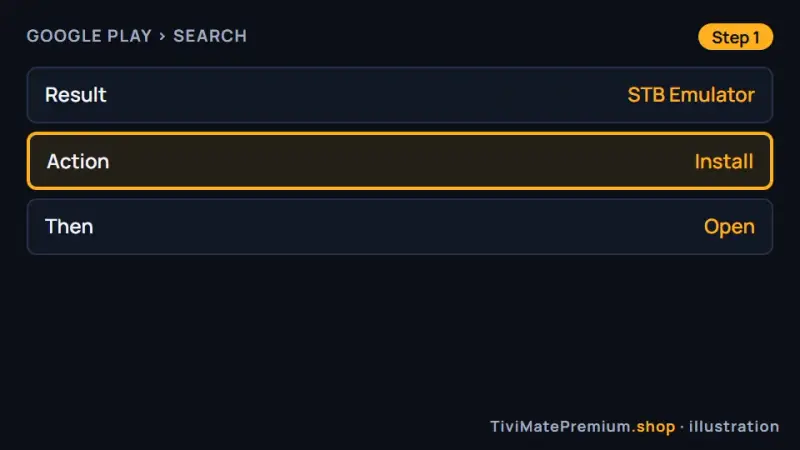
Step 1: installing the app from Google Play (illustration) -
Step 2: Add a profile
Open the app, press Menu or the settings icon, then Settings, Profiles, Add profile. Give it any name, such as My plan.
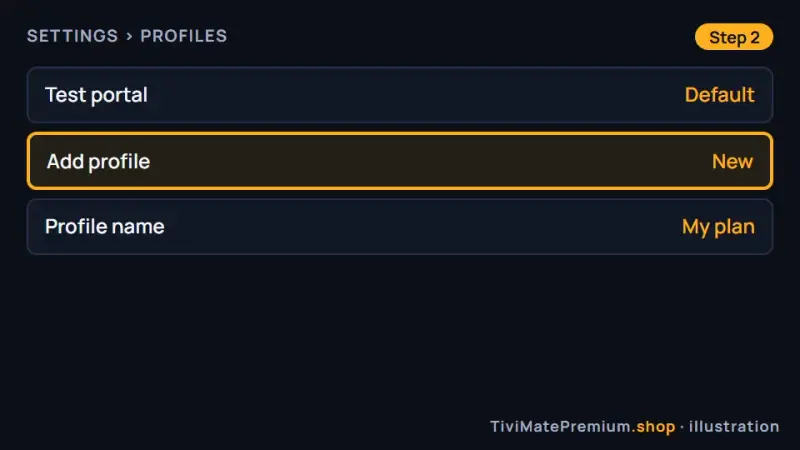
Step 2: Settings, Profiles, Add profile (illustration) -
Step 3: Note the MAC address
Open the new profile, then STB Configuration. Write down the MAC address or take a photo of it.
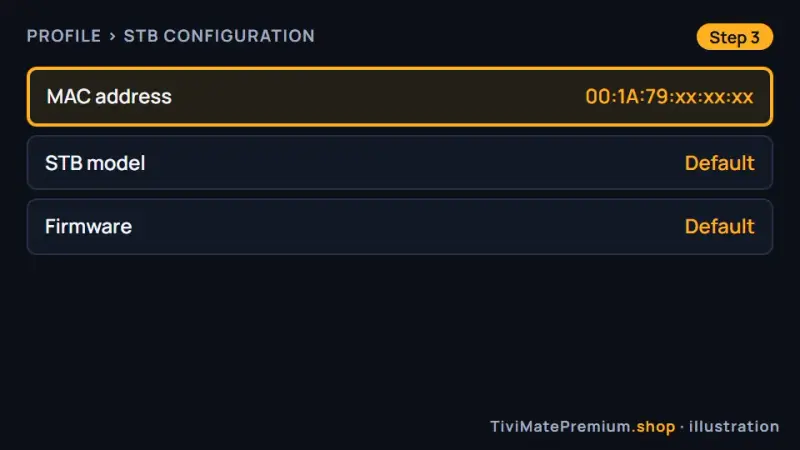
Step 3: the MAC address under STB Configuration, the key to STB Emu IPTV setup (illustration) -
Step 4: Send the MAC to us
Message the MAC address on WhatsApp, or send the photo. Check every character first.
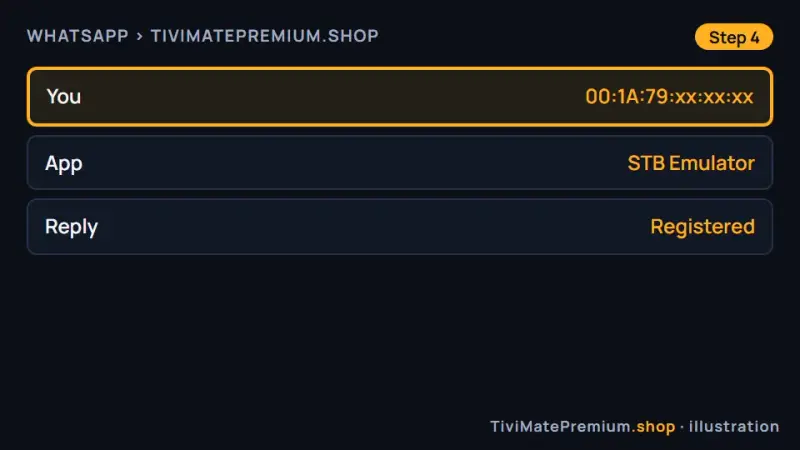
Step 4: the MAC address on WhatsApp (illustration) -
Step 5: Receive your portal URL
We register the MAC address and reply with your portal URL, in the form http://portal.example.com/c.
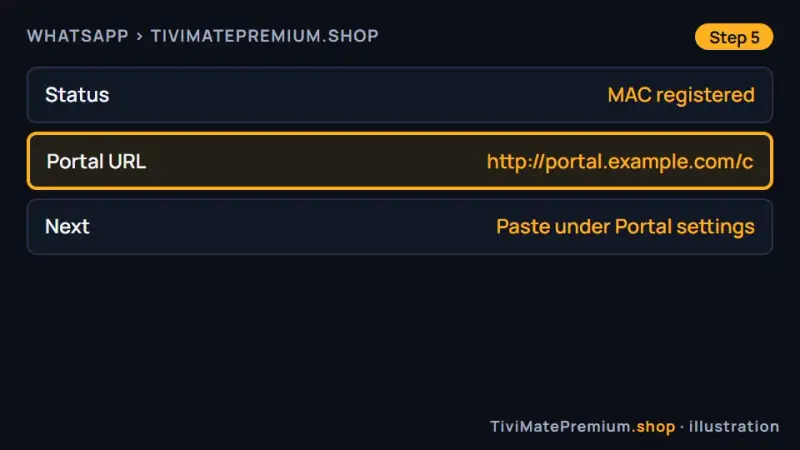
Step 5: your portal URL arrives on WhatsApp (illustration) -
Step 6: Paste the portal URL
In the profile, open Portal settings, select Portal URL and paste the address exactly as we sent it.
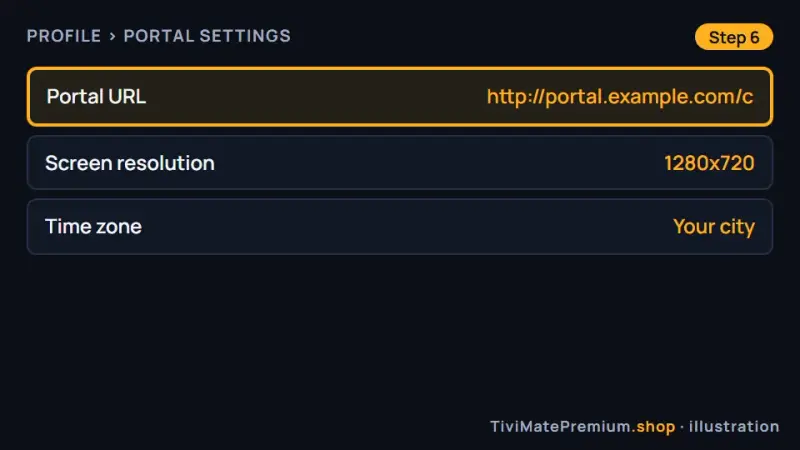
Step 6: the portal URL under Portal settings (illustration) -
Step 7: Save and reload
Save, go back to the main screen and select Reload portal. Your channels and guide load.
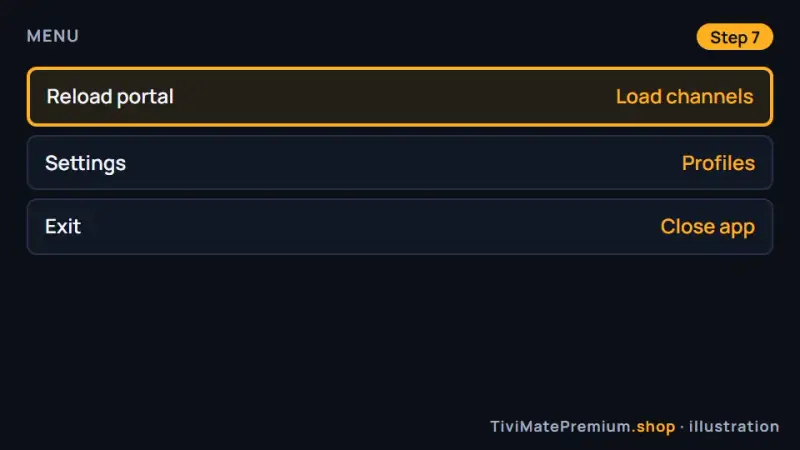
Step 7: Reload portal to load your channels (illustration)
Which app should you pick?
Start with the free STB Emulator. It does everything in this guide, including the TV guide and on-demand menus, but shows ads. STBEmu Pro is the same app without ads, sold in the store and paid to its developer, not to us. Try the free version first and upgrade only if the ads bother you. Your plan with us works the same in both.
Warning. Do not install the emulator from codes or files shared in forums or video comments, because they can open modified copies. If you are unsure which file to use on a Fire TV device, message us on WhatsApp before you install anything.
What STB Emu is, and when to use it
The app imitates a MAG set-top box. It lets an Android device use the same portal a physical box uses, with a MAC address and a portal URL instead of a username and password. People choose it for two reasons: they like the portal-style layout, or they already use a MAG box and want the same menus on a second screen.
It is not our first recommendation. On the same devices, TiviMate is easier to set up and has a clearer TV guide. The emulator is the right pick if you specifically want the portal look. If you own a real box, our MAG box guide covers it, and the Android TV setup guide shows the TiviMate route on Google TV and SHIELD.
Troubleshooting
The portal is not reachable
Check the portal URL for typos against our message: it must start with http:// and end with /c. Confirm that the device is online by opening any other app. Then save the profile, go back and select Reload portal. If it still fails, send us a screenshot of the portal settings.
The MAC address looks different from before
Each profile has its own MAC address, and a reinstall can create a new one. If you made a new profile, either go back to the old one or send us the new address on WhatsApp. We move the link to it, and you reload the portal.
Channels do not appear
We must register the MAC address before the portal loads. Wait for our confirmation on WhatsApp, then open the profile and select Reload portal. If the screen still says the portal is loading after a minute, close the app fully and open it again.
Ads keep covering the screen
That is the free version. Close the ad and carry on watching. If the ads bother you, STBEmu Pro removes them; buy it in the store from its developer. Your profile settings and MAC address can be entered again in the Pro version the same way.
The picture buffers
Open the app's settings and try the hardware decoder first, then the software decoder if the video stutters. Choose the FHD or HD version of a channel on Wi-Fi. A cable or a 5 GHz connection helps most on Android TV boxes and Fire TV devices.
The guide is empty or the times are wrong
Set the correct time zone in the profile settings, then reload the portal. A new activation needs a few minutes to fill the guide. Our TiviMate EPG guide explains how guide data reaches a player, which helps if times stay off by an hour.
STB Emu IPTV setup on more than one device
Every device you use creates its own profile with its own MAC address. If you watch on a phone and on a TV, send us both addresses and we link them. Each one counts toward the devices in your plan, so a 2-device plan lets both play at once. If you reinstall the app, the profile may get a new MAC address: back it up first, or send us the new one afterwards.
Back up your profile
A profile holds your portal URL and settings. Export it to a file from the app's settings and keep the file safe. After a reinstall or on a new device, import it and you are back in seconds. Without a backup you re-enter the portal URL by hand, and a changed MAC address means one more message to us.
Tip. Export the profile right after the portal loads for the first time, and keep a copy of the file off the device, for example in your email. A reinstall then restores your portal URL and settings without typing them again.
Settings worth changing
Most options can stay at their defaults. These few decide whether a channel starts quickly, plays smoothly and shows the right times in the guide.
- Use the hardware decoder first, and switch to the software decoder only if the video stutters.
- Set the time zone in the profile to your own city.
- Match the screen resolution in Portal settings to your TV, for example 1920x1080 on a Full HD set.
- Close other apps on phones and low-memory TV boxes before you watch.
- Export a profile backup after any change you want to keep.
Watching from the US, UK, Canada, France or Germany
STB Emu IPTV setup is identical in all five countries, because Android, Google Play and the app behave the same everywhere. Our prices are in US dollars, so convert them before you compare with a local provider quoting in CAD, GBP or EUR. Set the profile's time zone to your own city so the guide shows local times.
Need help? We'll set it up with you
Stuck at any point of your STB Emu IPTV setup? Send us a screenshot and your device type, and we guide you on WhatsApp until the portal loads. All our setup guides for every device are in one place, and the best IPTV player apps compares other players.
Message us, and we guide you all the way to your first channel.
Daily support, usually within the hour.
STB Emu FAQ
Is STB Emu the same as a MAG box?
It behaves like one. The app copies the portal system of a MAG box inside Android, using a MAC address and a portal URL we provide, so the menus look much the same. It runs on Android phones, Android TV, Google TV and Fire TV devices, so you get the portal layout without buying a separate box.
Does it work on Fire TV?
Yes. Sideload the app with Downloader, then follow the same steps as on Android TV: add a profile, send us the MAC address and paste the portal URL. The Firestick guide shows how to set Downloader up, and a cable or a 5 GHz connection helps most on Fire TV devices.
Do I need STBEmu Pro?
No. The free version works for everything in this guide. Pro removes the ads and is paid to its developer, separate from your plan with us. Try the free version first and upgrade only if the ads bother you; your profile settings and MAC address can be entered again in Pro the same way.
Which is better after STB Emu IPTV setup: the emulator or TiviMate?
TiviMate is easier and has a clearer guide on Android and Fire TV, and it runs on the same devices. Keep the emulator if you specifically want the MAG portal layout. You can keep both apps installed on one device, and your plan works in each, so try TiviMate before you decide.
Can I use the app on two devices?
Yes. Each device has its own profile and MAC address; send us both. Each counts as one device on your plan, so choose a 2-device plan when you compare plans and prices. If you reinstall the app, the profile may get a new MAC address, so back it up first.
Your login is the last step. Choose your plan.
Plans from $4.16/mo · Billed once, no auto-renew · 7-day money-back