
IPTV on Roku: 3 methods that work
By TiviMatePremium.shop · Updated 28 October 2026
IPTV on Roku works best by casting from your phone, because the platform is closed and has very few IPTV apps. Install Web Video Caster on the phone and its free receiver on the TV, paste the M3U link we send and cast. AirPlay from an iPhone and a Channel Store player are the two backup methods.
In short
- Casting from your phone with Web Video Caster is the most reliable route.
- AirPlay from an iPhone works on Roku 4K models.
- For a full TV guide and recording, a Fire TV Stick or Android box is the better device.
| Device | Express, Streaming Stick, Ultra and Roku TV models |
|---|---|
| Time needed | About 10 minutes |
| Difficulty | Medium |
| Methods covered | Web Video Caster, AirPlay, Channel Store player |
| What you need | A phone on the same Wi-Fi and your M3U link |
Before you start
- Your Roku connected to the TV, with your phone on the same Wi-Fi network.
- A stable connection: 25 Mbps or more for 4K.
- Your login from WhatsApp, including the M3U link. No login yet? See our IPTV plans for TiviMate; the same plan works for every method here.
- About 10 minutes.
Everything below is a one-time setup. After that, you just open the app.
What to know about IPTV on Roku first
The platform is closed. It does not allow sideloading, and its Channel Store has very few players that accept an M3U link or an Xtream Codes login. Those that exist come and go, so we do not send you after an app name that may be gone next month.
That is why casting from your phone is the most reliable route to IPTV on Roku: the phone does the work and the TV only shows the picture. It works on every model and does not depend on the store. The honest limit is that you get channels without a full TV guide or recording. If you want those, a Fire TV Stick or an Android box on another HDMI input gives you the complete experience.
Three methods for IPTV on Roku
Pick a tab. Method A is the one we recommend; B and C depend on your model and on the store.
Set up Web Video Caster on Roku
Free to install on your phone, with a free receiver on the TV. Check the store listing for any paid extras.
Method A, recommended: works on every model.
-
Step 1: Install Web Video Caster on your phone
Download Web Video Caster from the App Store or Google Play and open it once.
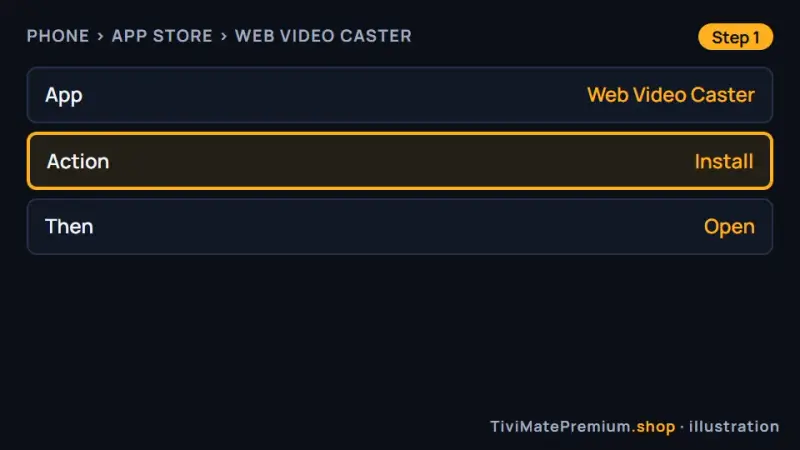
Step 1: Web Video Caster on your phone, the start of IPTV on Roku (illustration) -
Step 2: Add the receiver on the Roku
On the TV, open the Channel Store, search for Web Video Caster Receiver and select Add channel.
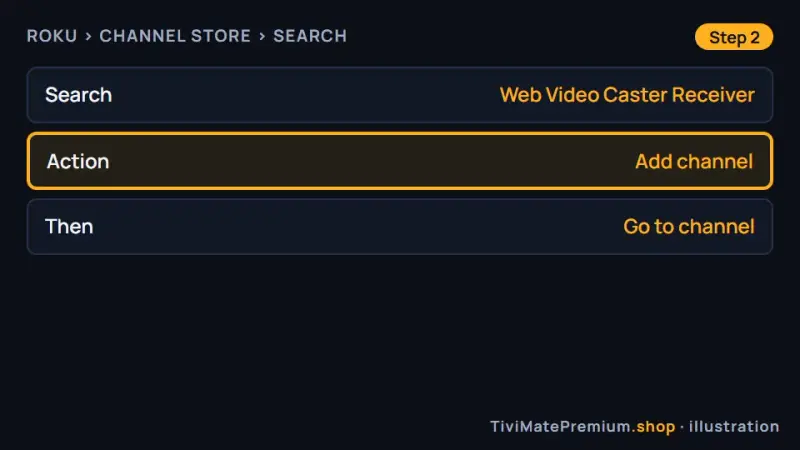
Step 2: the free receiver in the Roku Channel Store (illustration) -
Step 3: Add your playlist
In the phone app, open the menu, choose IPTV, then Add playlist, and paste the M3U link we sent you.
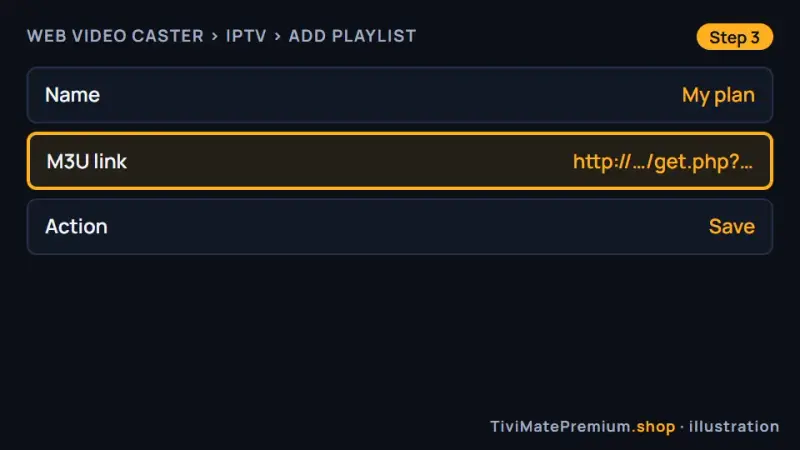
Step 3: paste the M3U link under IPTV, Add playlist (illustration) -
Step 4: Cast and play
Tap the cast icon, choose your Roku, then pick a channel. Keep the phone app open while you watch.
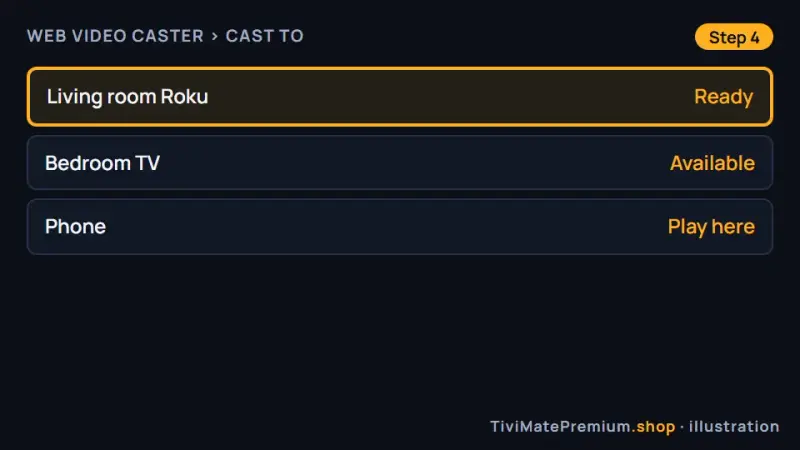
Step 4: pick the TV from the cast list (illustration)
Set up AirPlay from iPhone on Roku
Built into the iPhone and Roku 4K models. Needs an IPTV app on the iPhone.
Method B: 4K models only.
-
Step 1: Check your model and AirPlay
On a 4K model, open Settings › Apple AirPlay and HomeKit › AirPlay and set it to On. Keep both devices on the same Wi-Fi.
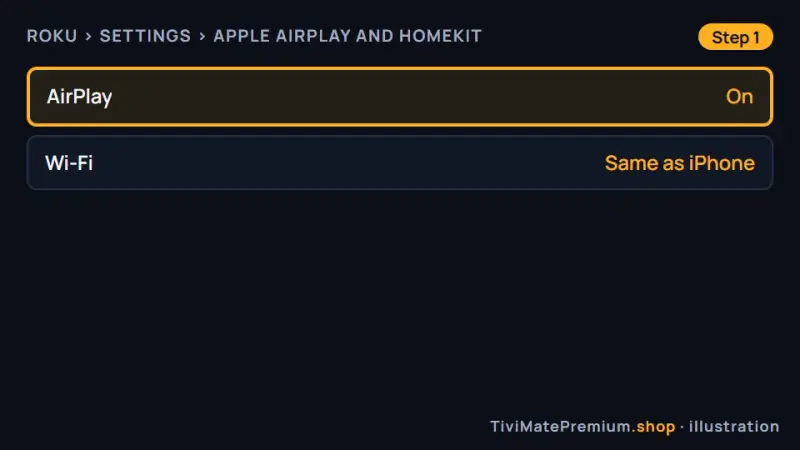
Step 1: AirPlay switched on in the TV settings (illustration) -
Step 2: Play a channel on the iPhone
Open an IPTV app on the iPhone, sign in with the login we sent and start a channel.
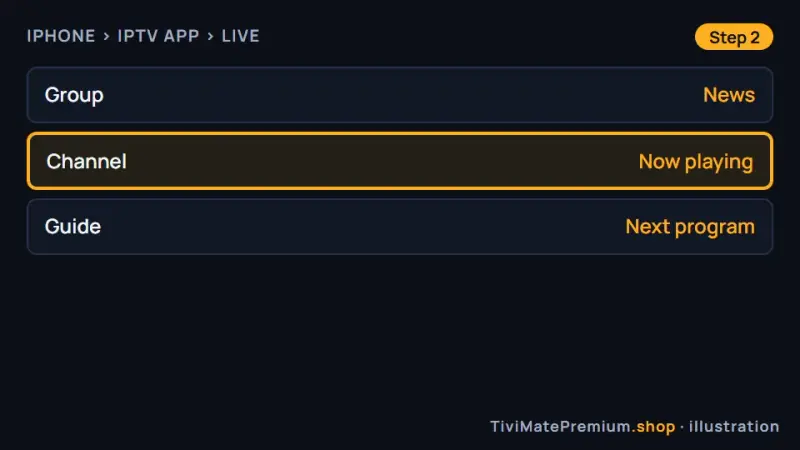
Step 2: start playback in an iPhone app (illustration) -
Step 3: Mirror to the Roku
Open Control Center, tap Screen Mirroring and choose your Roku. Enter the code the TV shows the first time.
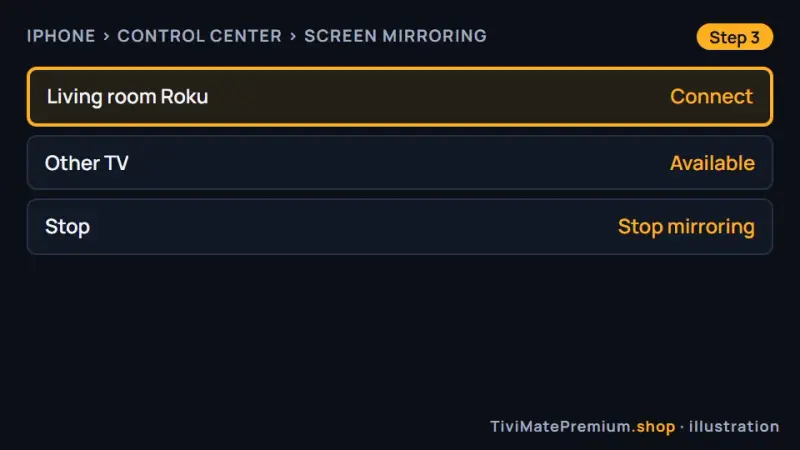
Step 3: Screen Mirroring from Control Center (illustration)
Set up Channel Store player on Roku
Availability and price change often: check the listing in the Channel Store before you add one.
Method C: only if you find a player you trust.
-
Step 1: Search the Channel Store
Open the Channel Store and search for an M3U or IPTV player. Read the listing before you add it.
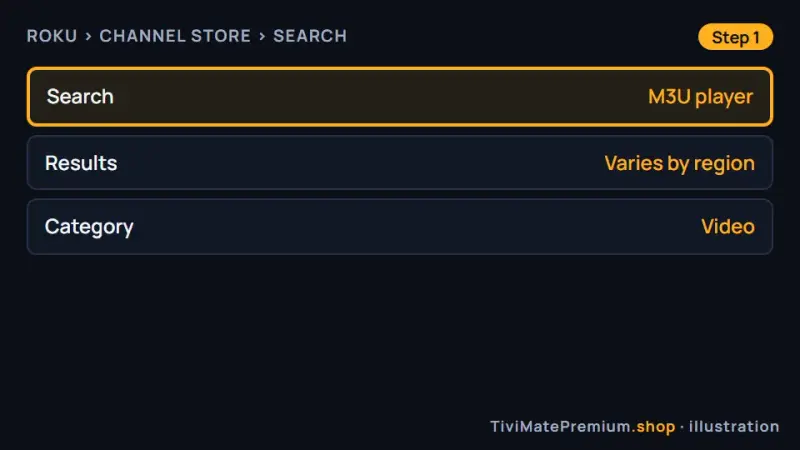
Step 1: searching the Channel Store for a player (illustration) -
Step 2: Add your login
Open the player and add the M3U link, or the Xtream Codes server, username and password we sent.
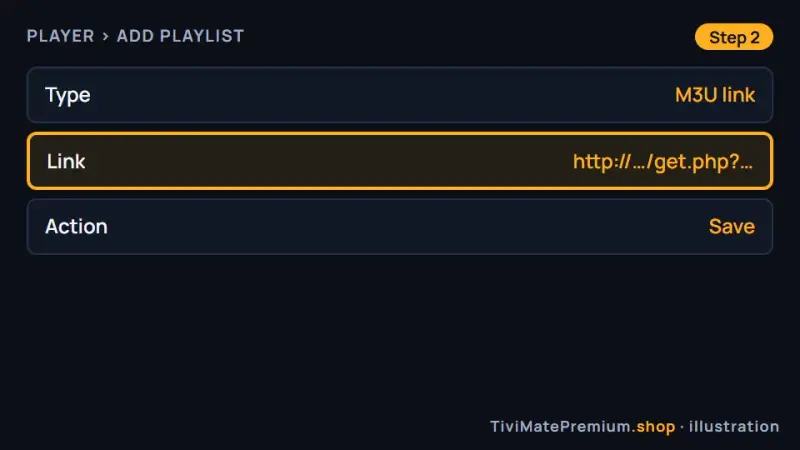
Step 2: add the M3U link or the Xtream Codes login (illustration) -
Step 3: Load the list and watch
Wait for the channel list to load, then open a channel.
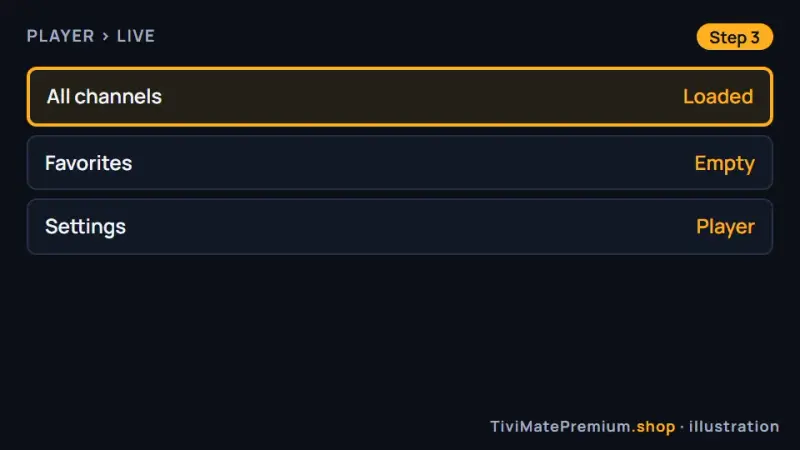
Step 3: the channel list in a Channel Store player (illustration)
Which method should you pick?
Start with Web Video Caster. It works on every model, it is the most reliable of the three and it does not depend on the store. Choose AirPlay if you own an iPhone and a Roku 4K model and already use an IPTV app on the phone; our iPhone and iPad guide shows which ones. Use a Channel Store player only if you find one you trust, because the list changes often.
Warning. Read a Channel Store player's listing before you add it, and skip any app that asks you to pay before your M3U link has loaded. These players come and go, so an app named in an old video may already be gone.
Make casting work every time
A few habits remove most casting problems with IPTV on Roku.
- Give the device a clear name in its Settings, so it is easy to pick from the cast list.
- Keep both devices on the same Wi-Fi band, ideally 5 GHz.
- Update the receiver app when the Channel Store offers a new version.
- Turn off battery saving for Web Video Caster on your phone.
- Power the stick from a wall outlet, not the TV's USB port, if it reboots on its own.
Tip. Paste the M3U link straight from our WhatsApp message on the phone you cast from, with no space at the end. If the playlist still fails to load, send us a screenshot and we test the link from our side.
Troubleshooting
My TV does not appear when I cast
The phone and the TV must be on the same Wi-Fi network, and on many routers also on the same band. Check that Web Video Caster Receiver is installed on the TV, open it once, then tap the cast button again. A restart of both devices fixes most cases.
The stream stops when I lock my phone
With casting, the phone app stays in charge of the stream. Keep the app open while you watch, and switch off battery saving or background limits for it in your phone settings. Plugging the phone in to charge also stops it from closing apps.
The video stutters or freezes
Casting adds a second wireless link, so a weak signal shows quickly. Move the router and the stick closer, switch to 5 GHz and choose a lower quality version of the channel. If your TV has an Ethernet port, a cable helps more than anything else.
AirPlay is not offered
AirPlay needs a Roku 4K model with recent software. Update the device in Settings, System, System update, then check Settings › Apple AirPlay and HomeKit › AirPlay: it must read On. Restart the Roku and the iPhone and try again.
The playlist will not load
Copy the M3U link again from our message and paste it whole, with no space at the end. If the phone app still reports an error, send us a screenshot on WhatsApp and we test the link from our side.
There is no TV guide
Casting sends the video only, so the guide stays on the phone. That is a limit of IPTV on Roku, not of your plan. For a full guide on the TV, a dedicated player is needed; our TiviMate EPG guide shows what you gain.
Watching from the US, UK, Canada, France or Germany
The steps for IPTV on Roku are identical in all five countries, because the device software and the phone apps behave the same everywhere. Our prices are in US dollars, so convert them before you compare with a local provider quoting in CAD, GBP or EUR. If a phone app shows a guide, set its time shift to your own time zone.
When a Fire TV Stick is the better choice
If you watch every day, a separate stick on another HDMI input is worth its small cost. It gives you a player built for a remote, a full TV guide, favorites and, with TiviMate Premium, recording. Casting is a good way to start, but it ties up your phone.
Many households keep both and switch input for live TV. Our Firestick guide takes about ten minutes, and the Samsung and LG smart TV guide covers TVs with built-in stores. The best IPTV player apps compares the players, and all setup guides are in one place.
Need help? We'll set it up with you
Tell us your model and the method you tried. We guide you on WhatsApp until the first channel plays.
Message us, and we guide you all the way to your first channel.
Daily support, usually within the hour.
Roku FAQ
Does TiviMate work on Roku?
No. TiviMate is an Android app and is not available on Roku. Cast from a phone, mirror from an iPhone with AirPlay, or plug in a Fire TV Stick or Android box if you want TiviMate itself. Those devices give you a full TV guide, favorites and quicker menus.
What is the best way to get IPTV on Roku?
Casting from your phone with Web Video Caster. It works on every model and does not depend on the Channel Store. You paste the M3U link we send into the phone app and cast. That is the most reliable route to IPTV on Roku, but the TV guide stays on the phone.
Can I see a TV guide on Roku?
Casting shows the channels without the full guide of a dedicated player. Casting sends the video only, so the guide stays in the phone app while the picture plays on the TV. That is a limit of the platform, not of your plan. For a complete guide and recording, use TiviMate on a Fire TV Stick or Android box.
Do I pay for Web Video Caster?
It is free to install on your phone, and the receiver on the TV is free too: search the Channel Store for Web Video Caster Receiver and select Add channel. Check the store listing for any paid extras. Any fee goes to its developer and is separate from your plan with us.
How many devices does casting use on my plan?
Casting uses one stream from your phone, so it counts as one device. Keep the phone app open while you watch, because it stays in charge of the stream. If someone else watches on another screen at the same time, choose a 2-device or 3-device plan when you compare plans and prices.
Your login is the last step. Choose your plan.
Plans from $4.16/mo · Billed once, no auto-renew · 7-day money-back